Articles & Groups
Article Groups
Articles are organized in a hierarchical group structure. The groups determine: - The sorting at the POS - The assignment to printers (e.g. food → kitchen printer) - The article group analysis in reports - The inheritance of price rules and print settings
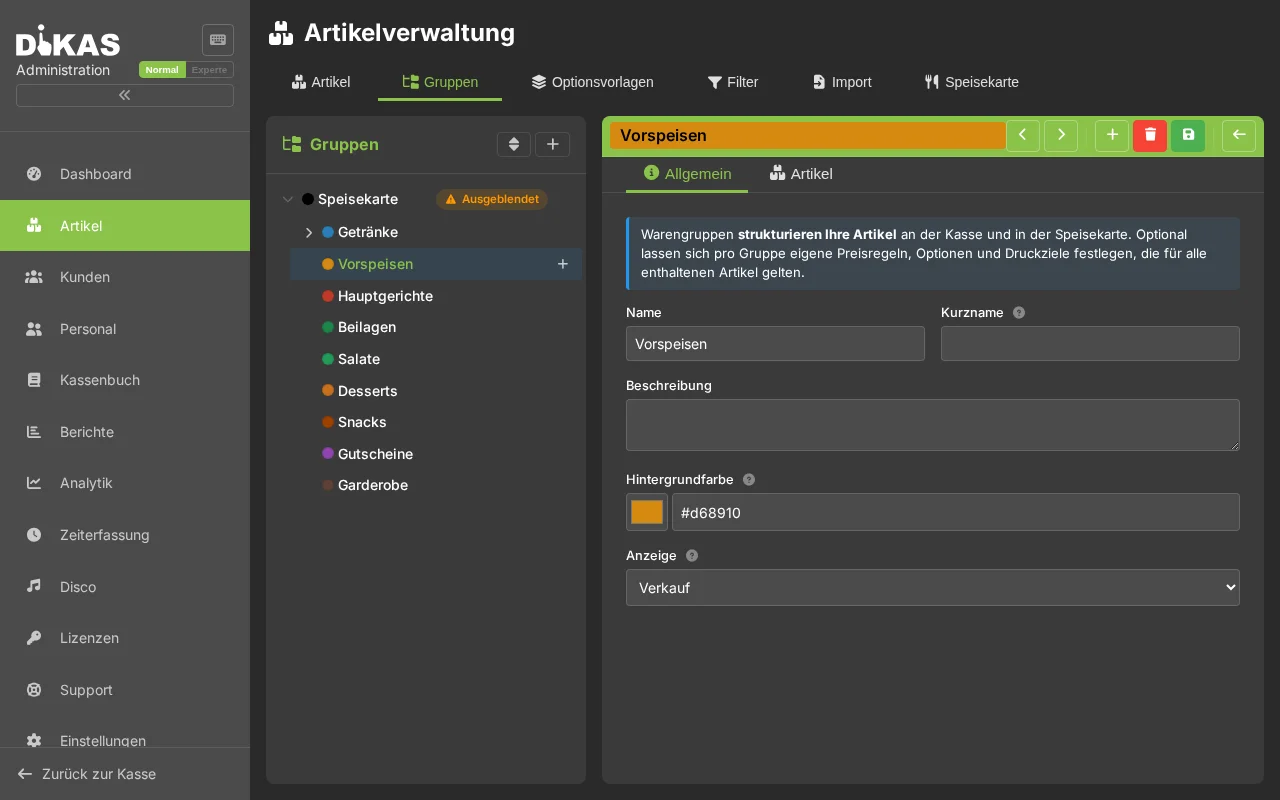
Creating a Group
- Admin → Articles → Tab "Groups"
- Click "+ New Group"
- Fill in:
| Field | Description | Example |
|---|---|---|
| Name | Group name | Beverages |
| Group No. | Sort order (ascending) | 100 |
| Parent Group | For subgroups | — (Main group) |
| Color | Background color at the POS | Blue |
Group Hierarchy
Groups can be nested to any depth:
100 Getränke
  10001 Alkoholfrei
    1000101 Wasser
    1000102 Softdrinks
    1000103 Säfte
  10002 Bier
  10003 Wein
200 Speisen
  20001 Vorspeisen
  20002 Hauptgerichte
  20003 Desserts
300 Verschiedenes
Inheritance: Print settings and price rules are inherited along the hierarchy — from the parent group down to the article. More specific settings override more general ones.
Changing the Group Structure
- Order: Change the group number
- Create subgroup: Select a parent group
- Delete group: Only possible if no articles are assigned
Extra Articles (tab in the group)
Independent articles from other groups that are additionally displayed in this group (e.g. side dishes or drinks right next to the main courses):
- The article appears in its home group and in the group it is assigned to as an extra article
- When booked via this group, the price rules of this group apply
- Receipt printing still follows the article's home group
Managing Articles
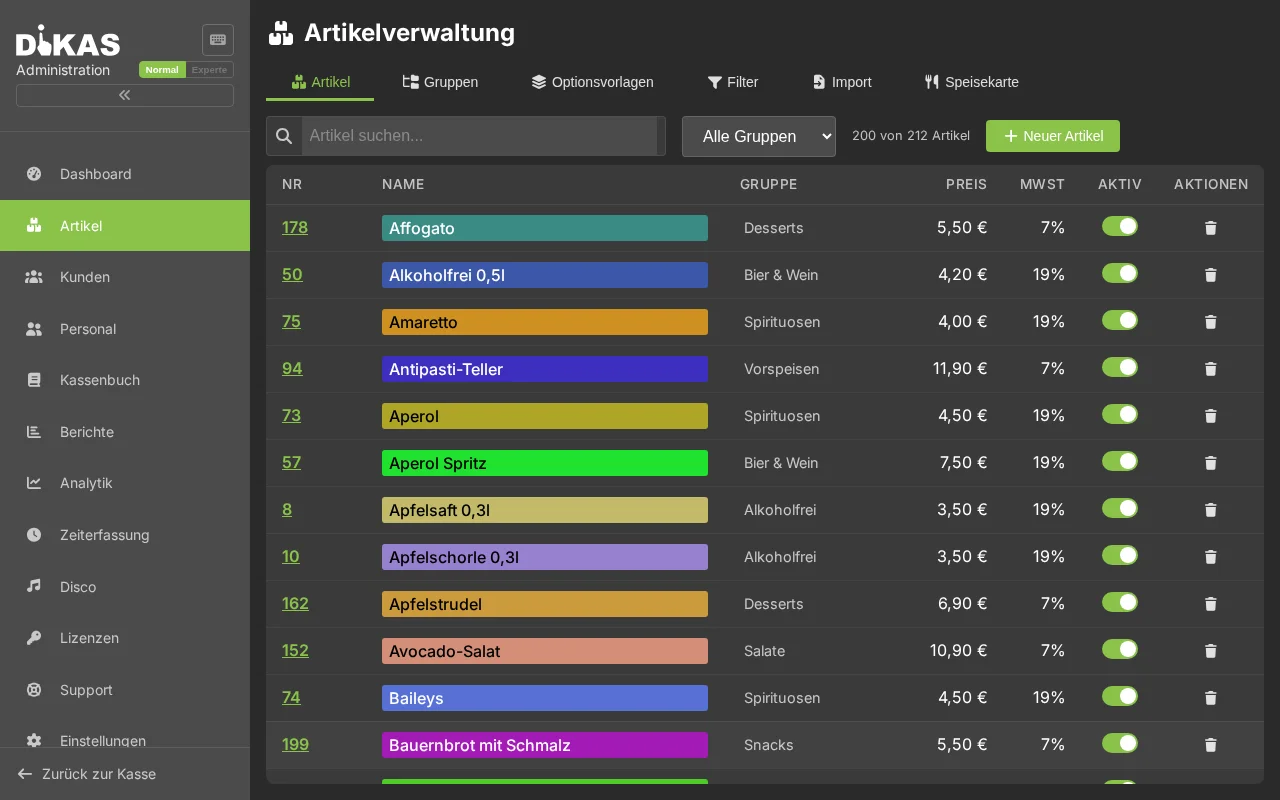
Creating an Article
- Admin → Articles → Select group → "+ New Article"
- Fill in the "General" tab:
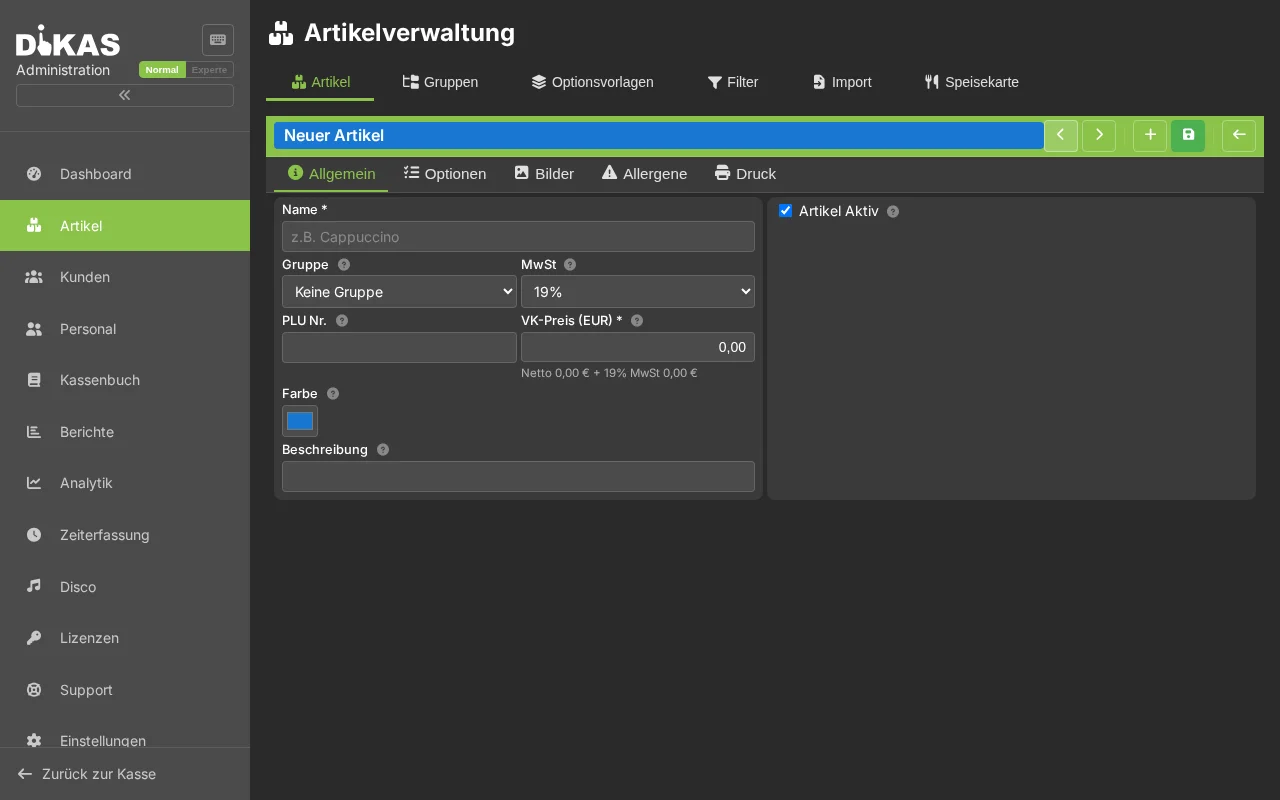
Required Fields:
| Field | Description |
|---|---|
| Name | Article name (appears on receipt and at the POS) |
| Price | Selling price in euros |
| Tax Class | 19% (standard), 7% (reduced), 0% (tax-free) |
| Group | Assigned article group |
Optional Fields:
| Field | Description |
|---|---|
| Article Number | Unique number for reports and export |
| Barcode | EAN code for barcode scanner |
| Reduced Tax Class | Alternative VAT rate (historical, currently not needed) |
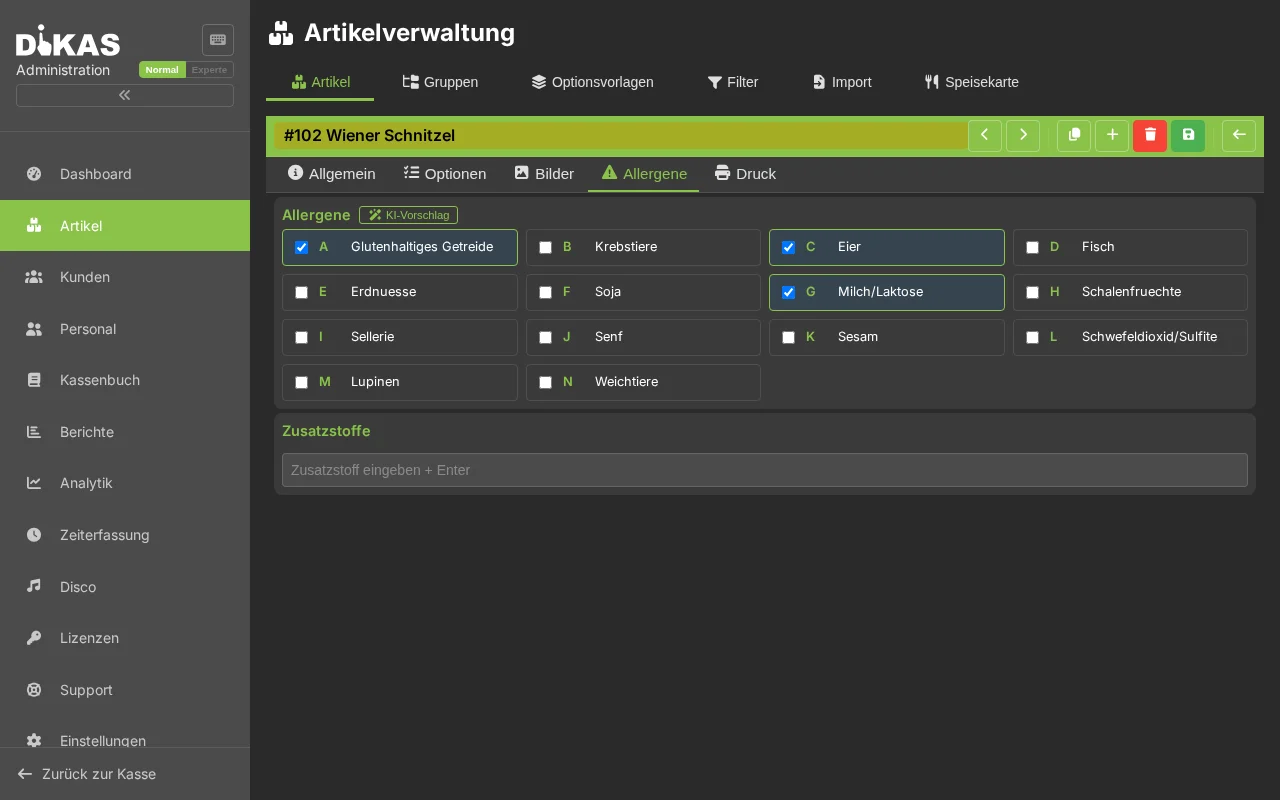
| Allergens | EU-14 allergen labeling |
| Is Active | Inactive articles do not appear at the POS |
| Points | Loyalty points per unit (positive = earn, negative = redeem) |
| Deposit | Deposit amount per unit (e.g. 0.25 EUR) |
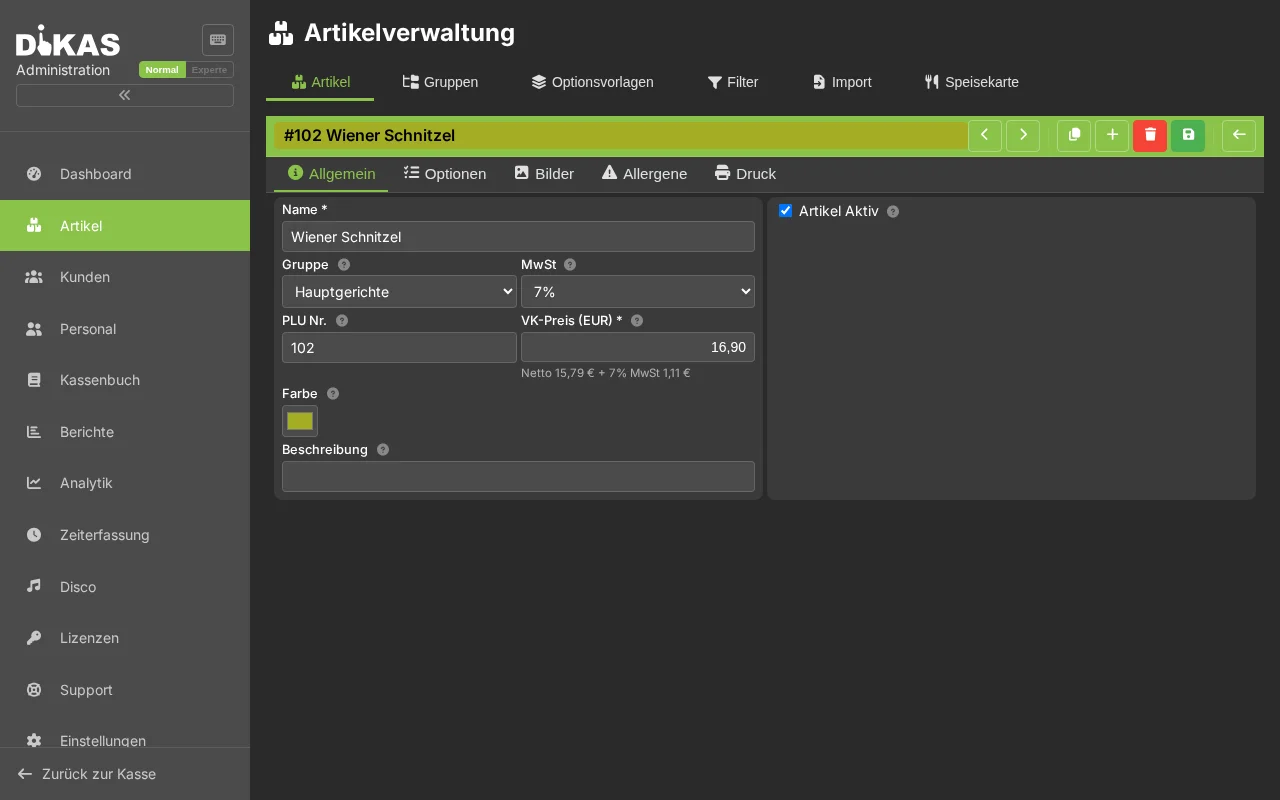
💡 Beginner-friendly editor: The Name is at the very top. Below the sales price, net + VAT is shown instantly so you can see what the gross price contains. The Normal/Expert toggle (top right) hides or reveals rarely needed fields (deposit, barcode, course, receipt texts, special type …) and the Price rules/History tabs. Help icons (?) explain every field; if the name is missing, the message appears right at the field.
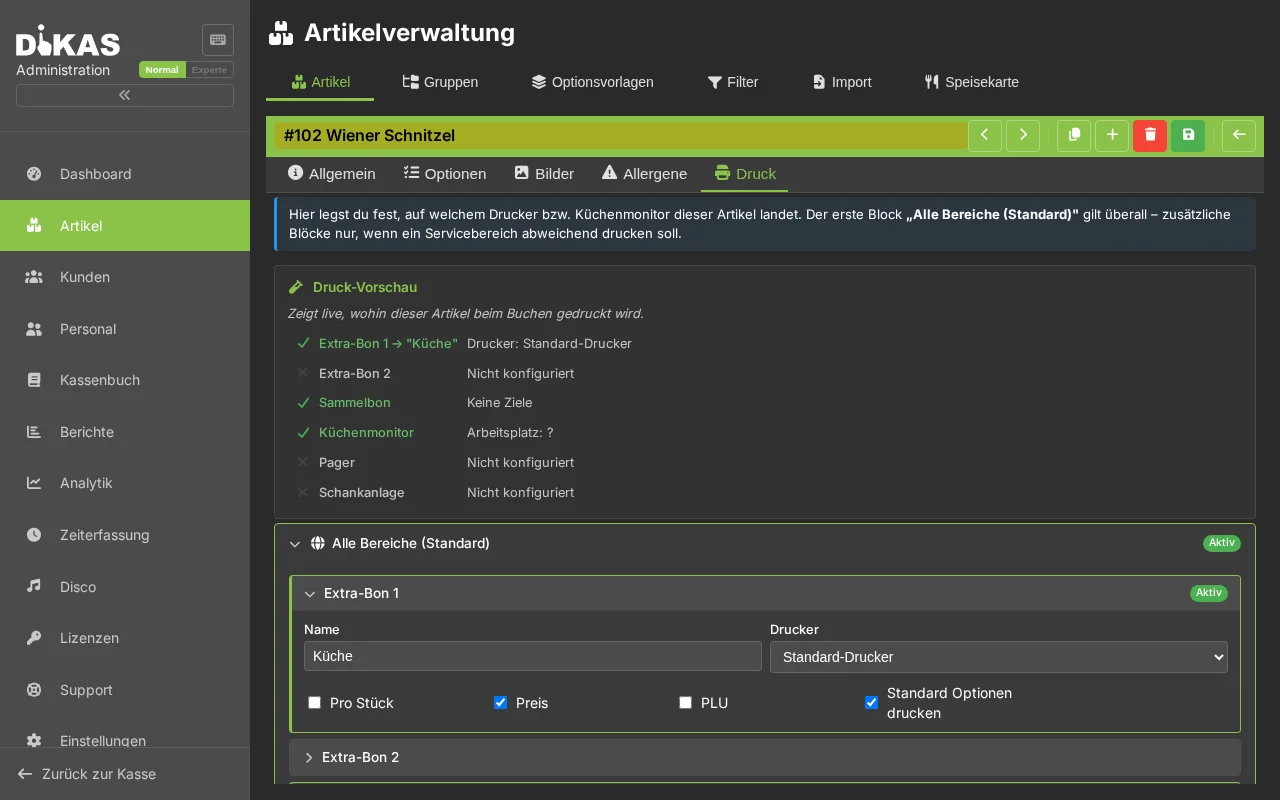
The Type determines whether it is a normal or a special article (default = "Normal article") — see Special Articles. The Print tab (with print preview) and Price rules tab (with price check) each show a live preview of the result at the top.
Editing an Article
- Click on the article in the article list
- Make changes
- Click "Save"
Deactivate Instead of Delete
When an article is no longer offered:
- Don't: Delete the article (it will be missing from historical reports)
- Better: Set the article to "Inactive"
The article disappears from the POS but remains in reports and historical receipts.
Tax Classes
DiKAS supports three tax rates:
| Tax Class | Tax Rate | Usage |
|---|---|---|
| Standard (0) | 19% | Beverages |
| Reduced (1) | 7% | Food (since 01.01.2026 uniformly 7%, regardless of dine-in or takeaway) |
| Tax-free (99) | 0% | Voucher sales, credit top-ups, deposits |
Article Images
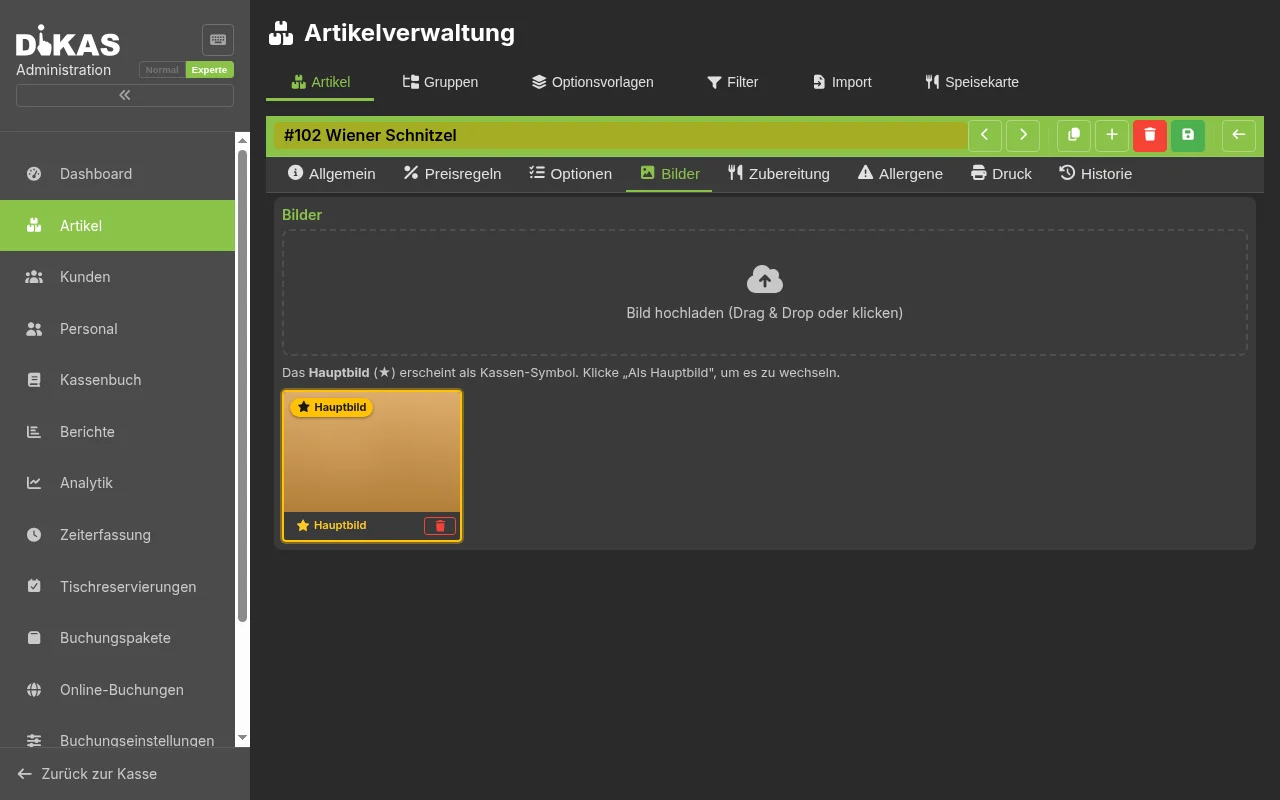
Each article has one central image gallery (Tab "Images"). The same images are used everywhere: as the POS icon (primary image), for online ordering (table self-order, webshop), at the self-order kiosk and in the preparation editor.
- Open article → Tab "Images"
- Drop an image via drag & drop or click to upload (JPG, PNG, GIF or WebP; recommended: square, min. 400×400 px)
- On upload the image is automatically optimized for the web: converted to WebP, scaled to max. 1200 px, plus a thumbnail is generated — this saves load time in the online shop.
- Set the primary image: the image marked with the gold star "Primary" is shown as the POS icon and as the main image in the online shop. Use "Set as primary" to switch it.
ℹ️ Images are managed here only — the previously separate image management on the Web tab is gone. At the POS, colored buttons are shown and the primary image serves as the icon.
Preparation (Kitchen Monitor)
In the "Preparation" tab you store a preparation guide that appears on the kitchen monitor via the info icon on the order position.
- Formatting: bold, italic, underline, headings, lists, text color and highlighting of important steps.
- Insert images: upload a new one or pick an existing article image via the gallery picker (from the "Images" tab).
- Tables: "Insert table" (2×2) and "Image left / text right" for a two-column layout — image next to the text.
Article Options (Extras)
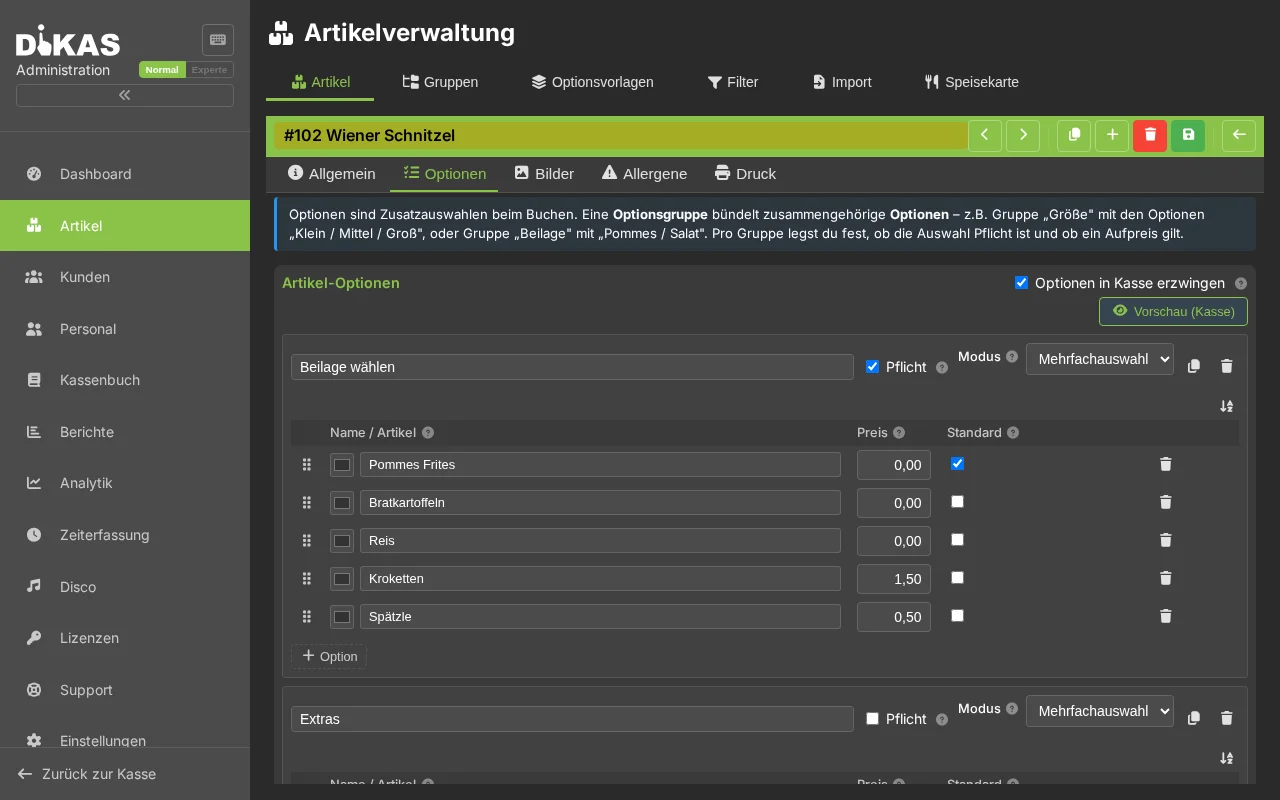
For articles with choices (side dish, doneness, extra topping):
- Open article → Tab "Options"
- Add "+ Option Group"
Configuring an Option Group
| Field | Description | Example |
|---|---|---|
| Name | Group name | Extra Topping |
| Mode | Single or multiple selection | Multiple |
| Minimum Selection | How many must the guest choose? | 0 (optional) |
| Maximum Selection | How many may the guest choose? | 3 |
| Free Count (FreeCount) | First N options are free (multi-select only, expert mode) | 1 (one free) |
| Deduct on Deselect (DeductOnDeselect) | Price deduction when a default option is deselected (multi-select only, expert mode) | Yes/No |
Adding an Option
| Field | Description | Example |
|---|---|---|
| Name / Article | Enter free text or search and link an article (from 2 characters) | Ham |
| Surcharge | Additional price (negative = deduction) | 1.50 EUR |
| Default | Pre-selected? | No |
| Percentage | Surcharge as percentage instead of fixed price? (expert mode) | No |
Name / Article — one combined field: While typing, matching articles appear as a dropdown (arrow keys + Enter). Selecting an article makes the option take over the article name, a package icon 📦 indicates the link, and ✕ removes it. Linked articles are carried along when booking (e.g. for stock management).
Preview (POS): The button at the top right opens the real POS dialog with the current (even unsaved) options — exactly how the article will look when booked.
ℹ️ The same option-group editor is used in three places: on the article (tab "Options"), on the article group (tab "Options", inherited by all articles of the group) and in option templates. Copy/paste of option groups also works across these views.
Example: Pizza with Topping Selection
Optionsgruppe: Extra-Belag
  Modus: Mehrfach
  Mindestauswahl: 0
  Maximalauswahl: 5
  Gratis: 0

  Schinken        +1,50 €
  Pilze           +1,00 €
  Oliven          +1,00 €
  Peperoni        +1,00 €
  Extra Käse      +2,00 €
Example: Steak with Side Dish (One Included)
Optionsgruppe: Beilage
  Modus: Einzelauswahl
  Mindestauswahl: 1
  Maximalauswahl: 1
  Gratis: 1                ← günstigste Option ist kostenlos

  Pommes           3,50 €  → kostenlos (günstigste, im Gratis-Kontingent)
  Reis             3,50 €  → kostenlos (gleicher Preis, auch im Kontingent)
  Salat            3,50 €  → kostenlos
  Bratkartoffeln   5,00 €  → wenn gewählt: nur Differenz berechnen
FreeCount: The Cheapest N Options Are Free
When Free Count (FreeCount) is set, the cheapest selected options are free:
| Free Count | Selected | Charged |
|---|---|---|
| 2 | Fries (3.50 EUR), Salad (3.50 EUR), Roasted Potatoes (5.00 EUR) | Only Roasted Potatoes: 5.00 EUR |
| 1 | Ham (1.50 EUR), Extra Cheese (2.00 EUR) | Ham free, Extra Cheese: 2.00 EUR |
| 3 | 3 options at 1.00 EUR each | All 3 free |
Deduct on Deselect (DeductOnDeselect)
When an article comes with certain ingredients by default and the guest deselects one, a price deduction can be granted.
Example: Burger (12.90 EUR) comes by default with cheese (+1.50 EUR, included in the price).
| Guest Request | Receipt Display | Price |
|---|---|---|
| Burger as described | Burger | 12.90 EUR |
| Burger without cheese | Burger, ~~Käse~~ (-1.50 EUR) | 11.40 EUR |
| Burger without cheese, with extra bacon (+2.00 EUR) | Burger, ~~Käse~~ (-1.50 EUR), Bacon (+2.00 EUR) | 13.40 EUR |
Option Templates
When multiple articles have the same options (e.g. all pizzas have the same topping options):
- Admin → Option Templates
- Create a template (e.g. "Pizza Extras")
- Add option groups to the template
- Reference the template in the articles
Benefits of Templates
| Without Template | With Template |
|---|---|
| Maintain options on each article individually | Maintain once, up-to-date everywhere |
| New option → edit all 30 pizzas | New option → only change the template |
| Error risk with many articles | Consistency guaranteed |
Default Override
Each article can override the default selection of the template. This way the "Pizza Extras" template can be used, but Pizza Margherita has "Extra Cheese" selected by default while Pizza Salami does not.
Resolution Order
When an article has options from multiple sources, the following priority applies:
- Option Templates (highest priority)
- Inline Option Groups (defined directly on the article)
- Legacy Options (old format options, automatically converted)
Price Rules
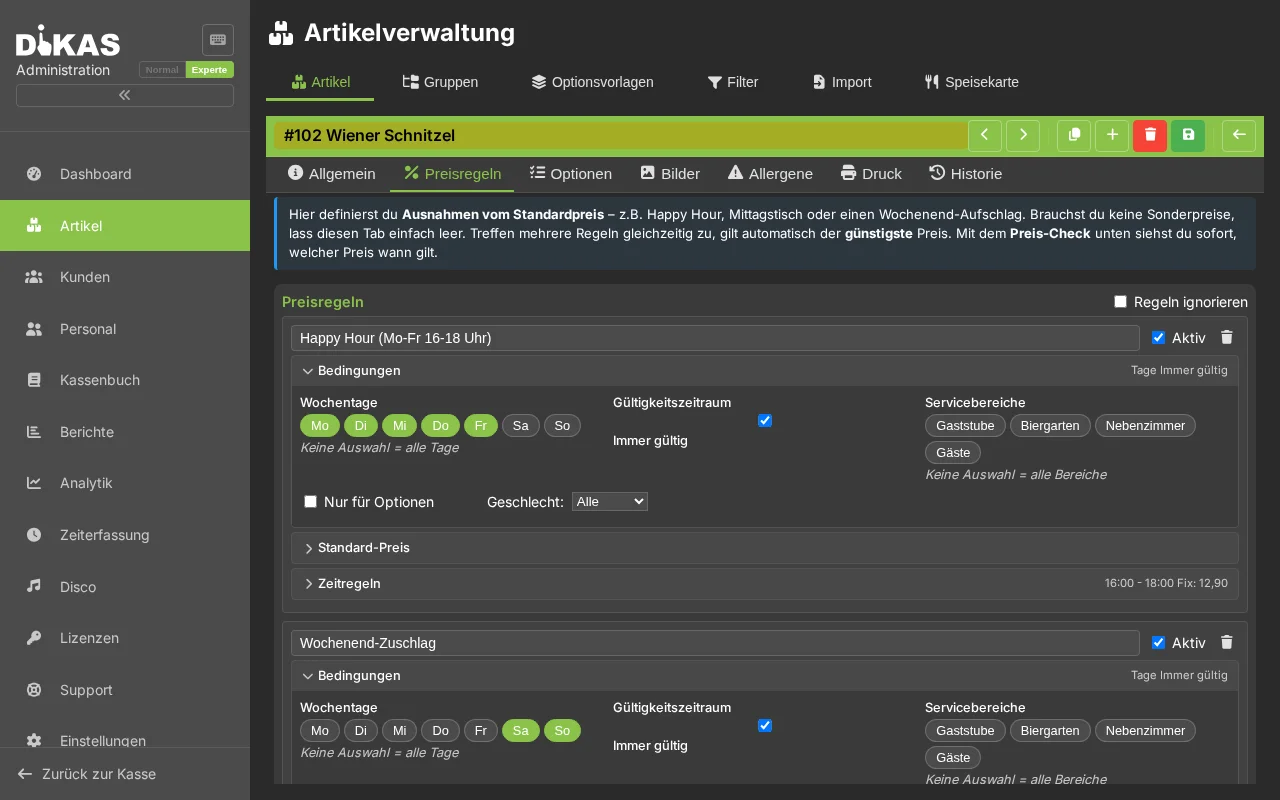
DiKAS offers a flexible price rule system for happy hours, customer group discounts, daily specials and more.
How Price Rules Work
Price rules are defined at the article or group level. Multiple rules can be active per article — the cheapest rule always wins.
Rule Types
| Type | Description | Example |
|---|---|---|
| Percentage (VKPercent) | Price as percentage of base price | 80 = 20% discount |
| Surcharge/Deduction (VKAddMinus) | Fixed amount add/subtract | -1.00 = 1 EUR cheaper |
| Fixed Price (VKFix) | Fixed price (ignores base price) | 3.00 = always 3 EUR |
Rule Conditions
Each rule can be restricted to specific situations:
| Condition | Description | Example |
|---|---|---|
| Weekdays | Only on certain days | Mon–Fri |
| Time Window | Only at certain times | 17:00–19:00 (Happy Hour) |
| Date Range | Start and end date | 01.12.–24.12. (Advent offer) |
| Customer Group | Only for specific customer groups | Regular customers, corporate customers |
| Workstation | Only at specific registers | Counter sales |
| Table Section | Only in specific sections | Beer garden, terrace |
| Delivery Mode | Only for delivery or pickup | Delivery only |
| Minimum Price | Price must not fall below minimum | Min. 2.00 EUR |
| Rounding | Round to 10 cents | Yes/No |
Setting Up Happy Hour
Example: All cocktails from 17:00 to 19:00 for 5.00 EUR instead of 8.50 EUR.
- Admin → Articles → Group "Cocktails" → Price Rules
- Create new rule:
- Type: Fixed price = 5.00 EUR
- Time Window: 17:00–19:00
- Weekdays: Mon–Fri
- Name: "Happy Hour"
- Save
Between 17:00 and 19:00, all cocktails cost 5.00 EUR. Outside this window, the standard price applies.
Customer Group Prices
Example: Corporate customers receive 10% discount on all food.
- Admin → Customers → Customer Groups → Create "Corporate Customers"
- Admin → Articles → Group "Food" → Price Rules
- New rule:
- Type: Percentage = 90 (= 10% discount)
- Customer Group: Corporate Customers
- When a corporate customer is selected, reduced prices apply automatically
Time-Based Visibility
Price rules can also control the visibility of articles:
| Visibility | Meaning |
|---|---|
| No Change | Article always visible (default) |
| Always Show | Article only visible during the time window |
| Always Hide | Hide article during the time window |
Example: Breakfast items only shown at the POS from 07:00 to 11:00.
Rule Hierarchy
Price rules are evaluated hierarchically — more specific rules take precedence:
- Article Rule (highest priority)
- Group Rule (direct group of the article)
- Parent Group Rule (parent group, grandparent group, etc.)
When multiple rules apply at the same level, the cheapest price for the customer wins.
Night Rules (Across Midnight)
Rules with time windows like 22:00–04:00 are correctly evaluated across midnight. Ideal for clubs and bars with nighttime operations.
Quantity Pricing
For articles with volume discounts:
| From Quantity | Unit Price |
|---|---|
| 1 | 10.00 EUR |
| 5 | 9.50 EUR |
| 10 | 8.00 EUR |
| 50 | 7.00 EUR |
Quantity pricing is configured per article and takes precedence over price rules.
Special Articles (ExtraOption)
In addition to regular sales articles, DiKAS supports various special article types for specific functions:
Overview of All Article Types
| Type | Name | Description | Manual Price? |
|---|---|---|---|
| 0 | Normal | Regular sales article | No (fixed price) |
| 1 | Customer Top-up | Top up customer credit | Yes |
| 2 | Voucher | Voucher redemption (negative item) | No |
| 6 | Tip | Tip recording | Yes |
| 7 | Time Article | Price increases with time at the table | No |
| 8 | Deposit | Deposit/security (0% VAT) | No |
| 9 | Voucher Top-up | Sell a voucher | Yes |
| 10 | No Minimum Order | Excluded from minimum order value | — |
| 13 | Discount | Percentage discount on the receipt | No |
| 14 | Discount Article | Bonus discount (system) | No |
Discount Articles in Detail
How it works: A discount article automatically calculates a percentage deduction on the total receipt amount.
Setup:
- Create an article with type "Discount" (ExtraOption = 13)
- Enter discount percentage (e.g. 10 for 10%)
- Optional: Choose rounding method (none, 5-cent, 10-cent)
Example: 10% staff discount
Schnitzel         12,90 €
Pommes             3,50 €
Cola               3,50 €
──────────────────────────
Zwischensumme     19,90 €
Personalrabatt   -1,99 €  (10 %)
──────────────────────────
Gesamt           17,91 €
Usage at the POS: 1. Order/select all articles 2. Tap the discount article 3. The discount is automatically displayed as a negative item on the receipt 4. VAT is correctly calculated on the reduced amount
Deposit Articles
Deposits are automatically added when an article has a deposit amount.
Setup: 1. Open article → Fill in the "Deposit" field (e.g. 0.25 EUR) 2. When sold, a separate deposit line item is automatically created on the receipt
Example:
Deposit is booked at 0% VAT (pass-through item). In the end-of-day report, the deposit amount appears separately.
Tip Articles
Tips can be recorded as a special article:
- Tap the tip article (type "Tip")
- Enter the amount
- The tip appears separately on the receipt and is assigned to the waiter
Time Articles
For billiard tables, gaming stations or time-based offers:
- The price increases automatically with the duration at the table
- Billing is based on actual usage time
Minimum Order Value Exception
Articles with the type "No Minimum Order" are excluded from the minimum order value check. Typical for: - Delivery fees - Deposits - Service charges
System Articles
DiKAS has 12 predefined system articles that are automatically created and cannot be deleted:
| ID | Name | Usage | VAT |
|---|---|---|---|
art_custbonusrabatt |
Top-up Bonus | Automatic discount when bonus credit is used | 19% |
art_payout |
Credit Payout | Payout of customer credit | 0% |
art_guthabenaufladen |
Customer Credit Top-up | Load credit to customer account | 0% |
art_gutscheinaufladen |
Voucher Top-up | Create/sell a new voucher | 0% |
art_manuell |
Manual Price | Free price entry for ad-hoc articles | 19% |
art_arbeitszeit |
Working Time | Hourly billing (workshop) | 19% |
art_gutscheineinloesung |
Voucher Redemption | Negative item for voucher redemption | 0% |
art_pfand |
Deposit | Automatically added deposit amount | 0% |
art_liefergebuehr |
Delivery Fee | Automatic delivery charge | 19% |
art_mindestbestellwert |
Minimum Order Surcharge | Surcharge when minimum is not met | 19% |
art_discoeintritt |
Disco Entry | Entry fee (disco module) | 19% |
art_discomindestverzehr |
Disco Minimum Spend | Surcharge when minimum spend is not met | 19% |
Properties of System Articles: - Automatically created on first startup - Cannot be deleted (protected) - Can be moved to other article groups - Displayed with [System] prefix in the article list - Cannot be copied
Article Import
DiKAS offers an intelligent import wizard for article data from CSV/Excel files.
Import Wizard (4 Steps)
- Upload File — Upload CSV, TXT or XLSX (drag & drop possible)
- Map Columns — DiKAS recognizes columns automatically or you map manually
- Preview — Review which articles will be created/updated
- Import — Articles are created, groups are automatically generated
AI-Assisted Mapping
DiKAS can recognize the column mapping automatically using AI: - Supports OpenAI, Anthropic, Google Gemini and Ollama - Recognizes columns like "Artikelbezeichnung", "VK Preis", "MwSt" automatically - Works even with unknown column names
Duplicate Detection
| Mode | Behavior |
|---|---|
| Skip | Do not change existing articles |
| Update | Update existing articles with new data |
| Replace | Completely replace existing articles |
Import Profiles
Frequently used mappings can be saved as an import profile and reused — ideal for regular supplier imports.
Allergens Tab
Print & Kitchen Display Tab
Further Reading
→ Articles, Printers & Rules — Quick Start — Compact overview with practical examples
→ Articles, Printers & Rules — Detailed — All features in detail: printer control, price rules, draught systems, course control
Next Step
→ Customers — Manage customer database