Settings¶
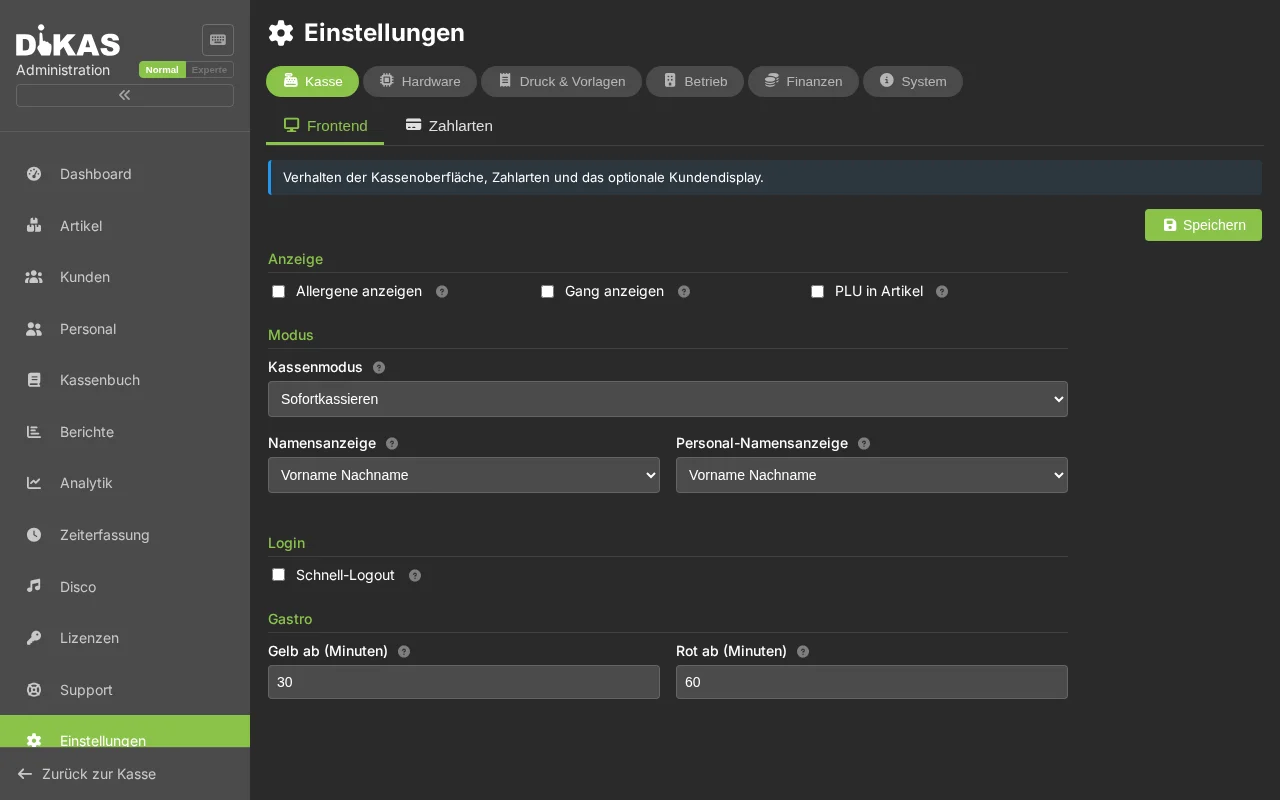
Under Admin → Settings you configure the entire DiKAS system. The settings are organized in tabs and cover all areas — from master data to printers and terminals to integrations with banking systems, AI services and draught systems.
Admin → Settings
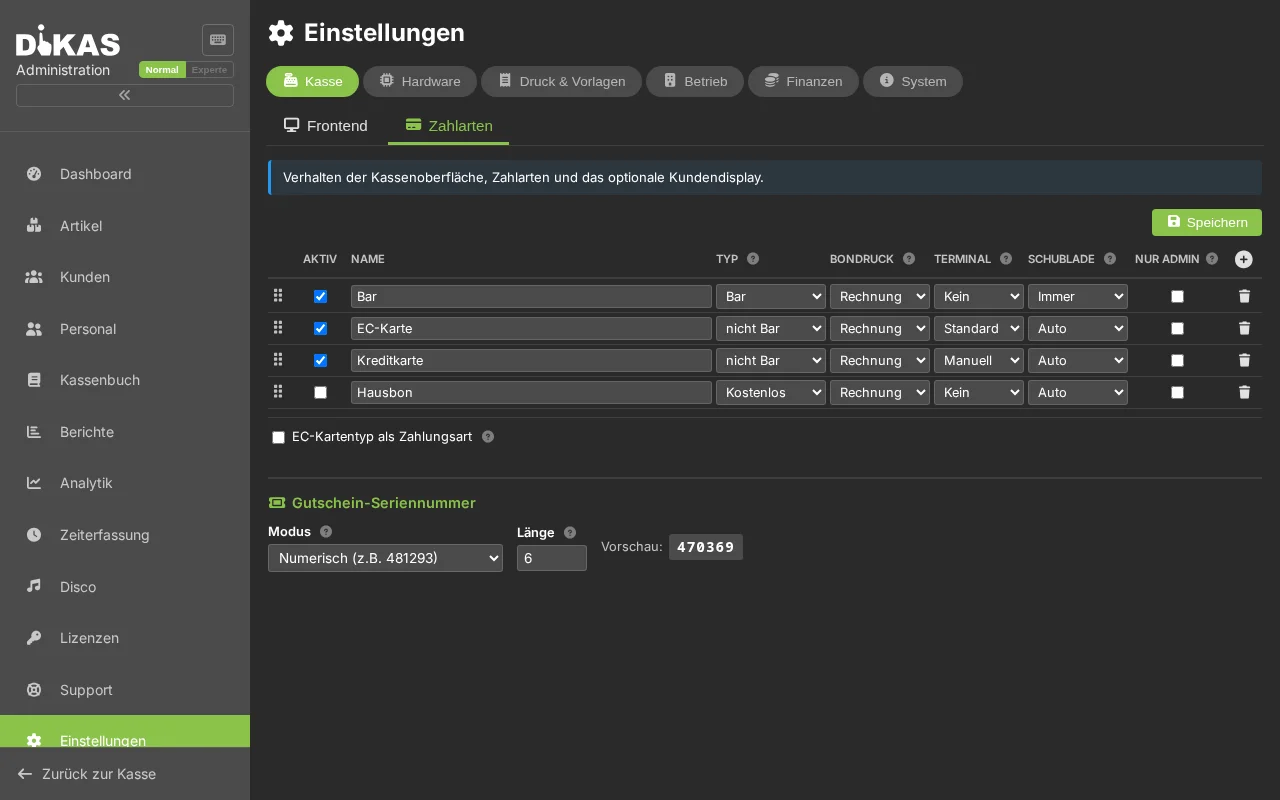
💡 The Normal/Expert toggle (top right) reduces the view: in Normal mode each category shows only its core sub-tabs (e.g. POS → Frontend/Payment types, Finance → Tax rates/TSE). Expert mode reveals all ~46 sub-tabs. Each category has a short intro box at the top, and cryptic options carry help icons (?).
Structure of the Settings¶
The settings are organized in categories with multiple sub-tabs each (not a flat tab list). The most important:
| Category | Sub-tabs (selection) |
|---|---|
| POS | POS mode/display, payment methods, customer display |
| Hardware | Printers, card terminals, draught systems, cash machines, SumUp, caller ID |
| Print & Templates | Receipt designer, PDF templates, email (SMTP + templates), WhatsApp |
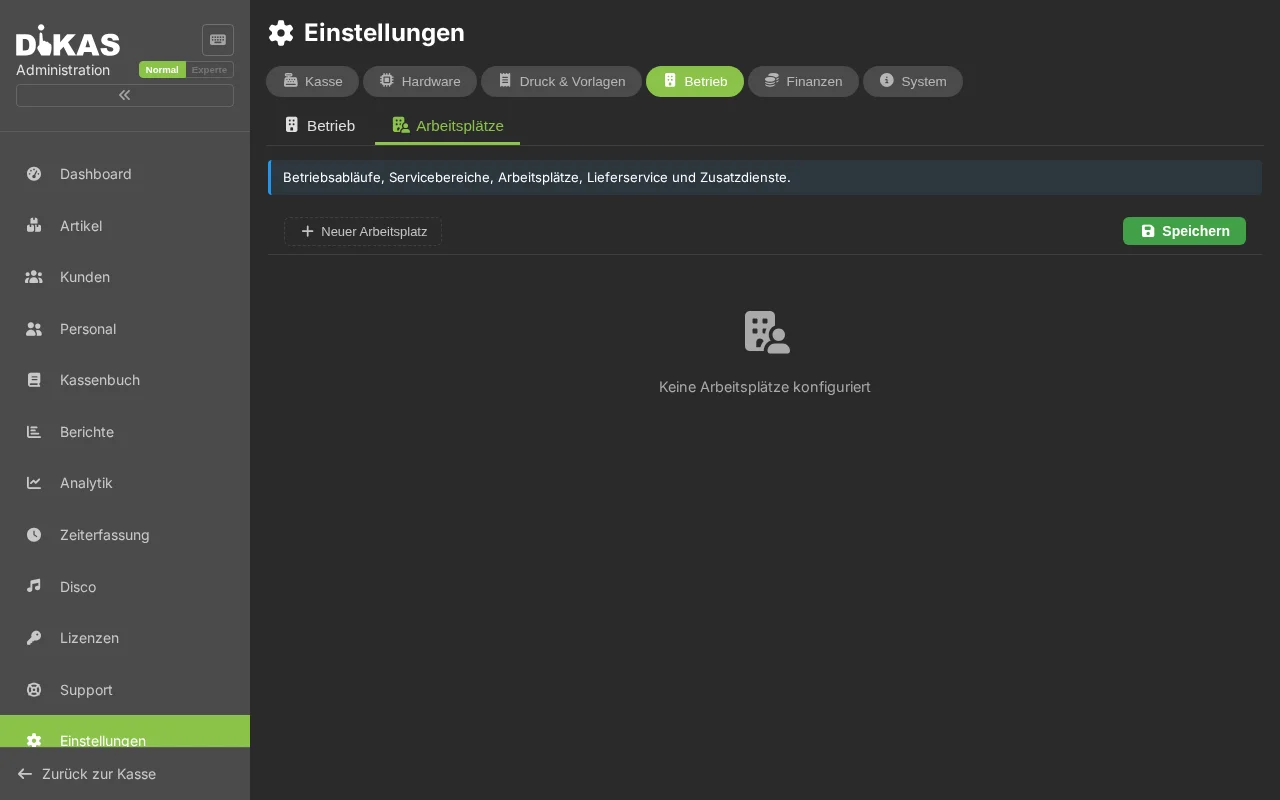
| Operations | General (currency, business day, auto end-of-day, printing, feature modules), delivery service, self-order, service areas, workstations, allergens, services (AI import, address services), misc |
| Finance | Tax rates, TSE/export, DATEV, cash register notification |
| System | License & server info, API keys, data import, cloud sync, backup/restore, audit log |
ℹ️ Important notes: - There is no "General" tab with business data/logo — license/business data is under System → System. The database provider cannot be changed here (display of license/version only). - Tabs like Delivery Service, Self-Order, Workstations, Customer Display, Alarms only appear when the respective feature is enabled. Feature modules under "Operations → General" are only visible when the matching plugin is loaded. - There are three separate configurations with their own Save: Operations (OperationalConfig), Display (FrontendConfig) and Server/Services (BackendConfig). For password/API key fields, leaving blank = unchanged (or clears the value).
1. General¶
Business Data (read only)
Business name, address, tax number and VAT ID are automatically taken from the license and cannot be changed here. For changes, please contact DiKAS support.
The business data appears on receipts, invoices and in the TSE signature.
| Setting | Description |
|---|---|
| Business Name | From license — printed on receipts and invoices |
| Address | From license — street, postal code, city |
| Tax Number | From license — required for receipts (§ 14 UStG) |
| VAT ID | From license — if available |
| Logo | Printed on receipts (bitmap, max. 576px wide) |
Currency & Tax Rates¶
| Setting | Description |
|---|---|
| Main Currency | Default: EUR |
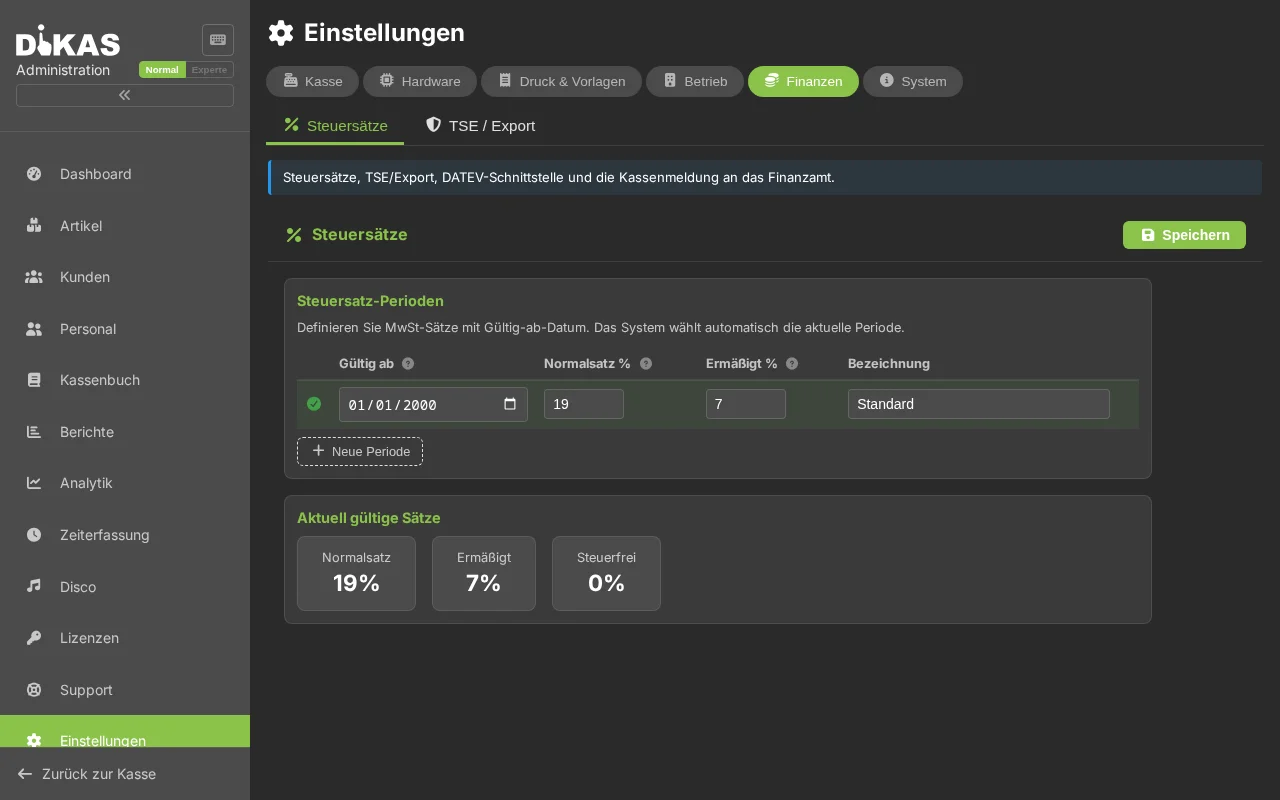
| Tax Rate Periods | Date-based tax rates (standard / reduced) |
Tax rate periods allow storing historical tax rates (e.g. the temporary VAT reduction in 2020). DiKAS automatically selects the rate valid for the booking date.
Payment Methods¶
Allergens¶
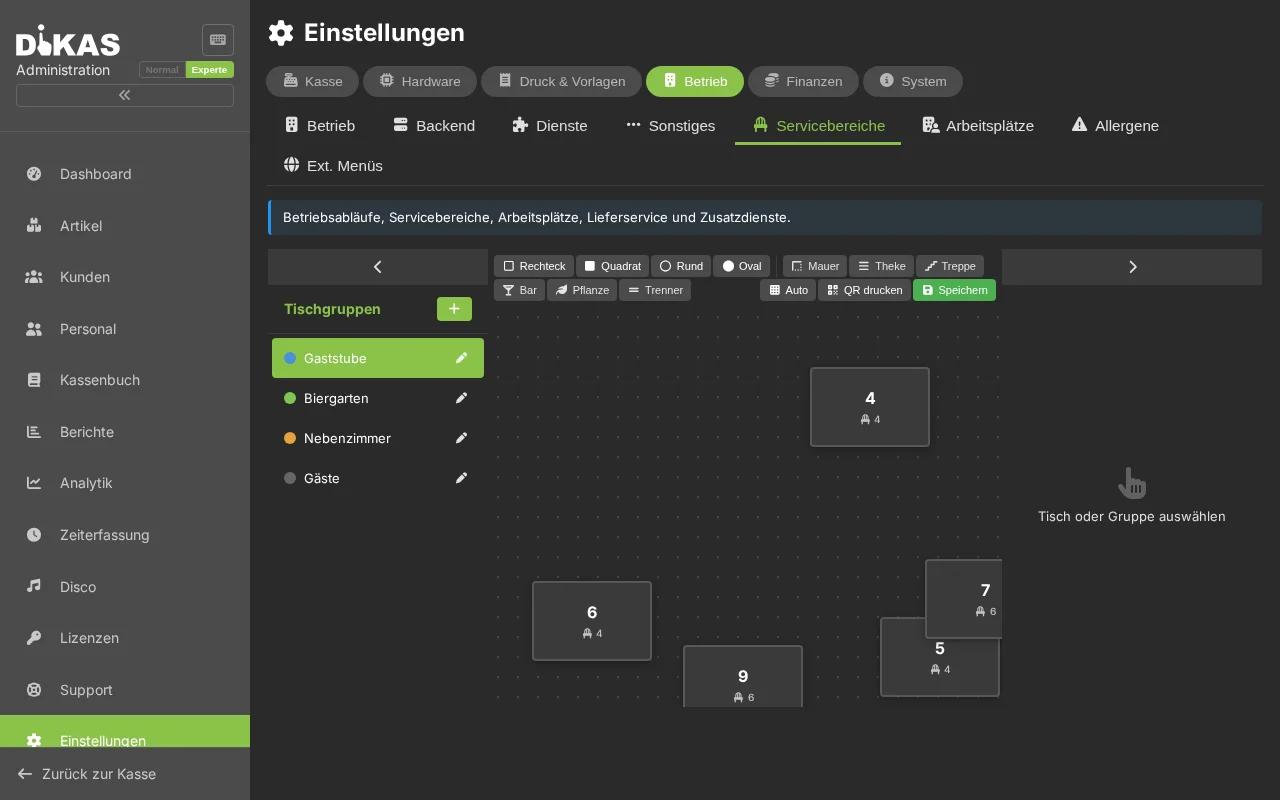
Service Areas¶
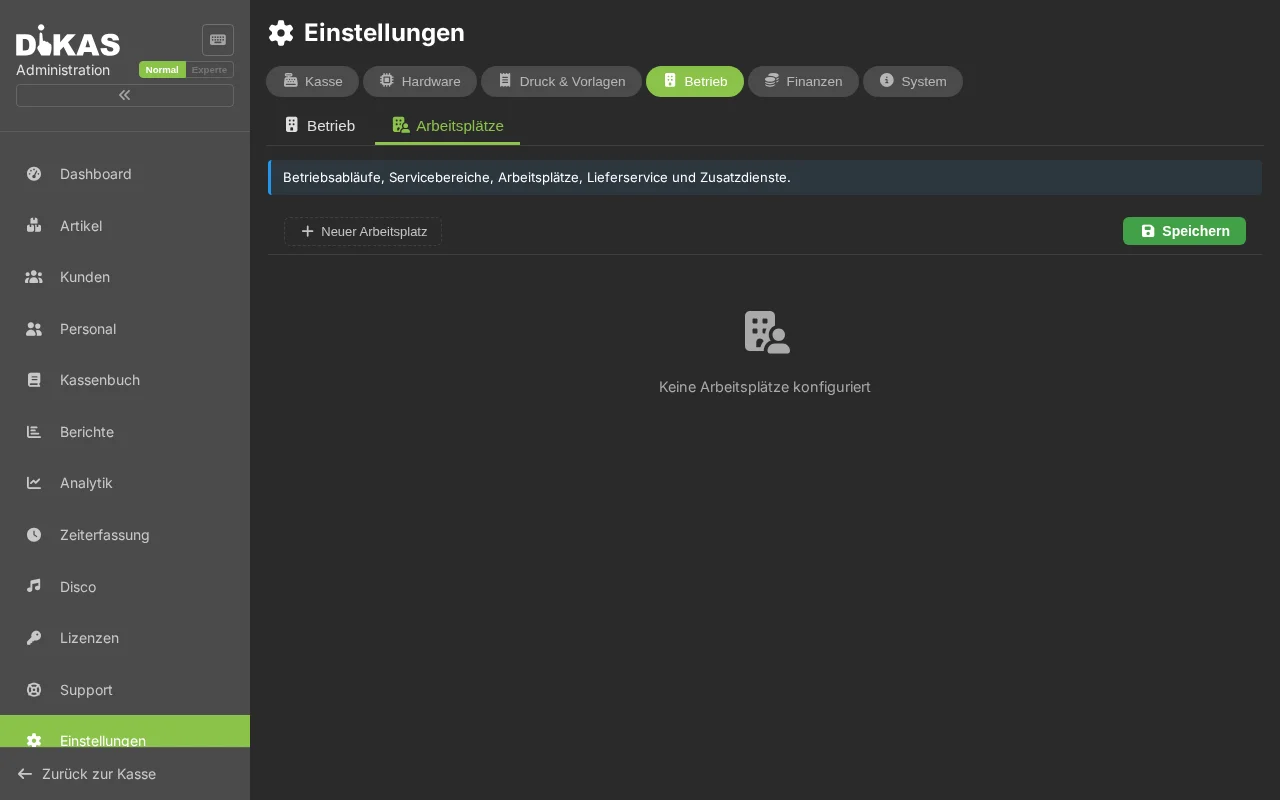
Workstations¶
2. Operations¶
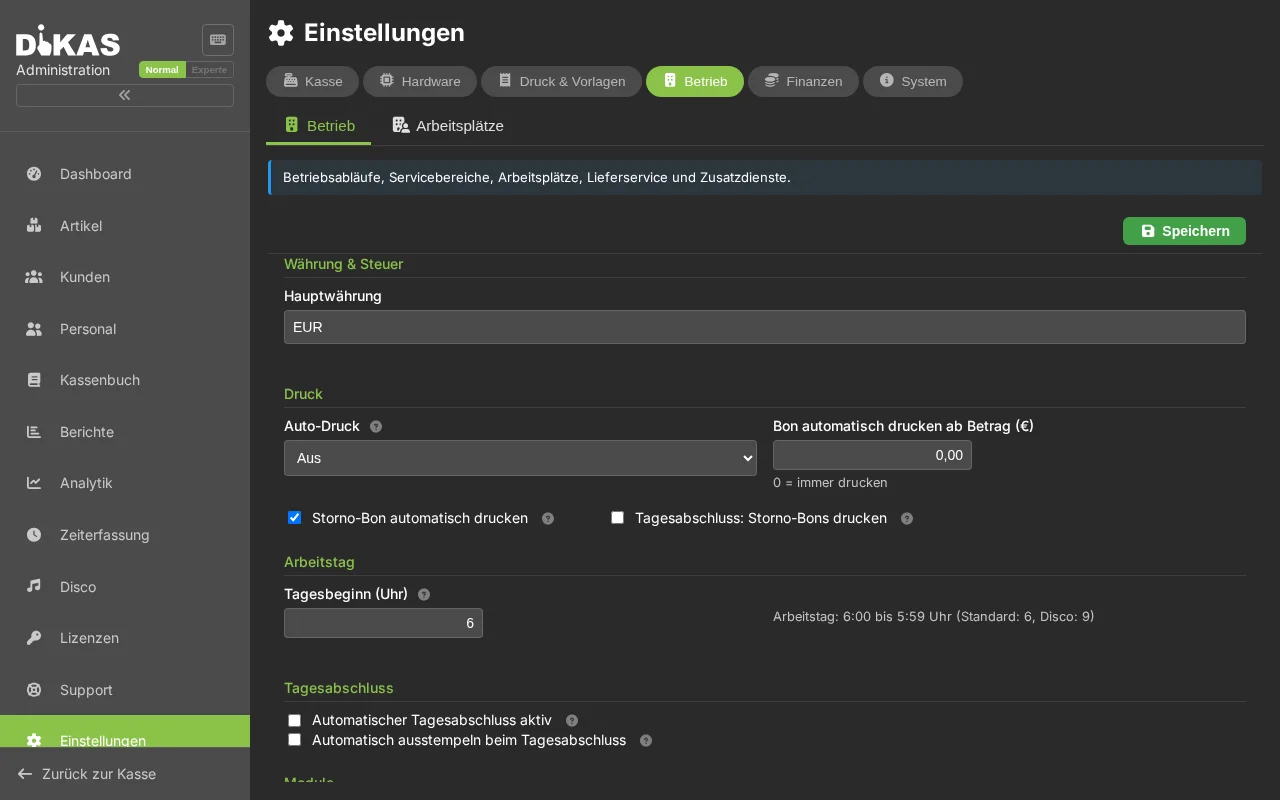
Operational configuration and feature toggles:
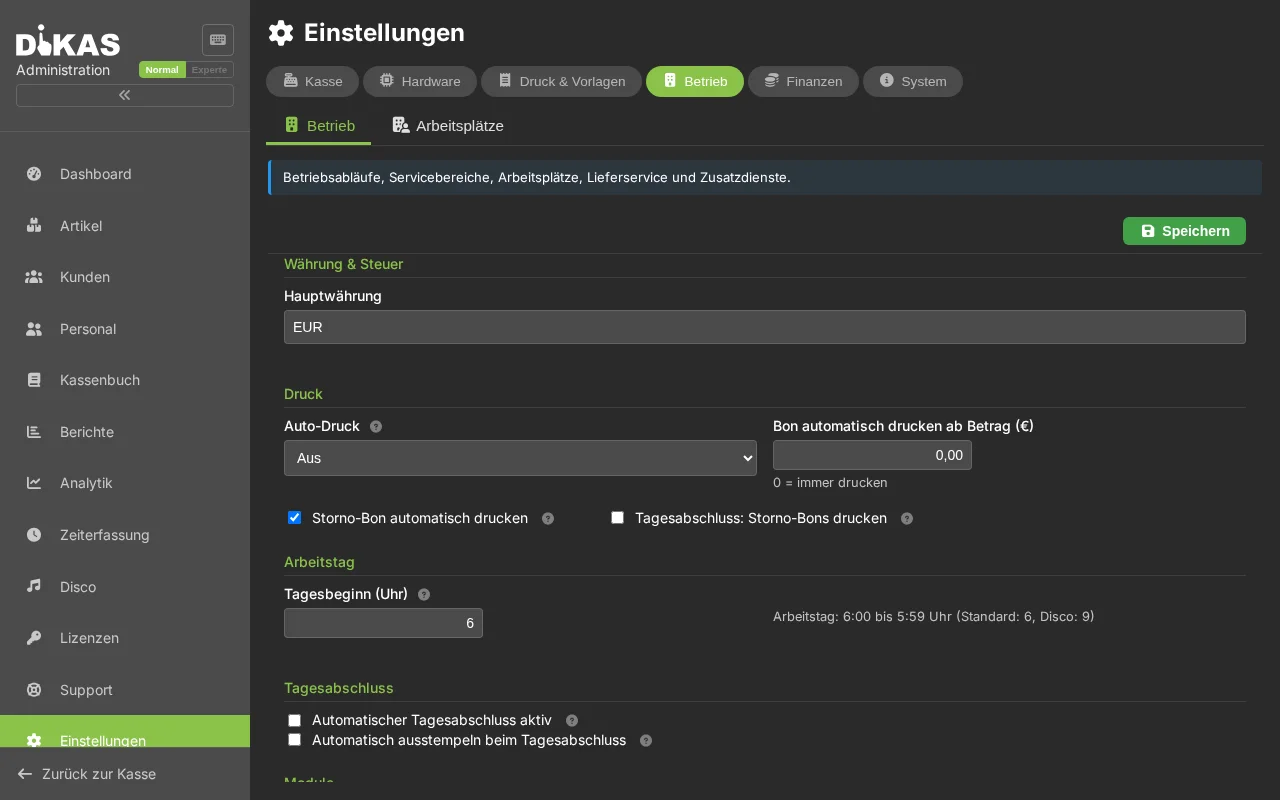
Printing¶
| Setting | Description |
|---|---|
| Auto Print | Controls automatic receipt printing after payment: Off, Always print, Kitchen only or All printers |
| Auto-print receipt from amount (€) | Minimum amount (gross) above which the receipt is printed automatically. Below this amount no automatic print happens (saves paper on small amounts). 0 = always print. Manual printing/reprinting is unaffected |
| Auto-print void receipt | Automatically print a void receipt on cancellations |
| End-of-day: print void receipts | Include void receipts in the end-of-day printout |
Minimum amount combined with Auto Print
The minimum amount works in addition to the Auto Print mode: if Auto Print is off, nothing prints anyway. If it is active, printing only happens from the configured amount upwards.
Business Day¶
| Setting | Description |
|---|---|
| Business Day Start | Hour at which a new business day begins (default: 6:00 AM) |
| Auto End-of-Day active | On/off switch for the automatic Z-report. Off = no auto close, time field hidden |
| Time | Only when switch is on: fixed time for the automatic Z-report (e.g., 03:00) |
| Auto Clock Out | Automatically clock out employees at end-of-day |
Enable / Disable Features¶
| Feature | Description |
|---|---|
| Kitchen Display | Kitchen Display System (KDS) |
| Expense Recording | Record expenses in the POS |
| Time Tracking | Time clock for employees |
| Inventory Management | Stock management for articles |
| Customer Display | Customer-facing display at the POS |
| Online Ordering | Webshop integration |
| Workstations | Manage multiple register stations |
| Finance | Banking and invoicing module |
| HACCP | Hygiene documentation |
| Disco | Club management |
Table Cleaning Requirement¶
| Setting | Description |
|---|---|
| Cleaning Requirement | After payment: table is marked purple (status "Cleaning") |
| Process | Employee scans/clicks → table becomes free again |
Customer Credit¶
| Setting | Description |
|---|---|
| Top-up Bonus % | Percentage bonus on credit top-up |
| Top-up Bonus Amount | Fixed amount as bonus |
| Card Deposit | Deposit for customer card |
| Validity Days | Days a customer card is valid |
Points¶
| Setting | Description |
|---|---|
| Points per Euro | How many points are earned per euro of revenue |
3. Printers¶
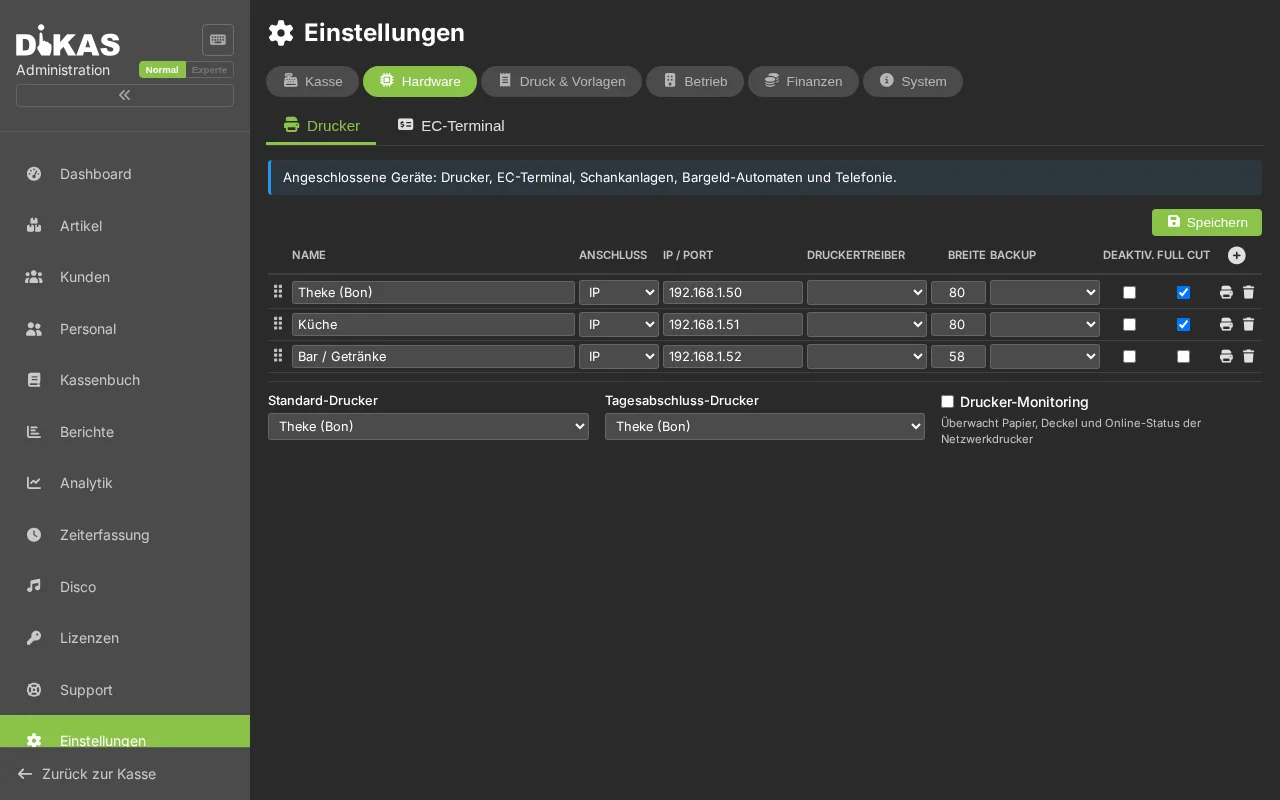
Configure receipt printers (ESC/POS compatible):
| Setting | Description |
|---|---|
| Name | Freely selectable (e.g. "Kitchen Printer", "Bar") |
| Type | Local (USB), Network (IP), Client, A4 (CUPS) |
| IP / Port | Network address (default port: 9100) |
| Receipt Width | 58 mm or 80 mm |
| Character Set | Codepage (default: 858) |
| Backup Printer | Fallback in case of failure |
| Disabled | Temporarily disable the printer |
Printer Types¶
| Type | Description | Use |
|---|---|---|
| Local (0) | USB printer on the computer | Single-station POS |
| Network (1) | IP printer on the network | Standard for hospitality |
| Client (3) | Printing via client app | Mobile devices |
| A4 (4) | A4 printer via CUPS | Invoice printing |
Printer Search¶
Click "Search for printers" to automatically scan the local IP range (/24 of the server) for network printers on port 9100. Found printers are listed with IP address and — where determinable — hostname; clicking "Apply" adds the printer to the configuration. A4 printers (type 4) are additionally set up via the local hardware bridge (DikasArch/CUPS) if available — the CUPS printer name is automatically transferred.
💡 The scan may take a moment, as every address in the subnet is checked.
Default Printers¶
| Setting | Description |
|---|---|
| Default Printer | For receipts |
| End-of-Day Printer | For Z-reports |
A4 Direct Print (PDF)¶
An "A4 print" button is available in the receipt and print dialog. If DiKAS is running on a kiosk or workstation with a local DikasArch bridge and at least one A4 printer (type 4, CUPS) is configured, the PDF is printed directly at the local A4 printer — if multiple A4 printers are available, a selection dialog appears. If no bridge is available, the server-side print service alternatively prints, or the PDF opens for preview in a new browser tab.
In cloud mode, A4 printing — provided the location is reachable via a local DiKAS instance — can be printed directly at the location without the PDF opening in the browser. On the first A4 print, you are asked whether printing should happen "Locally at the location" or "Via the server" (browser tab); the selection is saved. The preferred print destination can be changed at any time under POS Settings → "A4 print destination".
4. Receipt Templates¶
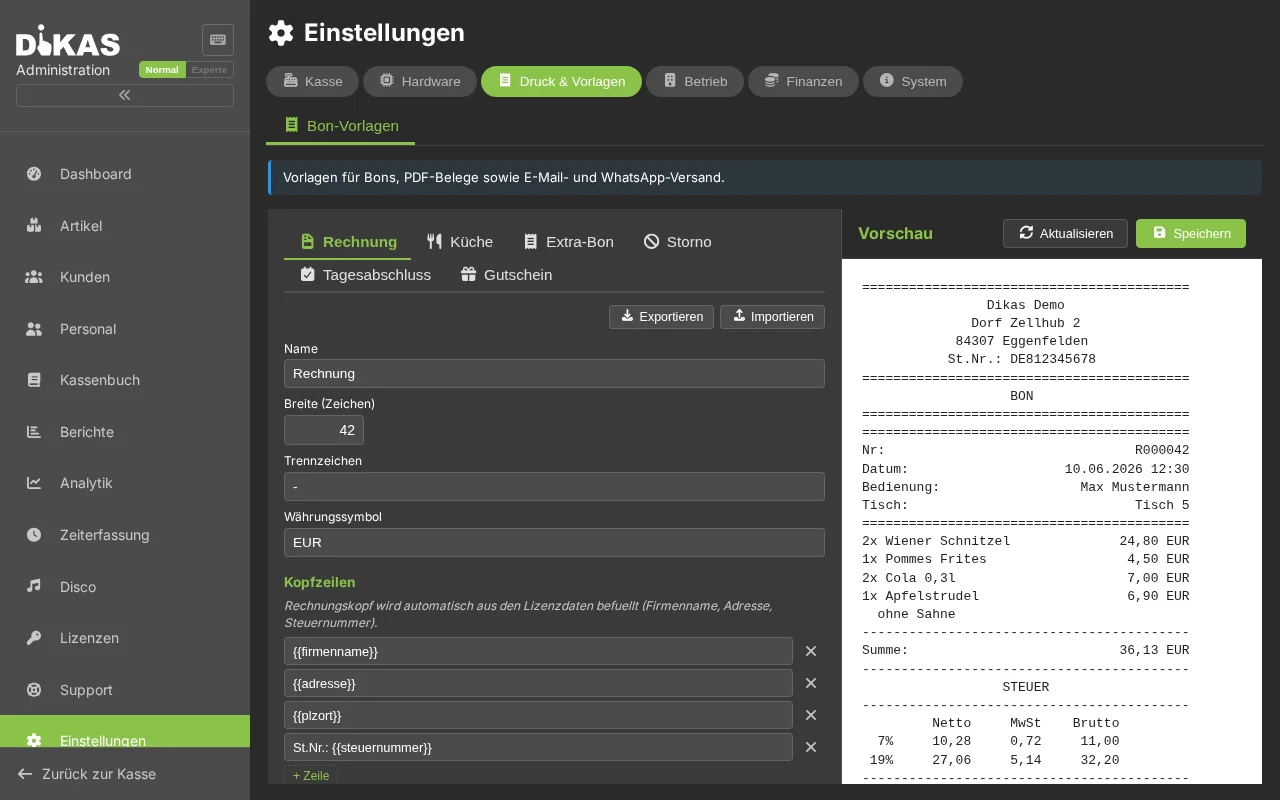
Template Types¶
| Type | Description |
|---|---|
| Invoice Receipt (0) | Receipt for the guest |
| Consolidated Order Ticket (1) | Order overview for the kitchen |
| Station Ticket (2) | Additional print (e.g. bar, counter) |
| Void Receipt (3) | For voids |
| End-of-Day Report (4) | Z-report |
| Voucher (5) | Voucher print |
Customizable Elements¶
Each template can be individually designed:
| Element | Description |
|---|---|
| Header Lines | Freely definable lines above the receipt content |
| Footer Lines | Freely definable lines below the receipt content |
| Logo | Show yes/no |
| QR Code | QR code on the receipt (e.g. for reviews) |
| TSE Data | TSE signature, transaction number, serial number |
| Tax Breakdown | Net/gross/VAT per tax rate |
| Payment Details | Payment method, change |
| Article Sorting | By course, group or receipt order |
| Fonts | Separate for groups, articles, options |
Receipt Designer¶
The visual receipt designer shows a live preview of the receipt with: - Template type tabs (Invoice, Consolidated Order Ticket, Station Ticket, Void) - Drag & drop for header/footer lines - Font size selection - Print simulator (test print)
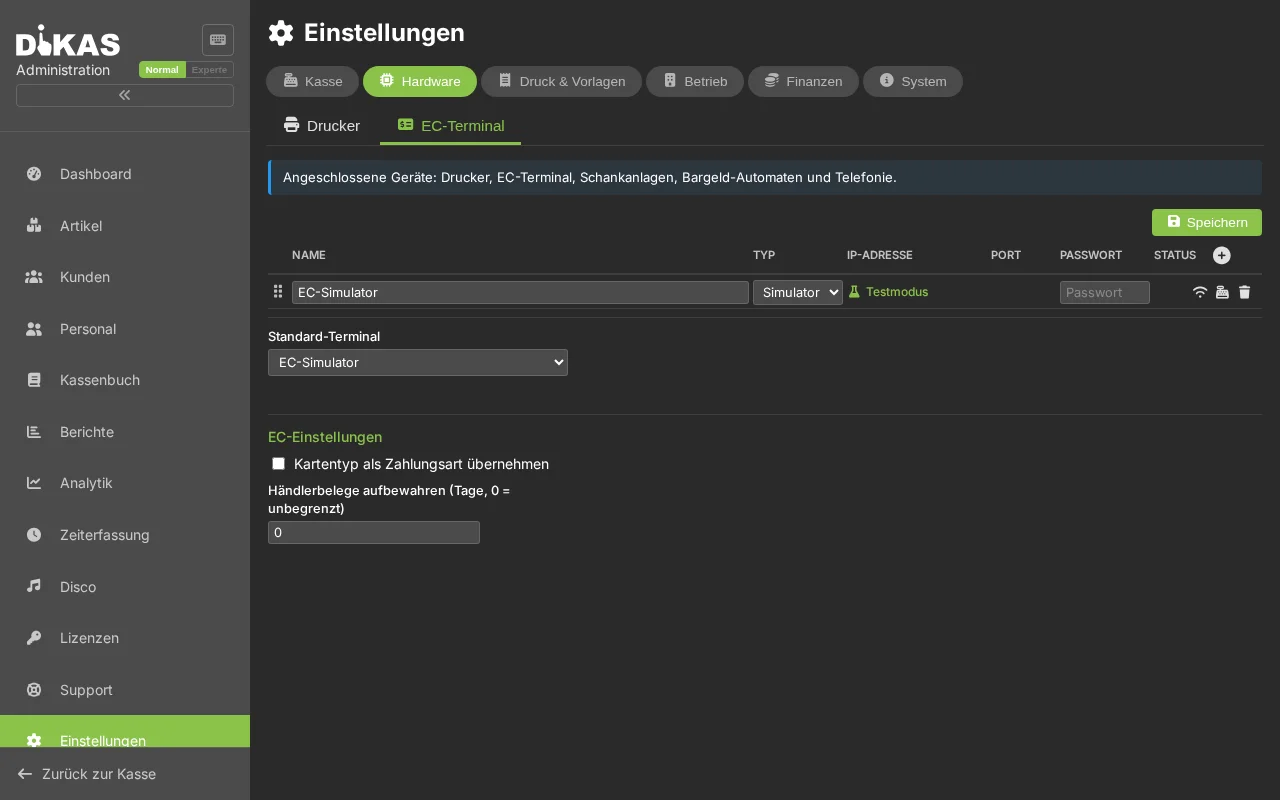
5. Terminals (Card Payment)¶
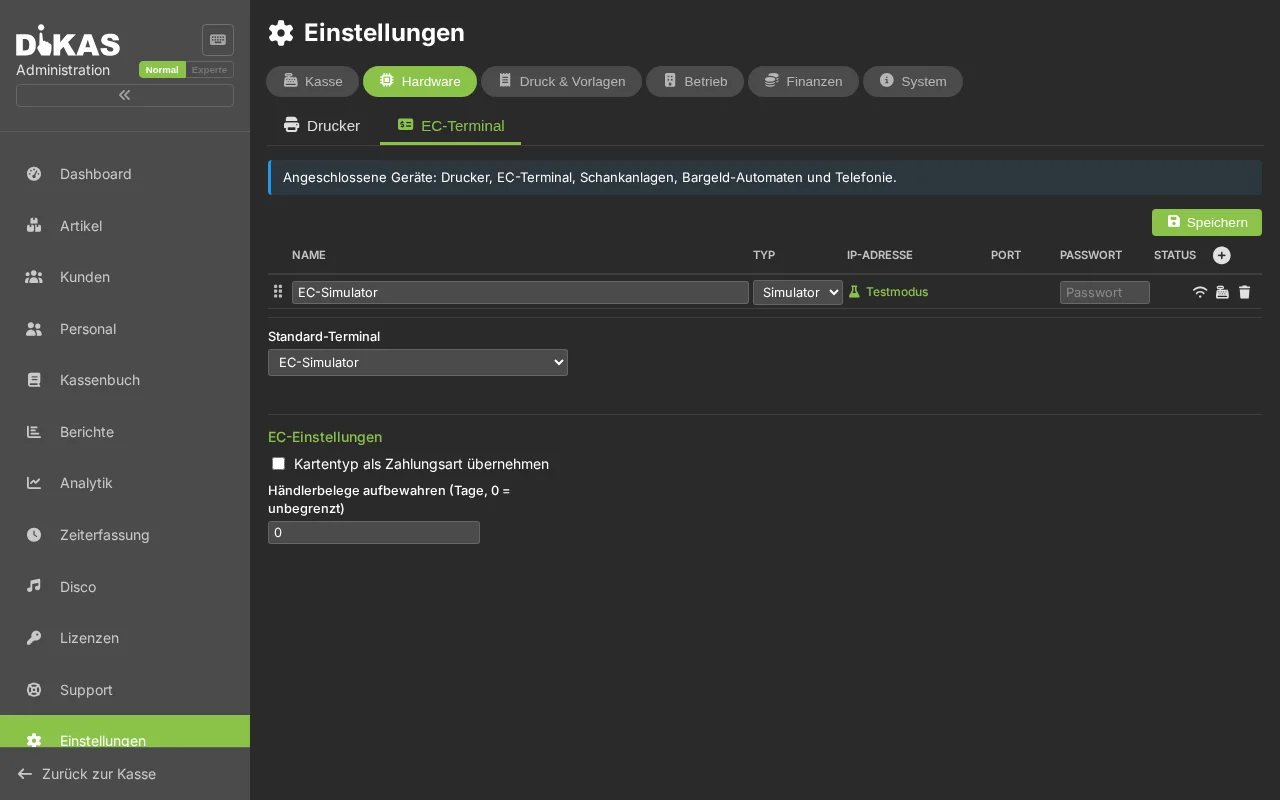
Adding a Terminal¶
| Setting | Description |
|---|---|
| Name | Label (e.g. "Card Terminal Counter") |
| Type | ZVT, SumUp Reader, Tap-to-Pay, Simulator |
| IP Address | Terminal IP (for ZVT) |
| Port | Default: 20007 (ZVT) |
| POS Number | Terminal ID |
Terminal Types¶
| Type | Description | Connection |
|---|---|---|
| ZVT (0) | Classic card terminal (Ingenico, CCV, Verifone) | TCP/IP |
| SumUp Reader (1) | SumUp Solo card reader | Cloud API |
| Tap-to-Pay (2) | Contactless via smartphone/tablet | Android SDK |
| Simulator (99) | Test terminal without real payment | Local |
SumUp Configuration¶
| Setting | Description |
|---|---|
| API Key | SumUp API key |
| Merchant Code | SumUp merchant code |
| Affiliate Key | SumUp partner key |
| Currency | Default: EUR |
| Tap-to-Pay | Enable Android Tap-to-Pay |
Device Search (ZVT Terminals)¶
Click "Search for devices" to scan the local IP range (/24 of the server) for ZVT-capable card terminals on port 20007. Found devices appear with IP address and hostname in a list; "Apply" transfers IP and name directly into the terminal form. The scan runs in the background and may take a moment depending on network size.
Terminal Actions¶
- Pairing: Connect reader with the POS
- Status: Check connection
- Settlement: End-of-day total on the terminal
6. TSE (Fiscal Device)¶
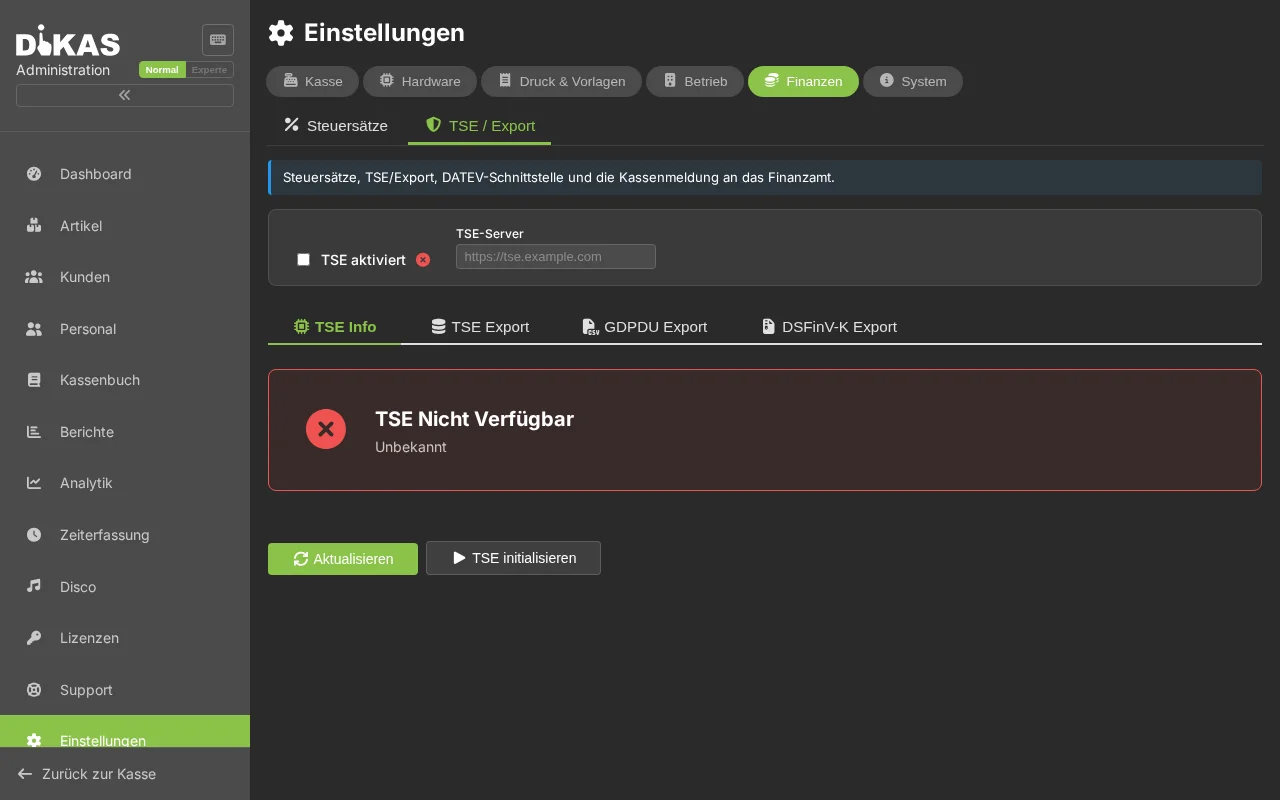
Mandatory in Germany since 2020 (§ 146a AO):
| Setting | Description |
|---|---|
| TSE Enabled | TSE signing on/off |
| TSE Type | Hardware (Swissbit) or proxy server |
| TSE Server | URL of the TSE proxy (e.g. Fiskaltrust) |
| POS Serial Number | Unique identifier of the register |
| Client ID | TSE client identification |
| Fiskaltrust | Use Fiskaltrust middleware |
DiKAS signs all POS-relevant transactions: receipts (Kassenbeleg-V1), orders (Bestellung-V1) and other transactions such as shift changes and end-of-day reports (SonstigerVorgang).
7. Email¶
SMTP Configuration¶
| Setting | Description |
|---|---|
| SMTP Server | e.g. smtp.gmail.com, smtp.ionos.de |
| Port | 587 (STARTTLS) or 465 (SSL) |
| Username | Email address or account name |
| Password | Email password or app password |
| Use SSL | TLS/SSL encryption |
| Sender Name | e.g. "Pizzeria Da Mario" |
| Sender Address | e.g. info@pizzeria-mario.de |
| Invoice Sender | Separate address for invoices (optional) |
SMTP Detection: Simply enter your email address and DiKAS will attempt to automatically determine the correct SMTP settings.
Email Templates¶
Under the email tab you can edit templates for various occasions:
| Template | Usage |
|---|---|
| invoice | Invoice delivery |
| invoice_debit | Invoice delivery with SEPA direct debit |
| dunning1 | Payment reminder (dunning level 1) |
| dunning2 | Dunning notice (dunning level 2) |
| dunning3 | Final dunning notice (dunning level 3) |
| voucher | Voucher delivery |
Each template has a subject and HTML body with placeholders (→ Dunning).
Test Mode¶
| Setting | Description |
|---|---|
| Suppress Emails | Do not send real emails (test mode) |
| Redirect Address | Send all emails to this address instead of to customers |
8. DATEV¶
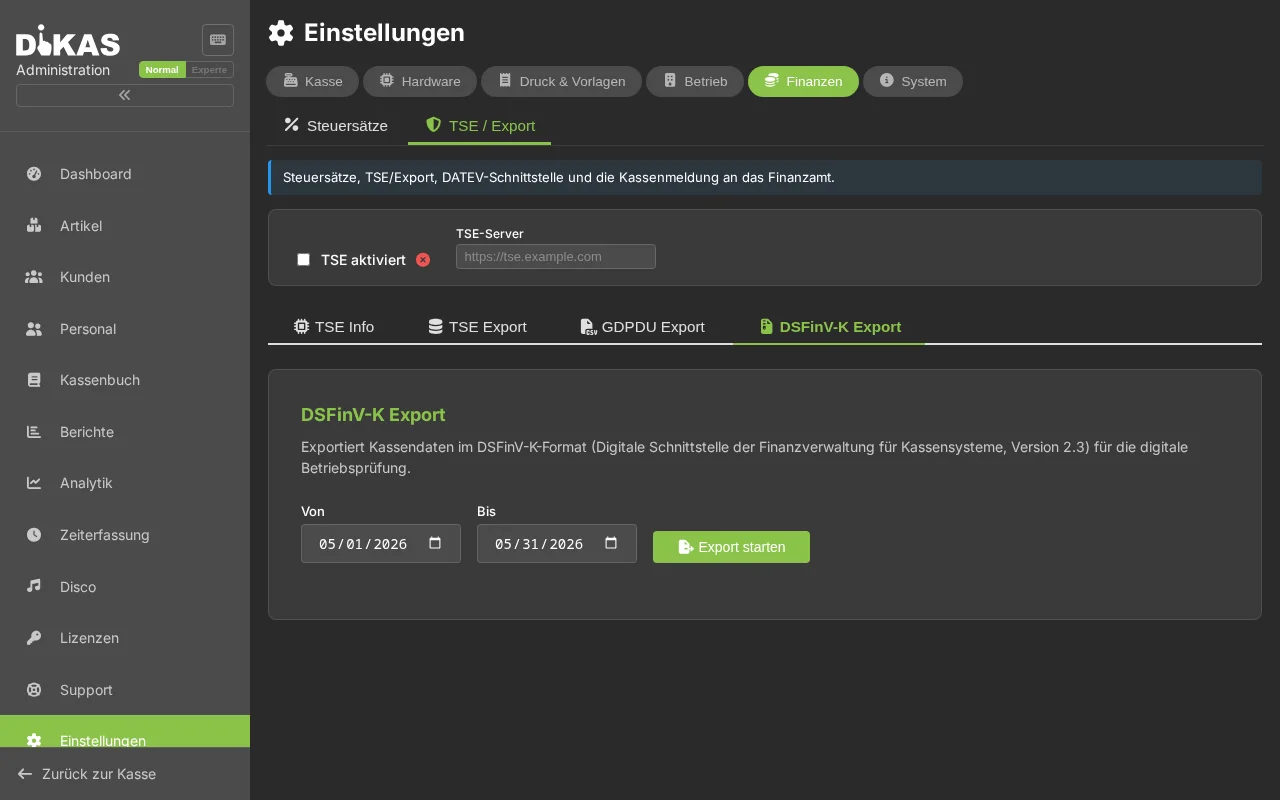
DATEV export configuration for the tax advisor:
| Setting | Description |
|---|---|
| Client Number | DATEV client |
| Advisor Number | Tax advisor number |
| Account Length | 4 or 5 digits |
| Revenue Account | Main account for revenue |
| Tax-Free Account | Account for 0% revenue |
| Card Clearing Account | Transit account for card payments |
| Expense Account | Default account for expenses |
| Article Group Mapping | Article groups → account mapping |
| ZIP Password | Encryption of the export file |
| Tax Advisor Email | For direct delivery |
| Tax Advisor Name | Displayed in the email |
| Include Expenses | Include expenses in DATEV export |
→ DATEV Export for details
9. System¶
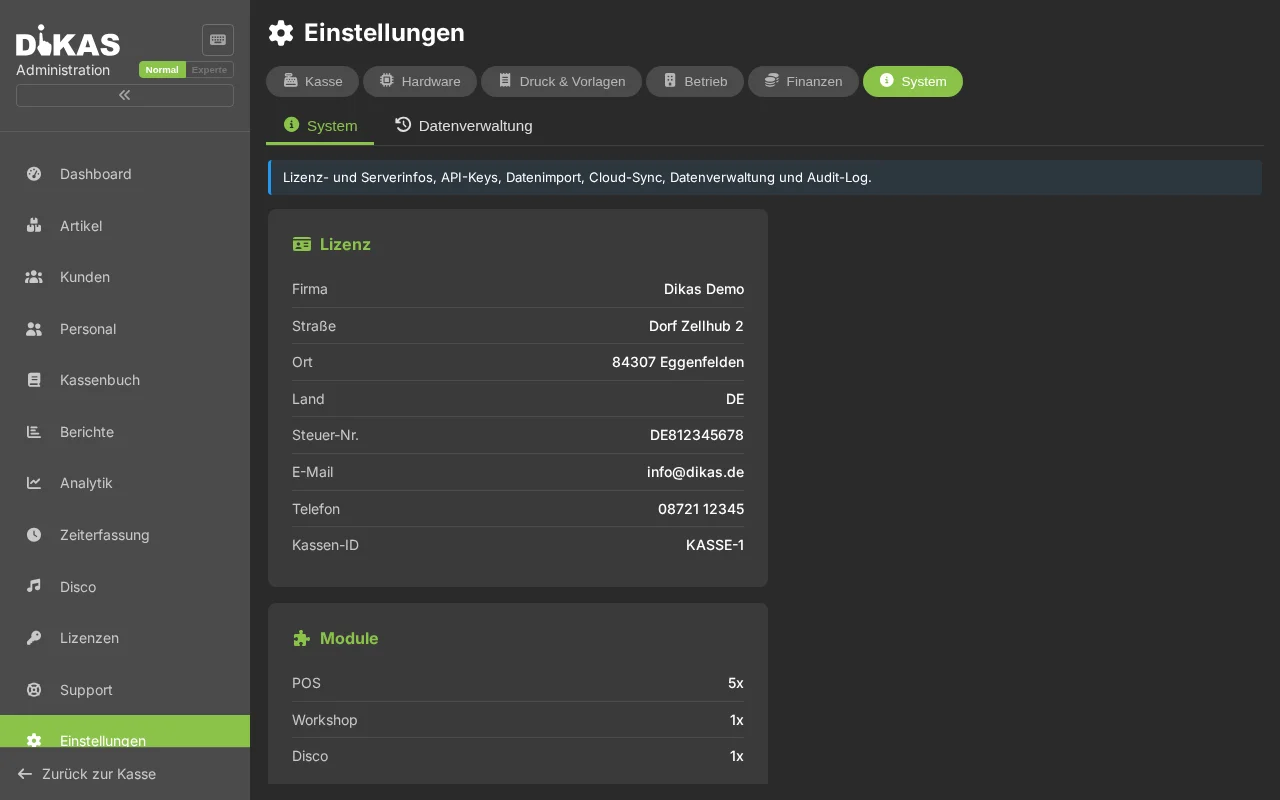
Backend¶
Database & Synchronization¶
The database provider (CouchDB, SQLite or SQL Server) is set during server installation/configuration — it cannot be changed via the settings interface. The System tab shows only license, server version, and environment.
Cloud synchronization (multi-device) is configured via a separate "Cloud-Sync" tab (visible with support login only). The tab behaves differently depending on the database provider:
- SQL mode (SQLite/SQL Server): Push/pull synchronization of selected document types with the cloud CouchDB. Connection, interval, and document types are configurable; for legacy data in the cloud, a migration assistant guides through the transition.
- CouchDB mode (local installation): Native CouchDB replication — continuous and bidirectional for
maindbandgastrocurrent. The connection is set up automatically at server start from the license (SyncLink); stale replication entries pointing at the same database/server are cleaned up. The tab shows the state of the replication jobs and can re-check the setup on demand. No manual configuration is needed (a filledSyncsection inappsettings.jsonoverrides the license).
The cloud multi-tenant version has no synchronization — all devices work directly on the central database.
Audit Log¶
Log of all system changes. Audit logs can be downloaded as a file:
- Admin → Settings → System → "Audit Log"
- Select date → Download
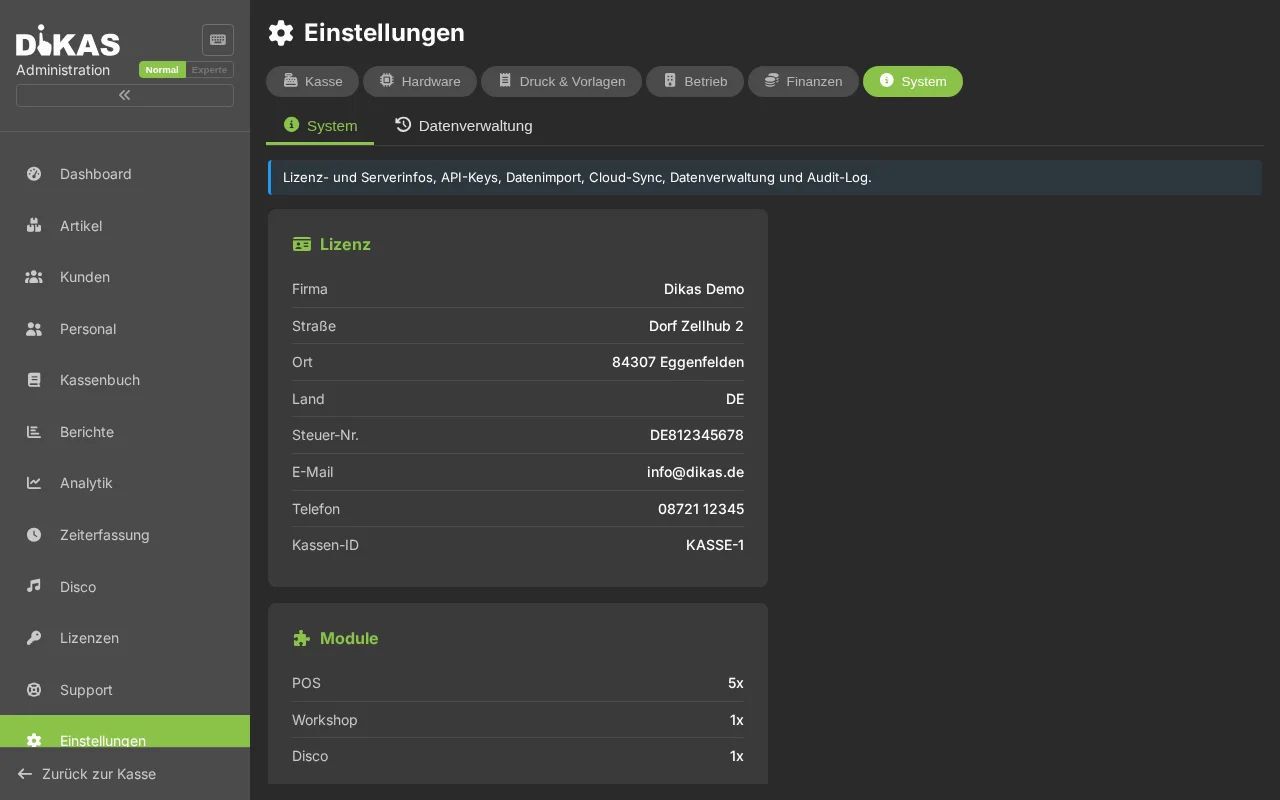
API Keys¶
Backup & Restore¶
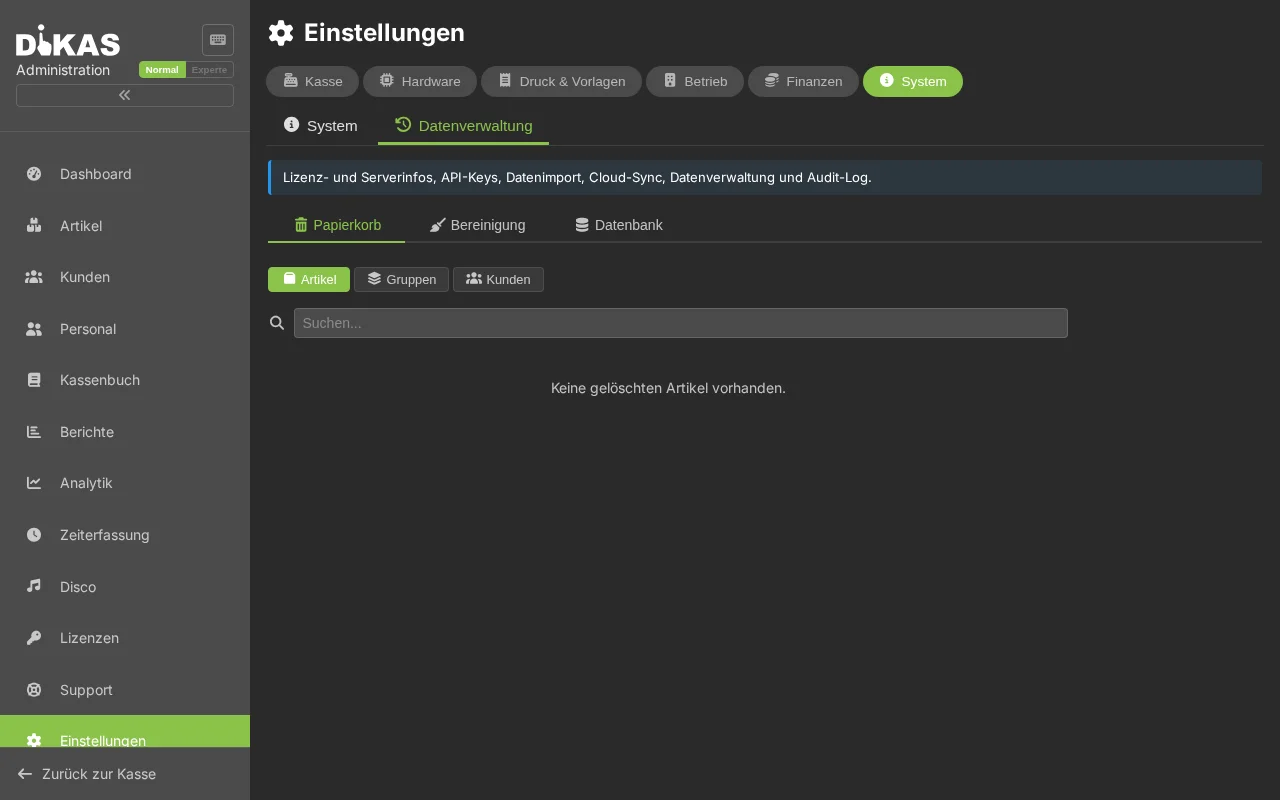
- Create Backup: ZIP file with all documents and attachments
- Restore Backup: Selective restore with 8 categories
→ Data Import & Export for details
Draught Systems¶
If tap systems are used:
Admin → Settings → Draught Systems
Configure a System¶
| Setting | Description |
|---|---|
| Name | Label for the system |
| Protocol | Gruber, Addimat, Hogatron, Simulator |
| Connection | Serial (COM), TCP, UDP |
| IP / Port | Network address |
| Reset at End-of-Day | Automatically reset counters |
Protocols¶
| Protocol | Description | Checksum |
|---|---|---|
| Gruber | STX/ETX framing, ENQ handshake | XOR |
| Addimat | STX/ETX framing | XOR-CRC |
| Hogatron | Configurable field lengths | — |
| Simulator | Test mode without hardware | — |
Each system is displayed as a status card (Online/Offline) with debug information and reconnect function.
AI Import (optional)¶
For intelligent article import with AI-assisted column recognition:
| Setting | Description |
|---|---|
| AI Provider | OpenAI, Anthropic, Google Gemini, Ollama (local) |
| API Key | Your API key with the provider |
| Model | e.g. gpt-4o, claude-sonnet-4-5, gemini-2.0-flash |
| Base URL | For Ollama only: local server address |
→ Data Import for details on article import
FinTS / Online Banking (optional)¶
For automatic bank statement retrieval:
| Setting | Description |
|---|---|
| Bank Code | Bank sort code |
| FinTS URL | FinTS server of the bank (automatic via bank code) |
| User ID | Online banking credentials |
| PIN | Online banking PIN |
| IBAN | Account IBAN |
| BIC | Bank identification |
| Account Holder | Name |
| TAN Method | pushTAN, chipTAN, smsTAN, etc. |
→ Banking & SEPA for details
Alarms for Online Transactions (optional)¶
The Alarms tab appears when the feature is enabled. Here you define which alarm sound plays on the local device for certain online events.
| Setting | Description |
|---|---|
| Alarm on reservation | Alarm type that plays on the local device when an online reservation arrives. Leave empty = no alarm |
How it works
When a new table reservation comes in via the web shop, the cloud immediately forwards a notification to the local machine (relay). The selected alarm is then played on the local device — similar to a waiter-call signal. Staff are alerted to new reservations even without looking at the screen.
Self-Order (optional)¶
The Self-Order tab contains the QR Table Ordering block at the top and below it the configuration of the Self-Order Kiosk. These are two separate functions:
- QR Table Ordering — Guests scan the QR code at the table and order from their own phone. The Enabled switch activates the Table Self-Order. (This switch was previously in the Online Shop admin under tab Ordering and has been moved here.)
- Self-Order Kiosk — Self-service terminal in the venue (ordering terminal at the counter):
| Setting | Description |
|---|---|
| Enabled | Kiosk mode on/off |
| Kiosk Username / Password | Auto-login at the kiosk |
| Terminal | Assigned card terminal |
| Printer | Assigned receipt printer |
| Welcome Title / Subtitle | Display on the start screen |
| Inactivity Timeout | Seconds until automatic reset |
| Allowed Article Groups | Show only specific groups |
Customer Display (optional)¶
The customer display is a second, customer-facing screen at the POS. While ringing up it shows the running cart, after payment the receipt with a QR code, and while idle an image slideshow (ads, daily specials, logo).
Enable: the Customer Display feature under Operation → General → Features. The Cash register → Customer Display tab then appears.
Setup (pairing)¶
- On the second screen (tablet, TV stick, second monitor) open
/display(e.g.https://<server>/display). - The screen shows a pairing code.
- Enter that code in the POS settings (when connecting the display) — the display is now paired with the register.
The display runs without login (kiosk) and fetches its content automatically — no user needs to be signed in.
Display modes¶
| Mode | Shows |
|---|---|
| Pairing | Pairing code until the display is connected to a register |
| Idle | Slideshow of the uploaded images; a "Welcome" screen if none |
| Cart | Live line items and total while ringing up |
| Receipt | "Thank you", receipt number, amount and a QR code to the digital receipt |
Managing slideshow images¶
Under Admin → Settings → Cash register → Customer Display:
| Action | Description |
|---|---|
| Upload image | Drag & drop or click. Allowed: JPEG, PNG, GIF, WebP, max. 10 MB |
| Delete images | Remove individual images from the slideshow |
| Image interval | Seconds per image (3–120, default 10) |
Images are shown rotating in idle mode and are loaded by the display without login. Uploaded images appear on paired displays right away (polled every few seconds).
Further Options (Quick Reference)¶
These switches and fields exist in the settings but are needed less frequently:
| Option | Location | Description |
|---|---|---|
| Portal active / Portal URL | System | Activate customer portal (online access for invoices/subscriptions) and enter address |
| IMAP AutoReceipt | Services | Monitor an email inbox and automatically capture incoming receipts (PDF invoices) as expense drafts |
| Stripe / PayPal | Finance | Payment providers for online payments (delivery service prepayment, portal) |
| E2N | Services | Interface to E2N time recording |
| External Customer Search / CheckPrice / Invoice Webhook | Services | Webhooks for ERP integrations: customer search in external system, external price check, notification on invoice creation |
| Voucher serial number format | Operations | Format (numeric/alphanumeric) and length (4–16) of generated voucher numbers |
| Frontend visibility switches | POS → Frontend | Show/hide individual POS menu items/buttons |
| Block below minimum order value | Operations → Delivery | Reject delivery orders below the zone minimum order value instead of adding a surcharge |
| autoShutDownAfterClose | System | Automatically shut down device after end-of-day report (POS PC) |
| closeDayBackendOnly | System | Allow end-of-day report only from admin area (not at the POS) |
Next Step¶
→ Data Import & Export — Import and back up data