Customer Credit
Regular customers can have prepaid credit on their customer account. The credit is automatically deducted during purchases — faster than cash or card, and ideal for regulars, business customers, and employees.
💰 Two-Account System
Customer credit in DiKAS consists of two separate accounts:
| Account | Description | Top-up | Payable? |
|---|---|---|---|
| Cash account (AccountBalance) | Deposited credit | Cash, card, bank transfer | Yes |
| Bonus account (BonusBalance) | Gifted top-up bonus | Automatically on top-up | No |
Why Two Accounts?
The cash account contains real money that the customer has deposited. The bonus account contains the top-up bonus that you grant as an incentive. The bonus cannot be paid out — it can only be used for payment. This protects you from misuse.
Tax Treatment
| Transaction | VAT | Tax significance |
|---|---|---|
| Top-up | 0% | Prepayment — no VAT (liability) |
| Bonus credit | 0% | Discount promise — no revenue yet |
| Paying with credit | Standard VAT | Revenue only arises upon purchase of articles |
| Bonus consumption | 19% | Shown as a discount article on the receipt |
Topping Up Credit
At the POS
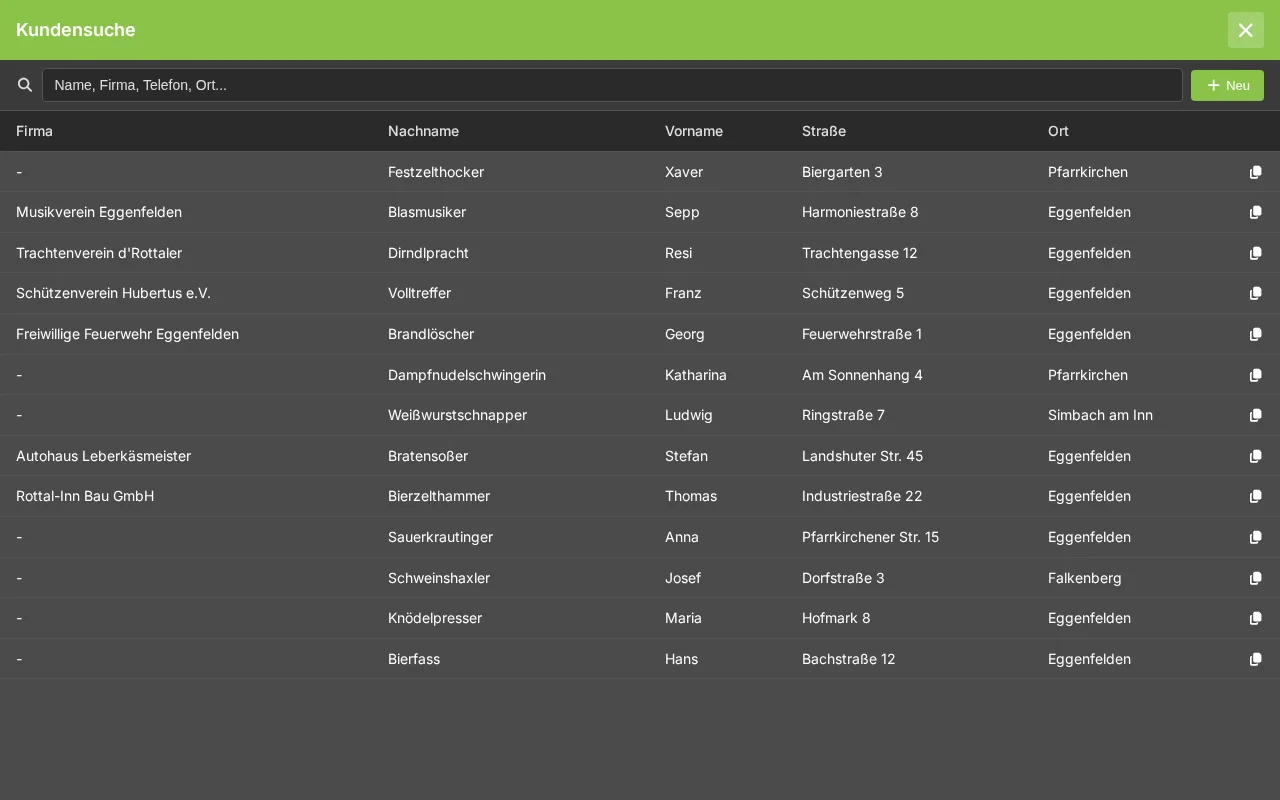
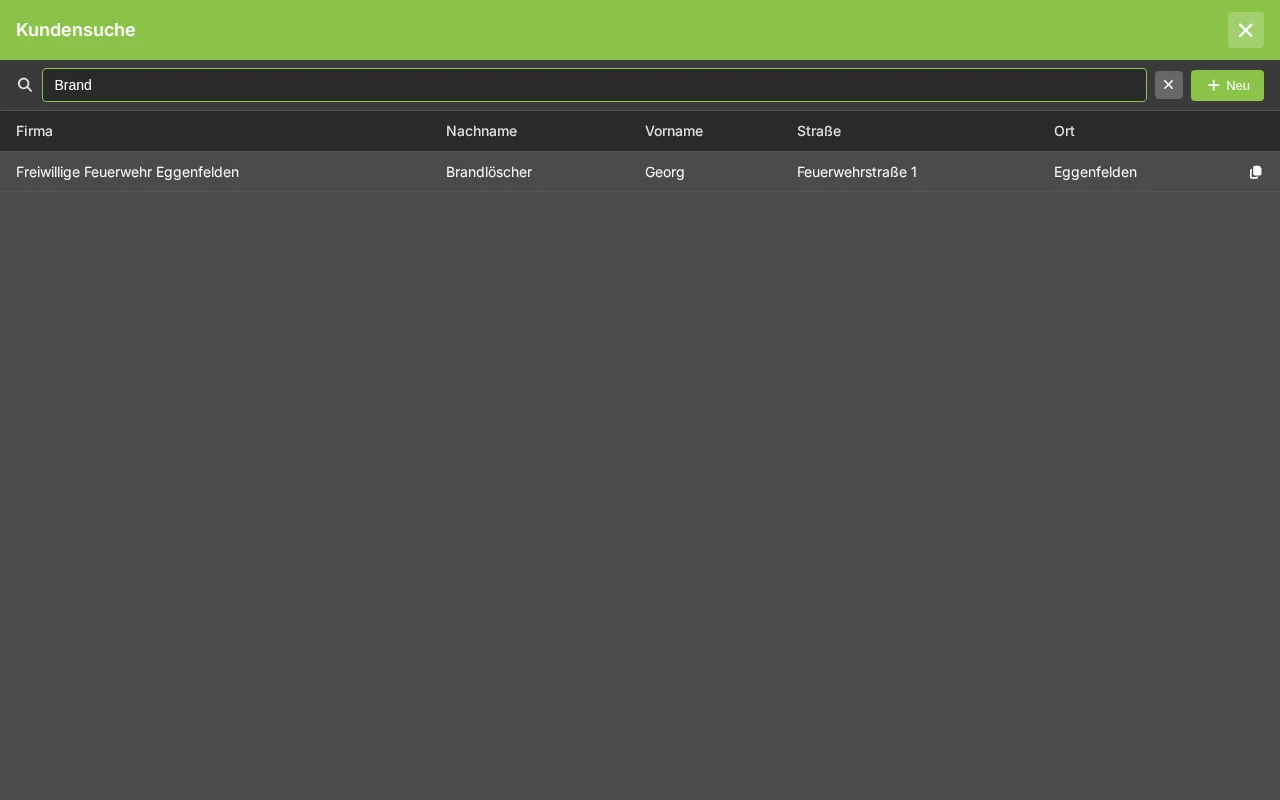
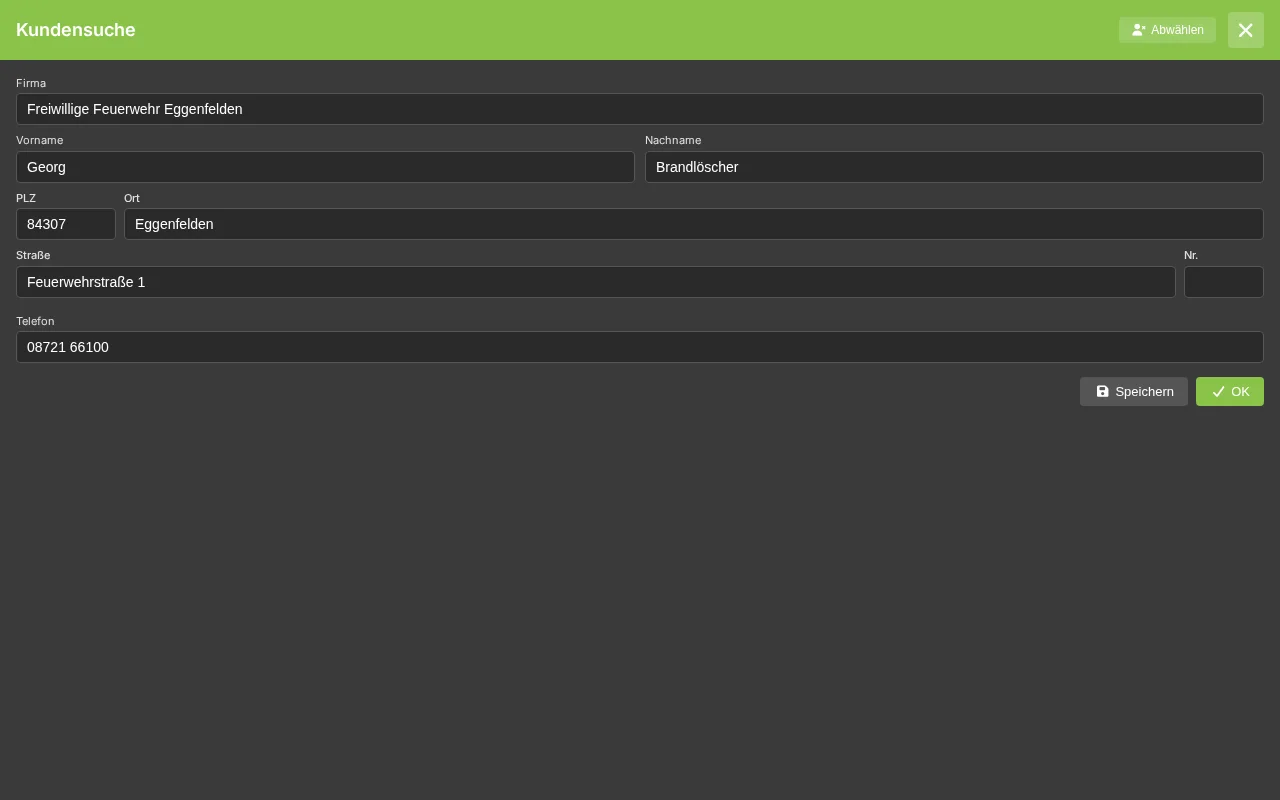
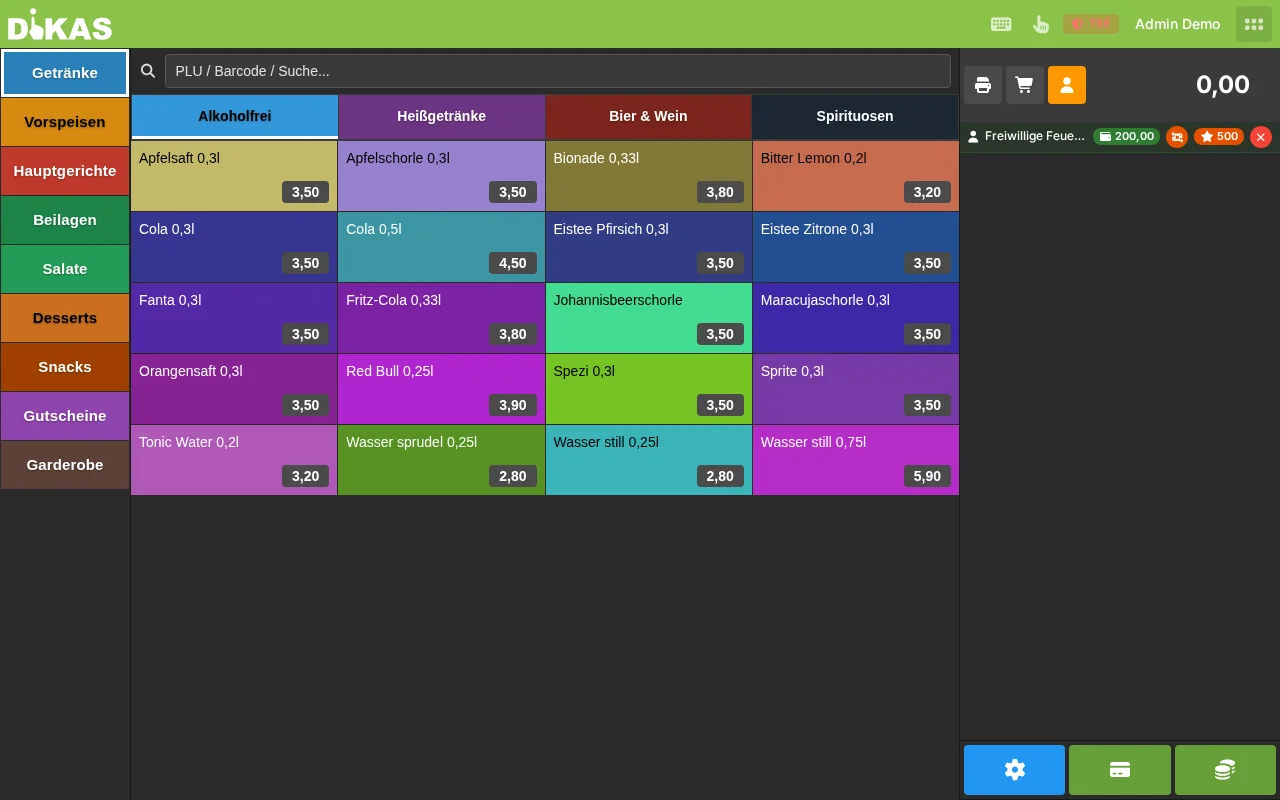
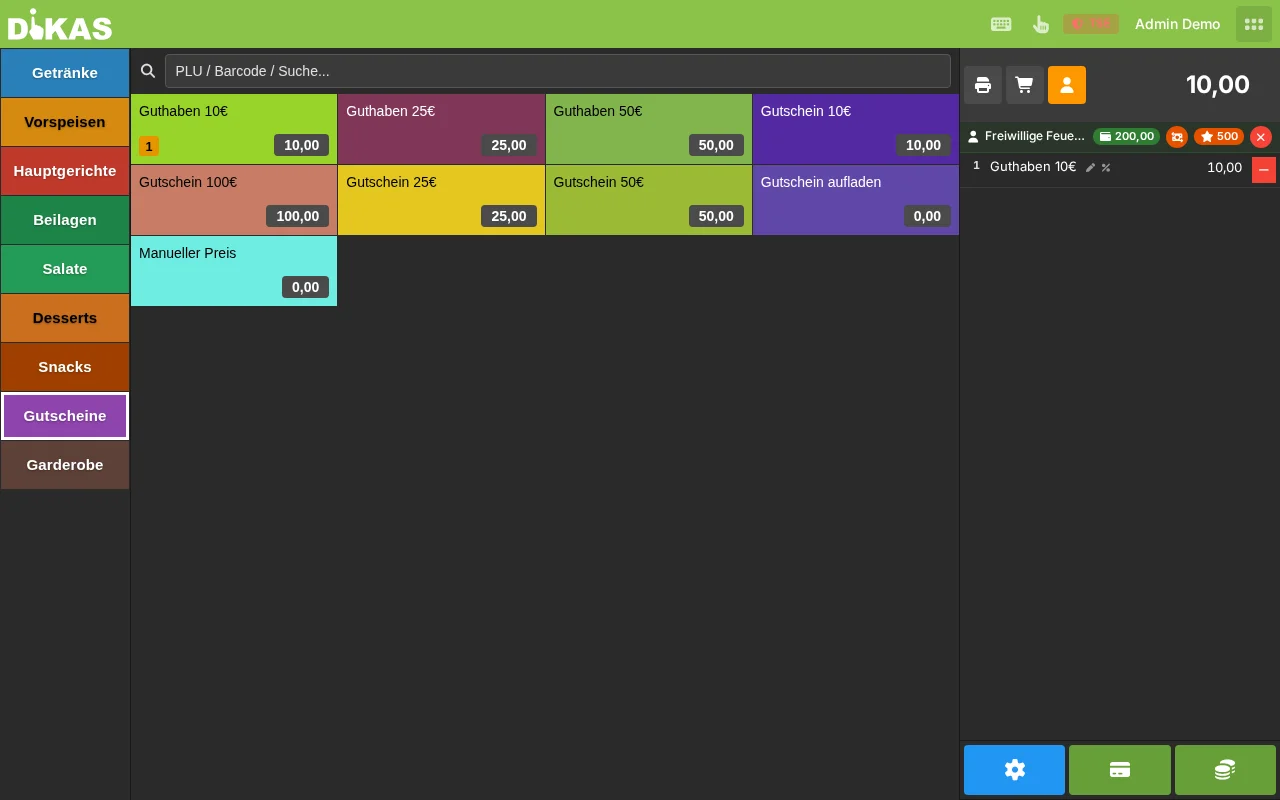
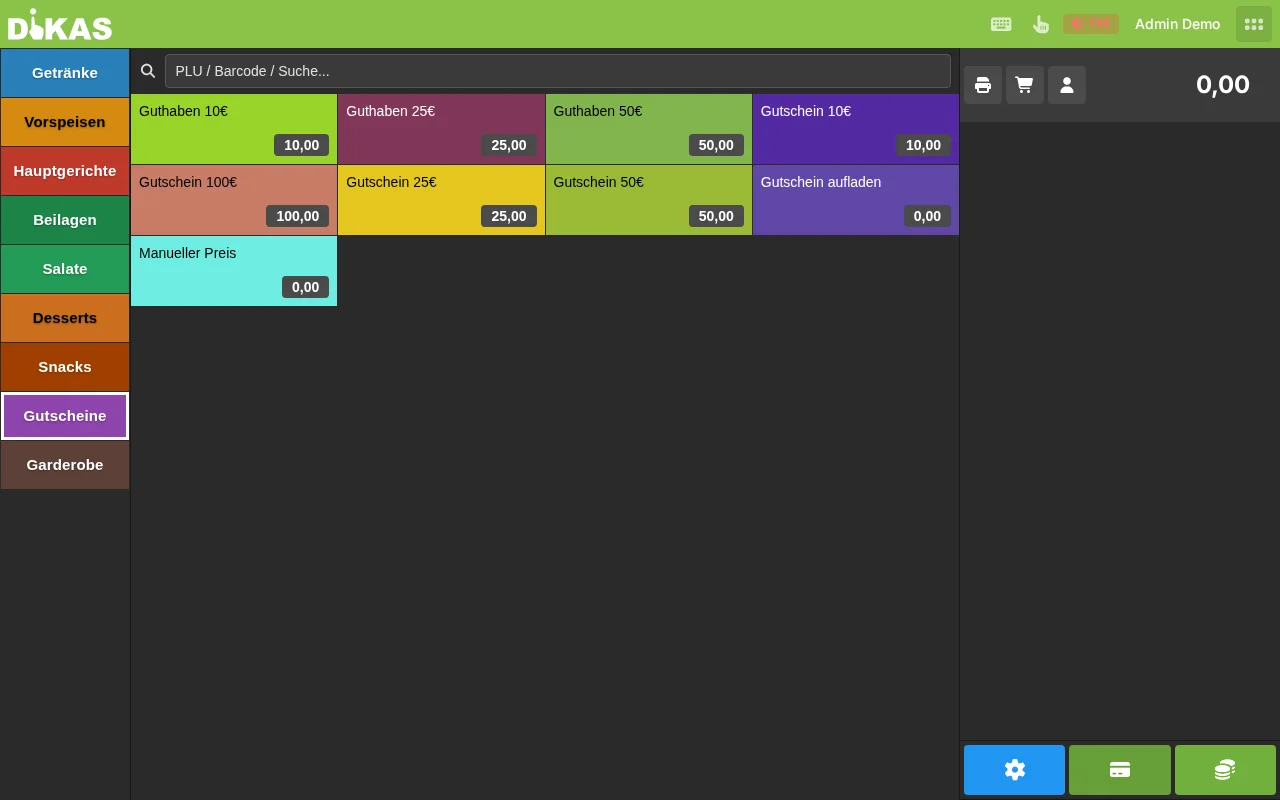
- Select customer (Customer button → search → select)
- Select article "Top up credit"
- Enter amount (e.g., 50.00 EUR)
- "Pay" → Cash or card
- The credit is immediately added to the customer account
Top-Up Bonus
If a top-up bonus is configured, the bonus is calculated automatically:
Top-up:              100.00 EUR
+ Bonus (10%):        10.00 EUR
+ Bonus (fixed 5 EUR): 5.00 EUR
─────────────────────────────────
New balance:         115.00 EUR
  of which cash:     100.00 EUR
  of which bonus:     15.00 EUR
Bonus Configuration
The bonus is configured per top-up article:
| Setting | Description | Example |
|---|---|---|
| CardUploadPercent | Percentage bonus on the top-up amount | 10 = 10% bonus |
| CardUploadAmount | Fixed bonus per top-up | 5 = 5.00 EUR bonus |
Both bonus types can be combined. The bonus is automatically credited to the bonus account.
In Admin
Admin → Customers → [Select customer] → Credit
Here you can:
| Action | Description |
|---|---|
| View balance | Cash account and bonus account separately |
| Book correction | Manually increase/decrease credit (e.g., for complaints) |
| Transaction history | All transactions: top-ups, usage, corrections, payouts |
Paying with Credit
Workflow
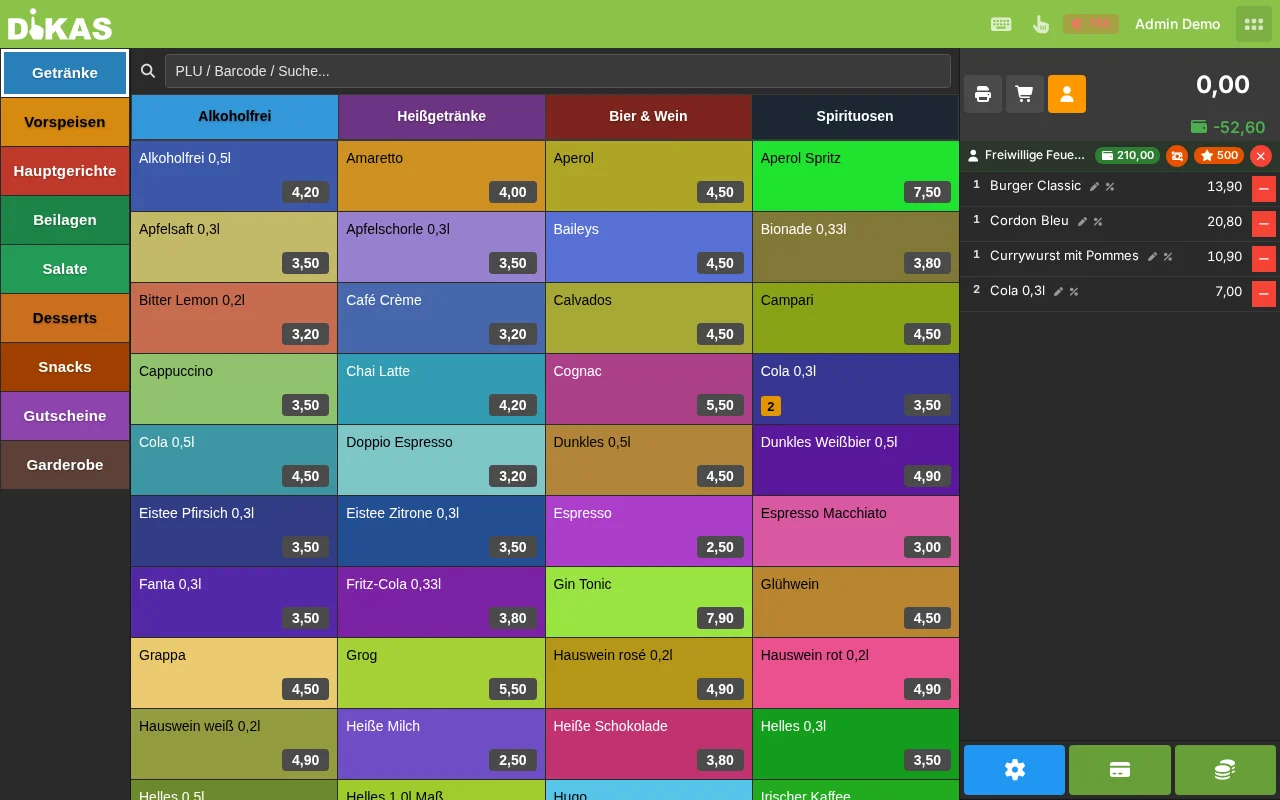
- Select customer (before paying!)
- Select articles → "Pay"
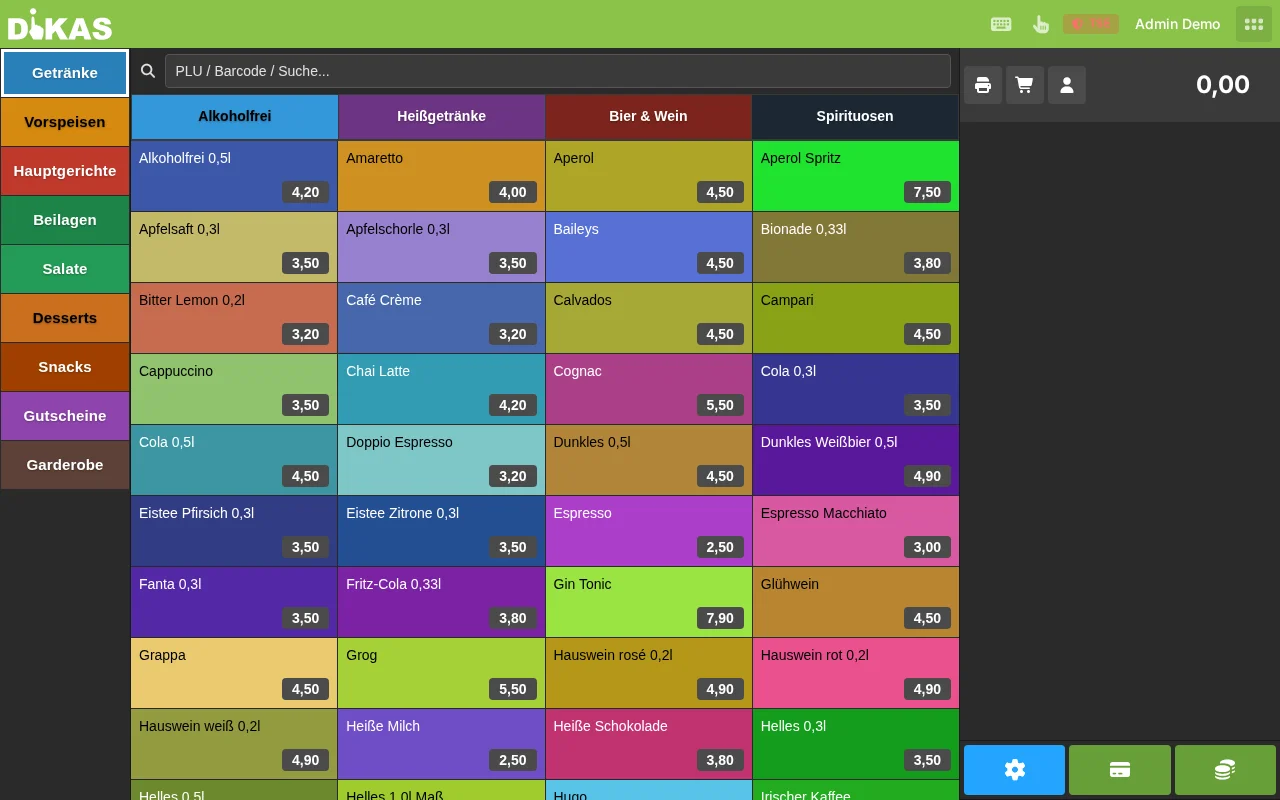
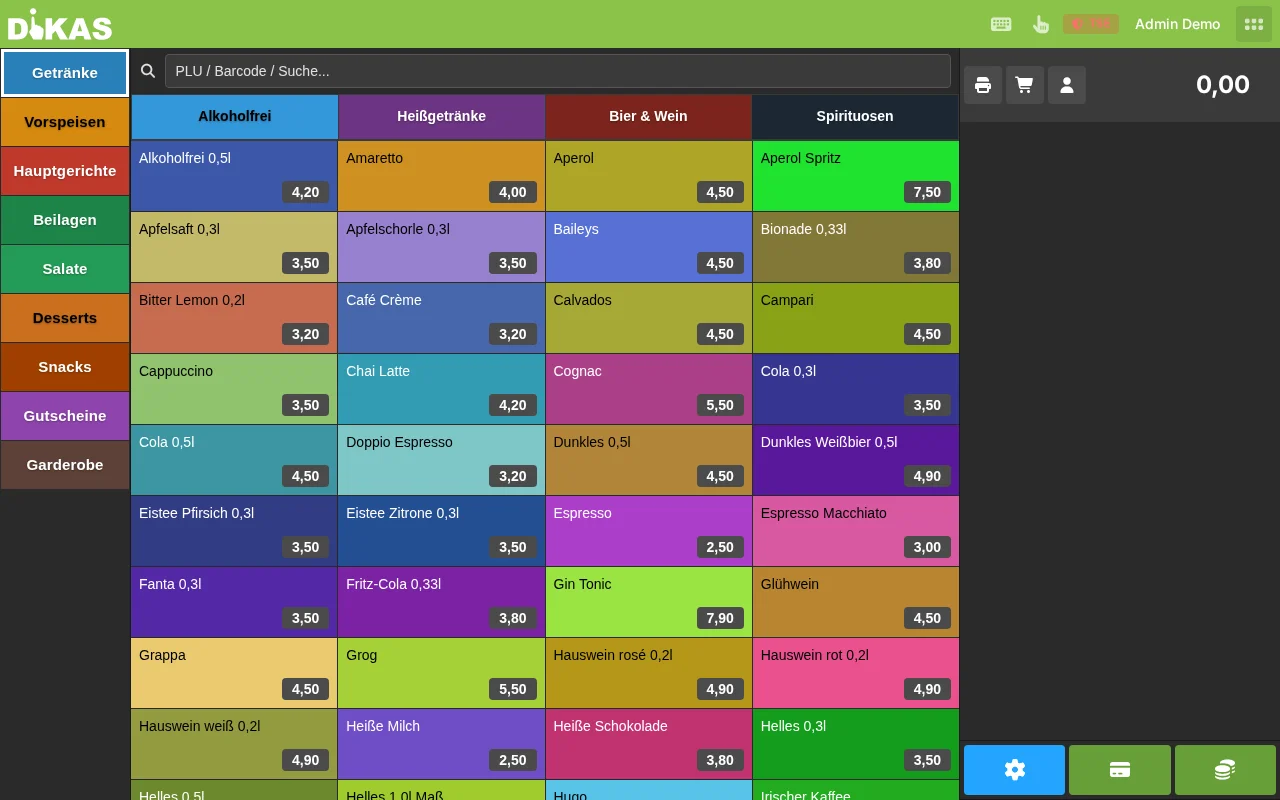
- If the customer has credit, DiKAS deducts it automatically from the invoice amount and shows the deduction at the top of the payment dialog:
- If the remaining amount is 0.00 EUR, the transaction is completed directly. If a remainder is left, select cash/card for the difference.
ℹ️ Customer credit is not a payment method button to select — it is automatically applied as soon as a customer with credit is selected.
Which Account Is Charged First?
DiKAS uses the credit in this order:
- Cash account first (deposited money)
- Bonus account second (gifted bonus)
When bonus is consumed, a discount article "Top-up bonus" automatically appears on the receipt. This shows the bonus portion with 19% VAT as a negative amount.
Example: Mixed Deduction
Purchase:              35.00 EUR

Cash account before:   20.00 EUR
Bonus account before:  15.00 EUR

Deduction:
  from cash account:   20.00 EUR
  from bonus account:  15.00 EUR  → Discount article "Top-up bonus" -15.00 EUR

Cash account after:     0.00 EUR
Bonus account after:    0.00 EUR
Credit Insufficient → Automatic Split Payment
If the total credit (cash + bonus) is not enough for the invoice amount, DiKAS automatically opens a split payment: the available credit is fully applied and the remaining amount is collected in your chosen payment method (cash, card, …). The payment dialog shows this clearly:
Split payment — credit insufficient
  Customer credit:   35.00 EUR
  Remaining amount:  10.00 EUR
─────────────────────────────────────────
Pay remainder with:  [ Cash ] [ Debit card ] …
- Customer with credit is selected → credit is automatically applied (at a table: via the credit button)
- If it does not cover the amount, the split view appears with credit portion and remaining amount
- Tap the payment method for the remainder and confirm — both partial payments appear on one receipt
Allow Credit
For particularly trusted customers, you can enable "Allow credit" in the customer details and set a credit limit. The customer can then order on credit even without a balance.
| Setting | Description |
|---|---|
| Allow credit | Yes/No — may the cash account go negative? |
| Credit limit | Maximum negative amount (e.g., 100.00 EUR) |
⚠️ Known limitation: When paying via customer credit at the POS, the credit limit is currently not checked — if the available credit is insufficient, the credit payment is declined. For credit/account customers use the payment method House tab (on account) instead.
Paying Out Credit
If a customer wants their remaining credit paid out, there are two ways:
Way 1 — In Admin (partial amount possible):
- Admin → Customers → [Customer] → Credit
- Click "Payout"
- Enter amount (up to the cash account balance)
→ The bonus credit is retained here.
Way 2 — At the POS (entire cash account):
- Select customer → a payout symbol appears next to the customer name
- Tap it → the entire cash account is booked as a cash payout (no partial amount possible)
⚠️ Important: - Only deposited credit (cash account) can be paid out — bonus credit is not payable. - With the POS payout (Way 2) any existing bonus credit is retained (no longer forfeited) — only the cash account is paid out. - If the cash balance is insufficient for the requested payout, an error message is shown (no silent abort).
Rules in detail:
| Rule | Description |
|---|---|
| Cash account only | Only deposited credit (cash account) can be paid out |
| No bonus | Bonus credit is not payable |
| Maximum | Payout up to the cash account balance only |
| Booking | Logged as a payout transaction (type 5) |
| Receipt | A payout receipt is created |
Transaction Types
All credit movements are logged seamlessly:
| Type | Name | Description |
|---|---|---|
| 0 | Top-up | Credit deposited (cash/card) |
| 1 | Usage | Credit used for payment |
| 2 | Correction | Manual adjustment (Admin) |
| 3 | Bonus top-up | Top-up bonus credited |
| 4 | Bonus usage | Bonus consumed during payment |
| 5 | Payout | Credit paid out to customer |
Each transaction contains the balance after (BalanceAfter, BonusBalanceAfter) — so the account balance is traceable at any point in time.
⭐ Customer Points (Loyalty Program)
In addition to credit, customers can automatically collect loyalty points.
Earning Points
Points are credited with every purchase — based on the point value of the respective article:
| Article | Points per unit | Example |
|---|---|---|
| Coffee | 1 | 3× Coffee = 3 points |
| Pizza | 2 | 1× Pizza = 2 points |
| Water | 0 | No points |
Redeeming Points
Articles with a negative point value can be "purchased" with points:
| Reward | Point cost | Description |
|---|---|---|
| Free coffee | -10 points | Costs 10 points |
| Free dessert | -20 points | Costs 20 points |
- Select customer
- Select reward article (e.g., "Free coffee")
- DiKAS checks whether enough points are available
- Points are deducted, article is added to the receipt
Points Configuration
Point settings can be found under Admin → Settings → Customers:
| Setting | Description |
|---|---|
| Points per article | Configured directly on the article (field "Points") |
| Points redemption | Negative point value on the reward article |
Practical Examples
Loyalty Program for a Café
Goal: Retain regulars, increase repeat purchase rate.
Setup: - Top-up article: "Top up credit", bonus 10% - Points: 1 point per coffee, "Free coffee" costs 10 points
Daily operation: 1. Regular guest Mrs. Weber tops up 50 EUR → receives 5 EUR bonus → Total balance: 55 EUR 2. Every morning: Cappuccino (3.80 EUR) paid with credit → 1 point 3. After 10 visits: 10 points → Redeem "Free coffee" 4. Credit lasts for about 14 coffees instead of 13 (thanks to 10% bonus)
Benefit for the business: Mrs. Weber has paid 50 EUR in advance and is guaranteed to return.
B2B Catering Customer with Credit
Goal: Serve a business customer without prepayment, settle monthly.
Setup: - Customer: "Baufirma Schmidt GmbH" - Payment on account via House tab - No top-up bonus (B2B)
Daily operation: 1. Company employees come for lunch, order, and pay with "House tab" (on account) 2. The amounts accumulate on the customer account as open items 3. At month's end: Admin → Accounting → Create invoice 4. Company transfers payment → the payment is assigned to the invoice
Disco Cards with Credit
Goal: Guests top up cards and pay contactlessly in the club.
Setup: - NFC cards with customer assignment - Top-up article with 0% bonus (or 5% as incentive) - Credit: No (prepayment only)
Daily operation: 1. Guest buys NFC card and tops up 30 EUR 2. At the bar: Scan card → Order beverage → Automatically deducted from credit 3. At the end of the night: Remaining balance is preserved (next visit) 4. Payout on request at the POS (cash account only)
Employee Meals
Goal: Employees receive a meal subsidy.
Setup: - Create employees as customers - Top up 100 EUR monthly (correction booking in Admin) - No top-up bonus (already a subsidy) - No credit allowed
Daily operation: 1. Employee scans badge or enters personnel number 2. Orders lunch → Pays with customer credit 3. At month's end: Payroll reviews consumption via transaction history
Frequently Asked Questions
Can a customer use credit and a voucher at the same time? Yes. You can combine customer credit + voucher + cash/card in a single transaction.
What happens if a customer is deleted? The credit is forfeited. Before deletion, the remaining credit should be paid out.
Can multiple people use the same account? Yes, if they select the same customer. Typical for families or company accounts.
Where can I see all credit balances? Admin → Customers → Customer list shows the current balance of each customer. Via reports, you can also generate a summary report of all balances.
How do I book a refund to the customer account? Admin → Customers → [Customer] → Credit → "Book correction" → Enter a positive amount.
Next Step
→ Kitchen Printer & Kitchen Display — Sending orders to the kitchen