Recording Expenses
Expenses document all cash flows that do not originate from regular sales — purchases, change transfers, income from other sources, or invoices paid by bank transfer. DiKAS distinguishes four expense types with different effects on the cash balance.
Four Expense Types (AccountMode)
In the POS, select the mode via four buttons at the top:
| Button (UI) | Type | Cash Register Effect | Usage |
|---|---|---|---|
| Expense | 1 | Balance decreases | Purchases, tips, postage |
| POS→Bank | 2 | Balance decreases | Taking money to the bank, change transfer |
| Bank→POS | 3 | Balance increases | Fetching cash from the bank, miscellaneous income |
| Bank transfer | 4 | No effect | Invoices paid by bank transfer, online orders |
Why Four Types?
- Expense (1): Money leaves the register for a purchase → Input tax-relevant business expense
- POS→Bank (2): Money is moved to the bank → Not a business expense, only a cash balance change
- Bank→POS (3): Cash enters the register (e.g., change from the bank) → Increases the cash balance
- Bank transfer (4): Recorded in accounting but has no effect on the cash balance. In the end-of-day report these appear as "Deferred expenses".
Recording an Expense (POS)
⚙️ Enable/Disable: Expense/receipt recording in the POS is activated under Settings → Modules → "Expenses". The "Expenses" menu item only appears when the module is active and the employee has the corresponding permission.
- At the POS: Menu → Expenses
- Select mode (Expense, POS→Bank, Bank→POS, Bank transfer)
- Fill out the form:
| Field | Description | Example |
|---|---|---|
| Description | What was purchased/transferred? | Beverage restock from supplier |
| Date | Receipt date (pre-filled with today, changeable) | 30.05.2026 |
| Total (gross) | Total amount of the receipt incl. VAT | 57.00 |
| VAT 19 % | Tax amount at the standard rate included in the total | 9.10 |
| VAT 7 % | Tax amount at the reduced rate included in the total | 0.00 |
- Optional: Attach receipt (photo/file)
- "Save"
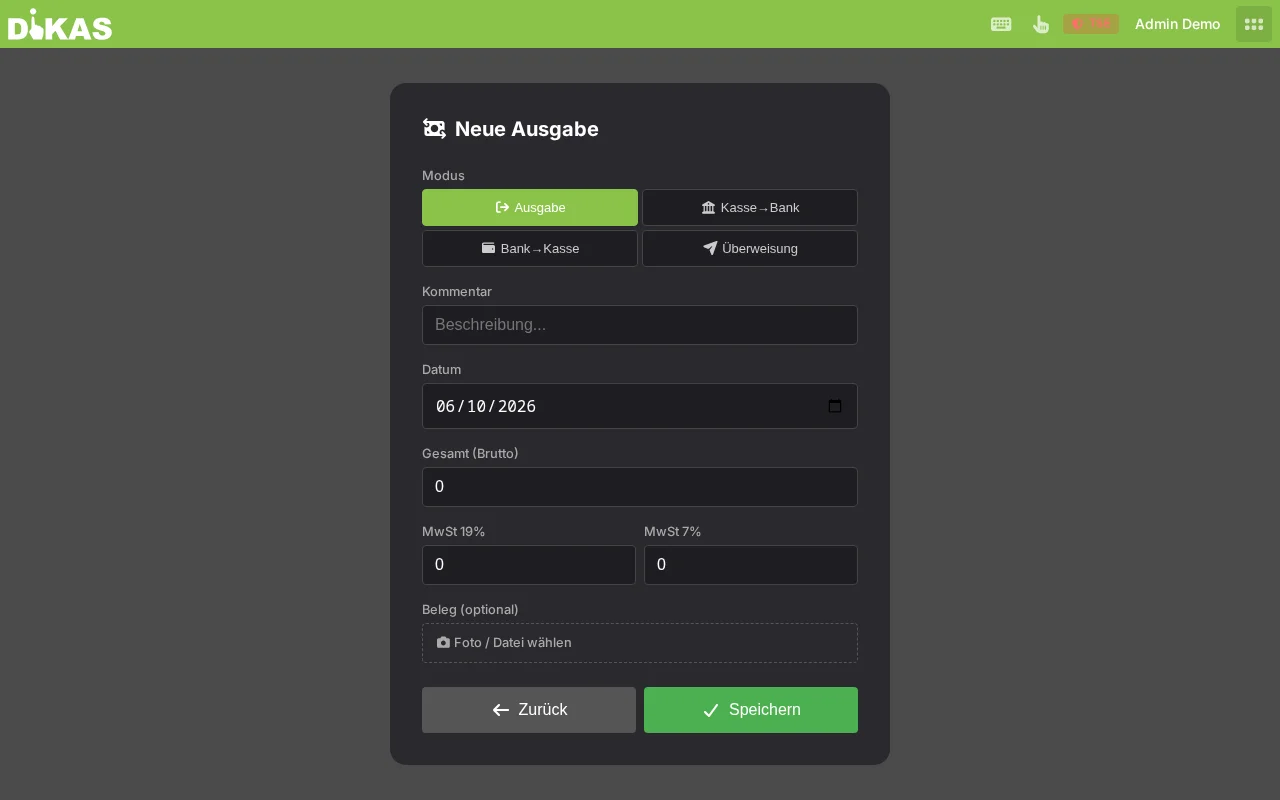
How to Fill in the VAT Fields Correctly
- Total (gross) is always the final amount you paid.
- In the VAT 19 % and VAT 7 % fields, enter the tax amount shown on the receipt (not the gross portion). DiKAS then calculates the respective net/gross portion automatically.
- The tax-exempt portion does not need to be entered — it is calculated automatically as "Total − taxed portions".
💡 Example: Receipt of 57.00 EUR gross with 19 % VAT. The receipt shows "VAT 19 %: 9.10 EUR". Enter: Total 57.00 / VAT 19 % = 9.10. For a purely tax-exempt transaction (e.g., a bank transfer), leave both VAT fields at 0.
Attaching Receipts
You can attach the register receipt or invoice as an image to each expense:
- Tap "Photo / Choose file"
- Depending on the device, the camera or file picker opens — take a photo or choose an image/PDF
Automatic image compression: Images over 500 KB are automatically compressed (JPEG, max. 2000 pixels, quality 75%). This keeps files manageable without affecting readability.
The attached receipts can be found later under Admin → Cash Book → Expenses → [Expense] → Receipts.
Sending receipts to the tax advisor: During the DATEV export, expenses are posted; with the option "Include receipts" the attached receipt image is automatically linked to the posting (DATEV receipt link) — see Exporting receipt images.
Managing Expenses in Admin
Admin → Cash Book → Expenses
The expense table shows all recorded expenses:
| Column | Description |
|---|---|
| Date | Receipt date |
| Description | What was purchased/transferred |
| Category | Assigned expense category (if set) |
| Amounts | Taxed portions (19 %/7 %) and tax-exempt portion |
| Total | Total amount |
| Type | Expense / POS→Bank / Bank→POS / Bank transfer |
| Employee | Who recorded the expense |
| Receipts | Number of attached receipts |
| Status | Open / closed (locked after end-of-day report) |
💡 Categories: Expenses can be assigned to a category (with its own DATEV account and tax rate). If at least one category is set up, a selection field appears in the POS. Categories make subsequent reporting and DATEV export easier. A non-existent category is rejected by the system (instead of being silently ignored).
ℹ️ Amounts: Negative amounts are rejected — the total amount must be positive.
Detail View
Click on an expense to see details: - All amount fields - Type and description - Attached receipt images (preview + download) - Option to upload additional receipts or delete existing ones
Expenses in the End-of-Day Report
Expenses are shown separately by type in the Z-report and affect the cash count:
CASH COUNT
  Opening balance:            200.00 EUR
  + Cash income:              687.30 EUR
  + Income (Type 3):           15.00 EUR
  − Cash expenses (Type 1):  −57.00 EUR
  − Transfers (Type 2):      −30.00 EUR
  ═══════════════════════════════════════
  = Expected balance:         815.30 EUR

  Deferred expenses:          120.00 EUR  (Bank transfers, no cash register effect)
During the end-of-day report, all open expenses for the business day are automatically closed and assigned to the Z-report.
📊 Expenses in the DATEV Export
Expenses are exported in the DATEV export as postings with input tax posting keys:
| VAT Rate | Posting Key | Account (SKR03) |
|---|---|---|
| 19 % | VSt 9 | 4980 (Miscellaneous expenses) |
| 7 % | VSt 8 | 4980 |
| 0 % | BU 40 | 4980 |
The expense integration can be enabled in the DATEV settings via "Include expenses".
Practical Examples
Purchase from Beverage Wholesaler
Situation: Bartender buys supplies for 57.00 EUR (all 19 %).
- POS → Menu → Expenses → Expense
- Description: "Beverage restock Trinkgut"
- Total (gross): 57.00 EUR · VAT 19 %: 9.10 EUR
- Photograph register receipt → Attach
- Save → Cash balance decreases by 57.00 EUR
Taking Money to the Bank
Situation: In the evening, 500 EUR surplus is taken to the bank.
- POS → Menu → Expenses → POS→Bank
- Description: "Daily earnings to bank"
- Total (gross): 500.00 EUR (VAT fields empty — pure money transfer)
- Save → Cash balance decreases by 500.00 EUR
Supplier Invoice Paid by Bank Transfer
Situation: Supplier sends an invoice for 1,200.00 EUR net (19 % VAT), paid by bank transfer.
- POS → Menu → Expenses → Bank transfer
- Description: "Inv. 2026-1234 Metro food supplies"
- Total (gross): 1,428.00 EUR · VAT 19 %: 228.00 EUR
- Upload invoice as PDF
- Save → No cash register effect, but included in DATEV export
Depositing Tip Jar
Situation: At month's end, the collected tips (85 EUR) are deposited into the register.
- POS → Menu → Expenses → Bank→POS
- Description: "Tip jar March"
- Total (gross): 85.00 EUR (VAT fields empty)
- Save → Cash balance increases by 85.00 EUR
Frequently Asked Questions
Can I edit an expense after the fact? Yes, as long as the end-of-day report has not yet been performed. After the end-of-day report, the expense is closed and can no longer be modified.
How do I enter the VAT? Enter the total amount (gross) and additionally the tax amount shown on the receipt in the field "VAT 19 %" or "VAT 7 %". DiKAS calculates the tax-exempt portion automatically. This ensures the input tax is correct in the DATEV export.
What is the difference between "Expense" and "POS→Bank"? An expense is a business expense (e.g., a purchase) and appears in the DATEV export as an expenditure. POS→Bank is a pure money transfer (cash to the bank) and has no profit impact — only the cash balance decreases.
Next Step
→ Staff Switch — Switching staff on the device