Payment Methods¶
DiKAS supports numerous payment methods — from cash payment to card payment, vouchers, customer credit, and house tabs. Multiple payment methods can be combined in a single transaction.
Overview of All Payment Methods¶
| Payment Method | Type Code | Cash Register Effect | Description |
|---|---|---|---|
| Cash | 0 | Yes (cash income) | Cash payment with change calculation |
| Debit card | 1 | Yes (card revenue) | Via ZVT terminal or SumUp |
| Credit card | 1 | Yes (card revenue) | Via ZVT terminal or SumUp |
| Net cash | 3 | Yes | Cash payment without VAT display |
| Net card | 4 | Yes | Card payment without VAT display |
| Bank transfer | 5 | No | Bank transfer |
| Customer credit | 10 | No | Prepaid credit from the customer |
| Voucher | 20 | No | Redeem value voucher |
| House tab | 99 | No | On customer account (credit) |
ℹ️ Note: Cash register effect means: The amount appears in the cash balance (cash) or in the card revenue (card). Payment methods without a cash register effect (house tab, credit, voucher) do not change the cash balance.
Cash Payment¶
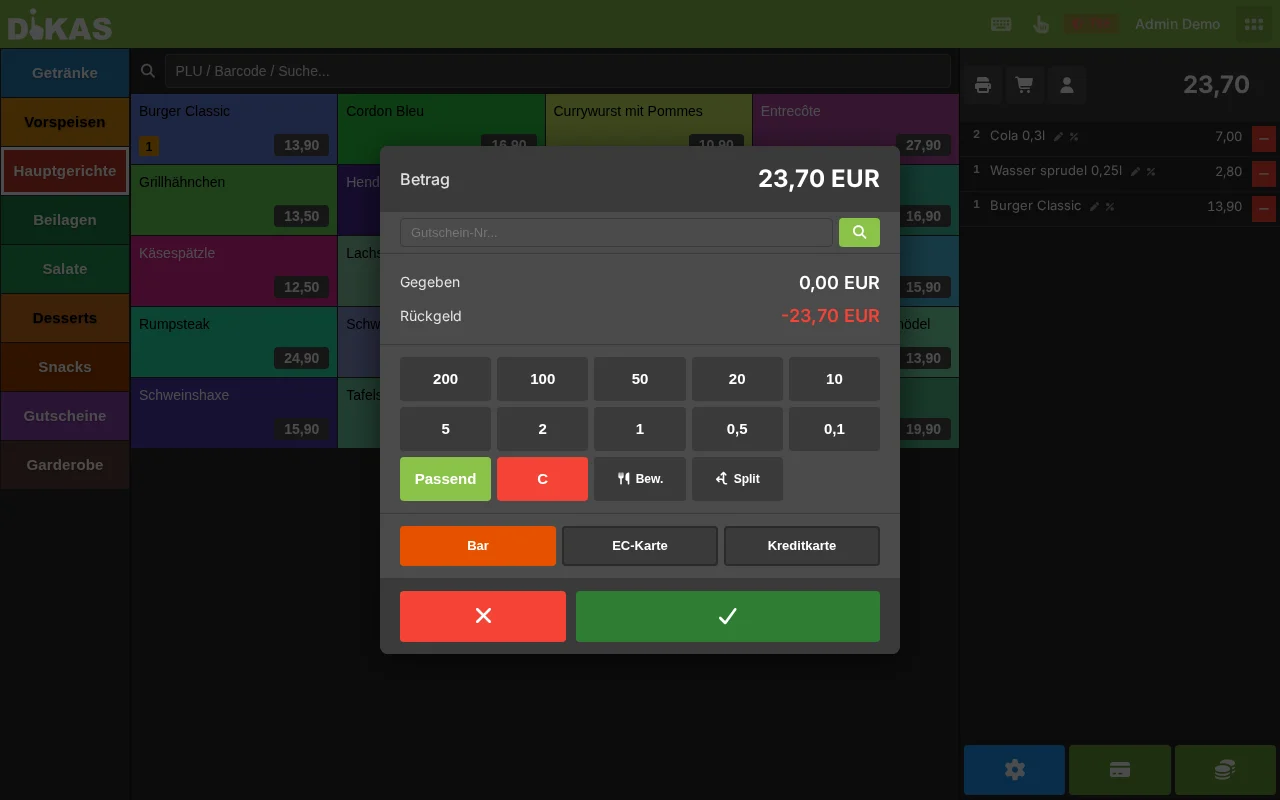
- Tap "Pay"
- Select "Cash"
- Enter the amount received (or tap a quick-select button)
- DiKAS calculates the change automatically
Quick-Select Buttons (Denominations)¶
In the payment dialog, fixed banknote/coin buttons let you quickly enter the amount given:
- Tap e.g. 20 to set "Given = 20.00 EUR" and calculate the change.
- "Exact" books the exact amount — no change needed.
- "C" resets the Given field.
💡 Leave the Given field empty and tap "Cash" directly — DiKAS automatically books "exact" (no change).
Change Calculation¶
| Total Amount | Given | Change |
|---|---|---|
| 12.70 EUR | 15.00 EUR | 2.30 EUR |
| 12.70 EUR | 20.00 EUR | 7.30 EUR |
| 12.70 EUR | 12.70 EUR (Exact) | 0.00 EUR |
ℹ️ Change is for display purposes only for the cashier. What is always recorded (and saved on the receipt/Z-report) is the invoice amount — not the given amount. If a guest declines the change, the difference is a tip (see below).
💳 Card Payment (Debit / Credit Card)¶
DiKAS supports three terminal types:
| Terminal Type | Protocol | Description |
|---|---|---|
| ZVT terminal | ZVT (Ingenico, Verifone, CCV) | Classic debit card terminal via network |
| SumUp Reader | Cloud API | SumUp Solo Reader, contactless |
| Tap-to-Pay | SDK | Smartphone as terminal (Android) |
💡 Demo/Test without a real terminal: In demo mode DiKAS simulates the card terminal. The simulator deliberately rejects every second transaction ("Simulator: Payment declined") — so the error case can be tested too. Simply tap Pay again, the next transaction will succeed.
With ZVT Terminal (recommended)¶
- Tap "Pay"
- Select "Debit card" or "Credit card"
- DiKAS sends the amount automatically to the terminal (ZVT protocol)
- Guest holds card to the terminal or inserts it
- Terminal displays "Payment successful"
- DiKAS receives the confirmation and prints the receipt
Advantage: The amount is transmitted automatically — no manual entry at the terminal required.
With SumUp Reader¶
- Select "Debit card"
- DiKAS sends the amount via the SumUp Cloud API to the paired reader
- Guest holds card to the reader
- Confirmation comes back → Receipt is printed
Without Terminal¶
- Select "Debit card"
- Enter amount manually on the external terminal
- After successful payment, confirm in DiKAS
Voiding a Card Payment¶
If the wrong amount was charged by mistake:
- Admin → Cash book or search for receipt
- Select "Void"
- Enter reason
- DiKAS sends a reversal request to the ZVT terminal
- The terminal voids the transaction
- A void receipt (with negative amounts) is created
Refund / Credit (Card)¶
Unlike a void (which refers to a specific booking), a credit is an independent refund to the card — e.g., for a return on a different day or a partial amount without the original receipt.
- At the POS tap the Credit button (in the payment action bar) — or in Admin → Settings → Payment Terminals tap "Card Credit" for the terminal
- Enter amount → "Process credit"
- Guest holds card to the terminal
- DiKAS shows the result and customer receipt
Card Type as Payment Method (optional)¶
On request, DiKAS can adopt the card type reported by the terminal (girocard, Visa, Mastercard …) as a separate payment method in reports — instead of just "Card". Switch under Admin → Settings → Payments.
Receipt & Terminal Printer¶
Per terminal, configure under Admin → Settings → Payment Terminals whether it has its own printer:
- With printer (default): The terminal prints the customer receipt and settlement itself. DiKAS does not additionally print the card receipt in the POS receipt — no double printing.
- Without printer: DiKAS prints the customer receipt in the POS receipt and the card settlement via the receipt printer.
Further Terminal Functions¶
Per terminal, the following are available under Admin → Settings → Payment Terminals:
- Status / Device Info — check connection, show terminal ID and merchant number
- Receipt Repeat — reprint the last receipt
- Turnover Subtotal — query the terminal's card total (also used at End-of-Day Report for reconciliation)
- Settlement — trigger the card terminal settlement
During a running card payment you can actively cancel at the terminal via "Cancel" in the payment dialog — the device then stops waiting for the card.
💡 Live messages from the terminal: If an action is triggered directly at the device (e.g., a void or settlement at the terminal itself), DiKAS shows it immediately at the POS via a persistent connection (setting "ZVT Device Listener").
ℹ️ Own ZVT integration: DiKAS includes its own ZVT integration — no third-party tool, no per-transaction surcharge. The terminal runs under your own contract at your bank conditions. In cloud mode DiKAS reaches the terminal via a local hardware agent in the venue network.
Redeeming a Voucher¶
Value Voucher (e.g., "Gift voucher 50 EUR")¶
- Select articles as usual
- Tap "Pay"
- In the field "Voucher no…" at the top of the payment dialog, enter the code or scan it via scanner → tap the magnifying glass
- DiKAS checks whether the code is valid, not closed, and has remaining balance
- The voucher amount is deducted from the invoice amount (up to the open total). Any remaining amount is settled with the chosen payment method (cash/card).
ℹ️ "Voucher" is not a separate payment method button to select — it is a deduction that is offset before the payment method selection. Multiple vouchers can be redeemed one after another.
ℹ️ Note: The value voucher is treated as a payment instrument for tax purposes. VAT is applied to the purchased articles — not to the voucher itself.
Single-purpose voucher (e.g., "Brunch for 2")¶
A single-purpose voucher is not processed as a payment instrument but as a negative receipt item (discount line). The VAT was already calculated when the voucher was sold.
→ Detailed instructions: Vouchers
Customer Credit¶
- Select customer (before paying!)
- "Pay" — if the customer has credit, DiKAS automatically deducts it from the invoice amount and shows the deduction at the top of the dialog
- If a remaining amount is left (credit insufficient), select a normal payment method (cash/card)
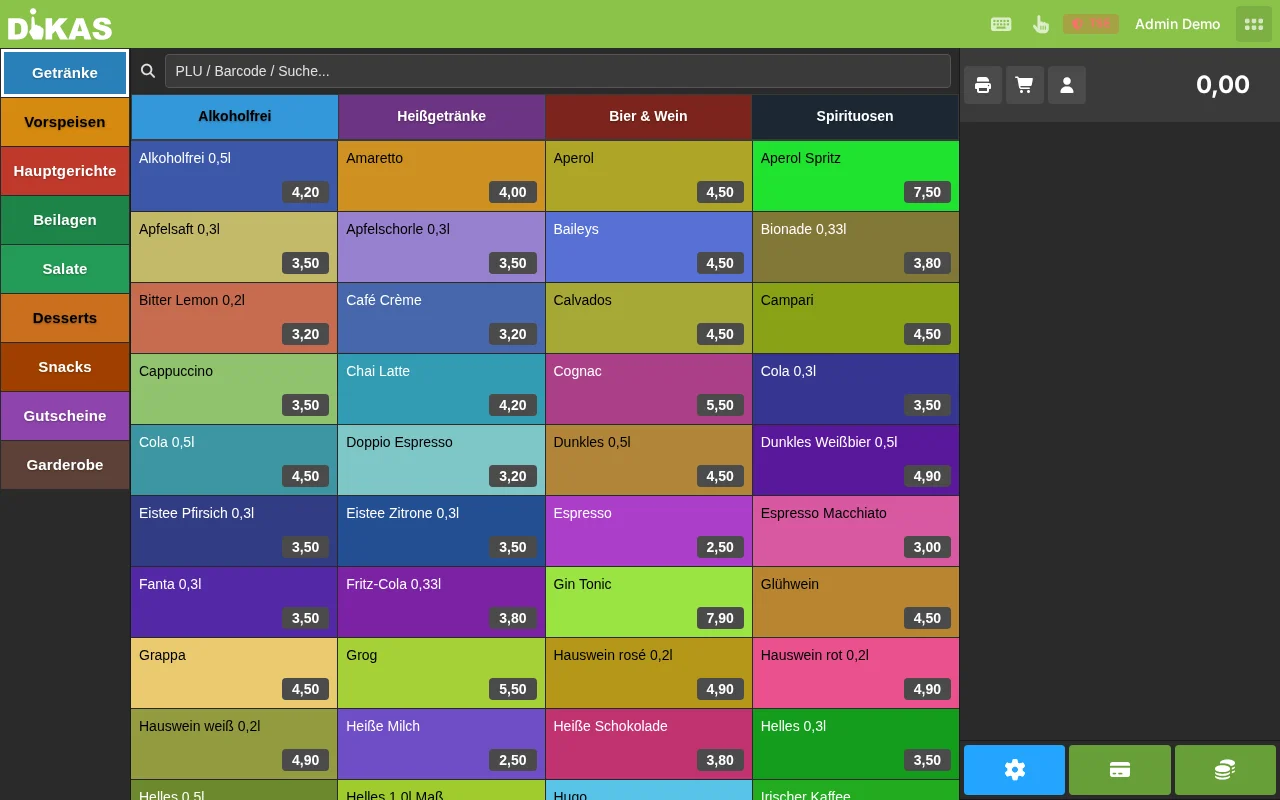
ℹ️ Customer credit is not a payment method button to select — it is always automatically offset as soon as a customer with credit is selected. Exception: if a top-up or payout article is in the cart, the automatic deduction is skipped.
If the credit is insufficient: The remaining amount is paid with another payment method.
→ Detailed instructions: Customer Credit
House Tab (On Account)¶
For business customers and regular customers who order on account:
- Select customer (mandatory!)
- "Pay" → Select "House tab"
- The amount is posted to the customer account
- The invoice can be created later in Admin
Important Details¶
| Property | Description |
|---|---|
| Cash register effect | None — no cash flows |
| Where visible? | Admin → Customers → [Customer] → Invoices |
| Invoice creation | Admin → Accounting → Invoices → "Create" |
| Dunning | Automatic 3-level dunning process for overdue invoices |
| SEPA direct debit | Available for customers with a stored IBAN |
Practical Example: Catering Company¶
"Event GmbH" regularly orders catering:
- Employee of Event GmbH orders: 20× Schnitzel, 20× Beverage
- Waiter selects customer "Event GmbH" → "House tab"
- At month's end: Admin → Accounting → Invoices → Consolidate all house tabs
- Send invoice via email
- Collect payment via SEPA direct debit
Net Payment Methods¶
For businesses with net customers (e.g., business customers receiving net invoices):
| Payment Method | Description |
|---|---|
| Net cash | Cash payment, receipt shows net amounts |
| Net card | Card payment, receipt shows net amounts |
Net payment methods must be enabled in the settings.
🔀 Combining Multiple Payment Methods (Split Payment)¶
A guest can pay with any number of payment methods simultaneously:
Example 1: Cash + Card¶
Total amount:        45.00 EUR
─────────────────────────────
1. Cash:             20.00 EUR
2. Debit card:       25.00 EUR
─────────────────────────────
Paid:                45.00 EUR
Example 2: Voucher + Credit + Cash¶
Total amount:              60.00 EUR
───────────────────────────────────
1. Voucher GS-A7B3:        30.00 EUR
2. Customer credit:         20.00 EUR
3. Cash:                    10.00 EUR
───────────────────────────────────
Paid:                       60.00 EUR
Example 3: Customer Credit Insufficient¶
Total amount:              25.00 EUR
───────────────────────────────────
1. Customer credit:         18.50 EUR  (entire balance)
   Remaining amount:         6.50 EUR
2. Cash:                     6.50 EUR
───────────────────────────────────
Paid:                       25.00 EUR
Split Payment Workflow¶
- Tap "Pay"
- Tap "Split"
- Enter the amount for the first payment method (e.g., 20.00 EUR card)
- The second payment method automatically takes the remaining amount (e.g., 25.00 EUR cash)
- Both payment methods freely selectable; confirm
ℹ️ The split function divides a payment across exactly two payment methods. Vouchers and customer credit are additionally offset automatically beforehand — allowing combinations like "Voucher + Credit + remaining by cash" in practice.
Each payment method used is stored as a separate payment record — for seamless bookkeeping.
What Happens During Payment in the Background?¶
Every payment in DiKAS goes through the following steps:
| Step | Description |
|---|---|
| 1. Check permissions | Does the employee have checkout permissions? |
| 2. Load articles | All ordered articles and their tax classes |
| 3. Create receipt | Receipt with items, taxes, payments |
| 4. TSE signing | Signature for the tax authority (KassenSichV) |
| 5. Book payments | Payment records per payment method |
| 6. Process vouchers | Create new vouchers / redeem existing ones |
| 7. Update customer account | Credit, points, last visit date |
| 8. Print receipt | Receipt on the configured printer |
| 9. Release table | Set status to "Free" or "Cleaning" |
Hospitality Receipt (Bewirtungsbeleg)¶
For business entertainment (tax-deductible under § 4 para. 5 German Income Tax Act), DiKAS creates a separate hospitality receipt with all required details:
- Order/ring up articles
- In the payment dialog tap the "Hosp." button (before selecting the payment method)
- With "Hosp." active, an additional "Tip" field appears (in EUR). Optionally enter the tip amount to be shown on the hospitality receipt.
- Complete payment
- The hospitality receipt is additionally printed/generated as PDF — the entered tip appears as a separate line on the receipt
Other Payment Methods & Devices¶
In addition to cash and card, DiKAS supports further — sometimes less obvious — payment options:
| Payment Method / Device | Description |
|---|---|
| Admin payment methods | Payment methods visible only to staff with the "Admin payment methods visible" permission (e.g., internal billing) |
| Cash machine | Connected coin/bill changers (Settings → Hardware → Cash Aut.): the payment amount is sent to the machine, change is dispensed automatically |
| OnlinePayment (11) | Online prepaid orders (e.g., delivery service prepayment, Stripe/PayPal) |
| Tap-to-Pay | Android smartphone as contactless card terminal (no separate device) |
Tips¶
Tips can be recorded in three ways:
- Tip article: Special article with tip flag → Amount is shown separately
- Extra cash given: When the guest gives more cash than needed and declines the change
- Entered at the terminal: If the guest enters the tip at the card terminal, the charged amount is higher than requested. DiKAS recognizes the difference and posts it as a tip — not a correction. Works in direct sale and at table payment.
Tips appear in the end-of-day report as a separate item and are assigned to the respective waiter.
Next Step¶
→ Vouchers — Selling and redeeming vouchers → Customer Credit — Prepaid accounts for regular customers