Staff Switch & Login
During operations, multiple employees work on the same device. DiKAS offers three login methods — PIN, NFC card, and password — for a quick switch without interrupting service.
🔑 Login Methods
| Method | Speed | Security | Setup |
|---|---|---|---|
| PIN (4-digit) | Fast | Medium | Admin → Staff → Set PIN |
| NFC card | Fastest | High | Admin → Staff → Assign card ID |
| Password | Slow | High | Admin → Staff → Set password |
PIN Login (Standard)
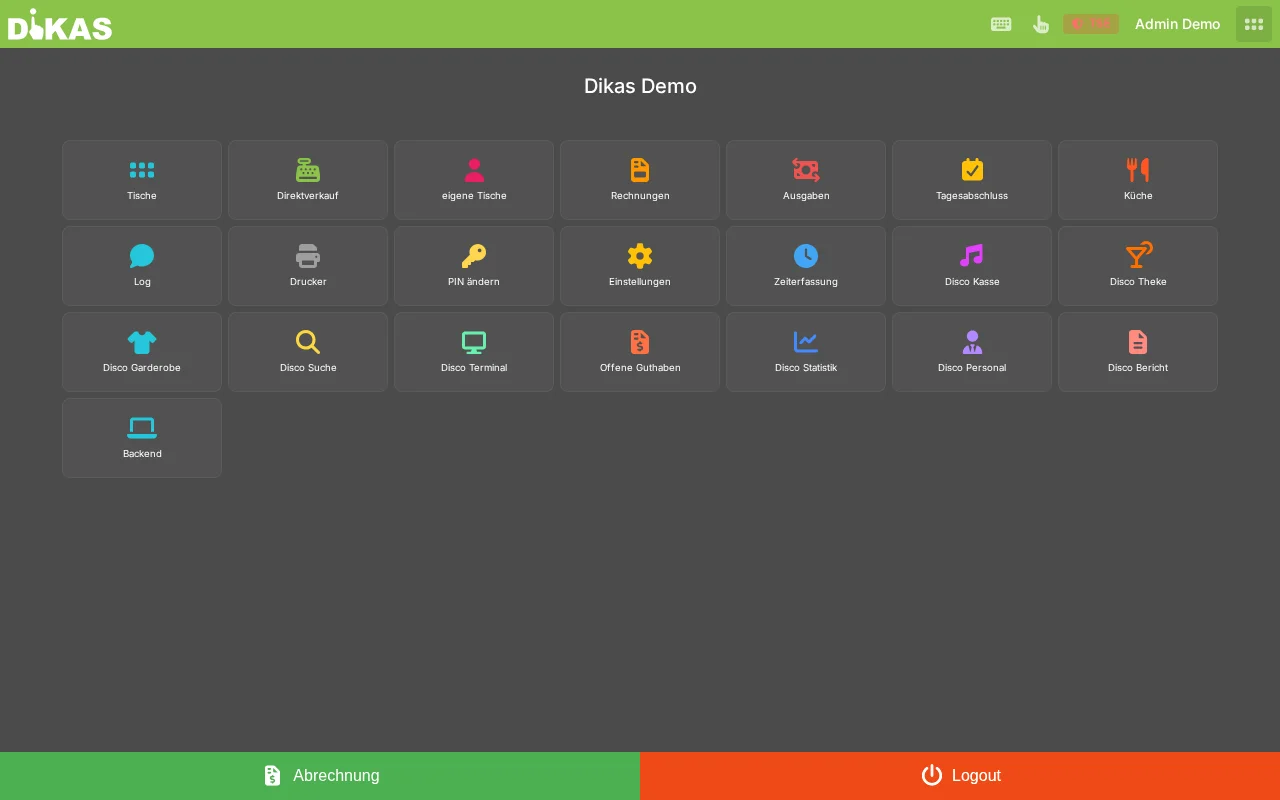
- Tap the employee name in the header bar
- A list of all active employees is displayed
- Tap your name
- Enter your 4-digit PIN
- You are now the active waiter
NFC Card Login
- Hold the NFC card to the reader
- DiKAS recognizes the card automatically and logs the employee in
- No tapping, no PIN — ideal for a quick switch at the counter
Setup: Admin → Staff → [Employee] → Fill in the field "Card ID" with the card number. Instead of typing the number, tap the "Read NFC card" button next to the field and hold the card to the reader — the ID is captured automatically.
Supported card readers
Almost any common NFC/RFID reader can be used for card login. DiKAS connects the hardware in four ways:
| Reader type | Platform | Connection |
|---|---|---|
| Built-in NFC (smartphone/tablet) | Android | Direct, no accessory required |
| Any PC/SC card reader (standard smartcard reader) | Windows PC / POS | Via the local hardware bridge DikasArch |
| Baltech NFC reader | Windows PC / POS | Via the local hardware bridge DikasArch |
| HID / keyboard-wedge readers (output the ID as keyboard input) | All (browser/PC/Android) | Direct — the card ID is recognized like a keyboard entry |
| USB NFC reader ACR122U | Android | Via the built-in USB NFC plugin |
ℹ️ PC/SC and Baltech readers on the PC/web POS: The reader is connected via the local hardware bridge DikasArch running on the workstation, which delivers the card ID to DiKAS. Enable the "Local hardware bridge (DikasArch)" switch in the POS settings. HID readers that send the card number as keyboard input also work without the bridge, directly in the browser.
Password Login
Used for the login screen (e.g., after a restart or for Admin login). During regular POS operations, you typically use PIN or NFC.
Opening a Shift
When the first staff switch of the day occurs, a shift (Exchange) is automatically opened. You can also manually open a shift with an opening balance:
- Perform a staff switch
- Tap "Open shift"
- Enter the opening balance (change in the register, e.g., 200.00 EUR)
The opening balance is used in the end-of-day report as the starting value for the cash count.
ℹ️ Note: There is exactly one open shift per employee and business day. If a shift is already open, it will be continued.
Assignment of Transactions
All actions at the POS are assigned to the currently logged-in waiter:
| Action | Assignment |
|---|---|
| Taking an order | Waiter on the order ticket |
| Processing payment | Waiter on the receipt |
| Void | Waiter who performs the void |
| Occupying a table | Waiter is assigned to the table |
| Recording an expense | Waiter on the expense |
| End-of-day report | Waiter in the Z-report |
Own Tables
If the permission "Own tables only" is enabled:
- The waiter sees only tables assigned to them
- Other waiters cannot edit these tables
- Exception: Employees with the permission "Pay all tables" can also check out other waiters' tables
Typical scenario: In a restaurant, each waiter has their own section (e.g., terrace, indoor area). Each waiter sees and serves only their own tables.
Waiter Settlement
At the end of a shift, each waiter can view their own settlement:
Menu → "My settlement"
Waiter: Maria Schmidt
Shift: 05.03.2026, 11:00 – 22:30

Opening balance:       200.00 EUR
+ Cash revenue:        312.80 EUR
+ Debit card:          124.50 EUR
+ House tab:            50.00 EUR
− Expenses:            −15.00 EUR
────────────────────────────────────
Total revenue:         487.30 EUR

Receipts:    23
Voids:        1 (8.50 EUR)
The settlement shows only the waiter's own revenue — other employees see only their own figures (unless the permission "View reports" is set).
Closing a Shift
Prerequisite: The permission "Close shift" must be enabled.
- Menu → "Close shift"
- Count the register contents and enter the amount
- DiKAS compares expected and actual balance:
Expected balance:    497.80 EUR
  (Opening 200 EUR + Cash 312.80 EUR − Expenses 15.00 EUR)

Counted:             495.30 EUR
Difference:           −2.50 EUR
- Optional: Enter a closing note
- Confirm "Close shift"
The shift data feeds into the end-of-day report.
Automatic Lock
After a configurable period of inactivity, the device is locked:
Admin → Settings → Operations → "Auto lock"
| Setting | Description |
|---|---|
| Lock time | Minutes until automatic lock (0 = disabled) |
| Lock screen | Appears after the inactivity period expires |
| Unlock | Via PIN, NFC card, or password |
Workflow
- No input for the configured time → Lock screen appears
- Next employee logs in (PIN, NFC, or password)
- All subsequent transactions are assigned to the new employee
💡 Tip: Enable auto lock with 3–5 minutes. This prevents transactions from being assigned to the wrong employee.
🔐 Permissions Overview
The most important POS permissions related to staff switch and shift operations:
| Permission | Effect |
|---|---|
| Login allowed | Can log in to the system |
| Close shift | Can close their own shift |
| End-of-day report | Can create the Z-report |
| Own tables only | Sees only assigned tables |
| Pay all tables | Can also check out other waiters' tables |
| Void level | 0 = no void, 100 = own orders, 999 = all orders |
| Hide revenue | Cannot see revenue figures |
| Allow discount | Can grant price reductions |
Permissions are configured under Admin → Staff → [Employee] → Tab "Permissions".
→ Creating staff — Details on roles and permissions
Tips
- Forgot your PIN? The administrator can reset the PIN in the Admin area (Admin → Staff → [Employee] → PIN)
- Lost NFC card? Delete the card ID in Admin and assign a new card
- Multiple devices: An employee can be logged in on multiple devices simultaneously — e.g., POS and tablet
- Shift not closed? Open shifts are automatically accounted for in the end-of-day report
Next Step
→ Admin Area — The management interface