Checkout & Table Service¶
DiKAS offers two checkout modes: Direct sale (counter, snack bar, kiosk) and Table service (restaurant, café, beer garden). Both modes use the same interface — the difference lies in the workflow.
Direct Sale¶
Direct sale is designed for businesses without table service — snack bars, bakeries, kiosks, counter service. Articles are selected, immediately checked out, and settled.
Workflow¶
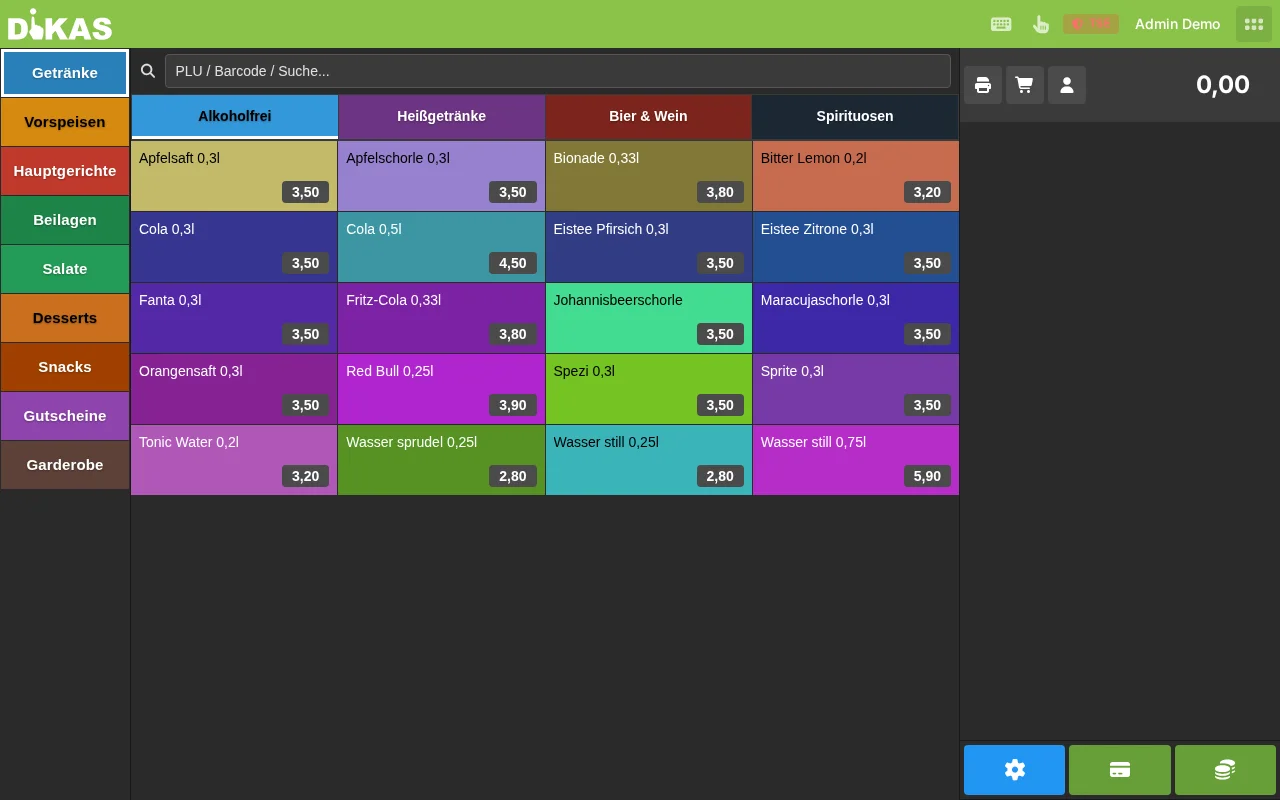
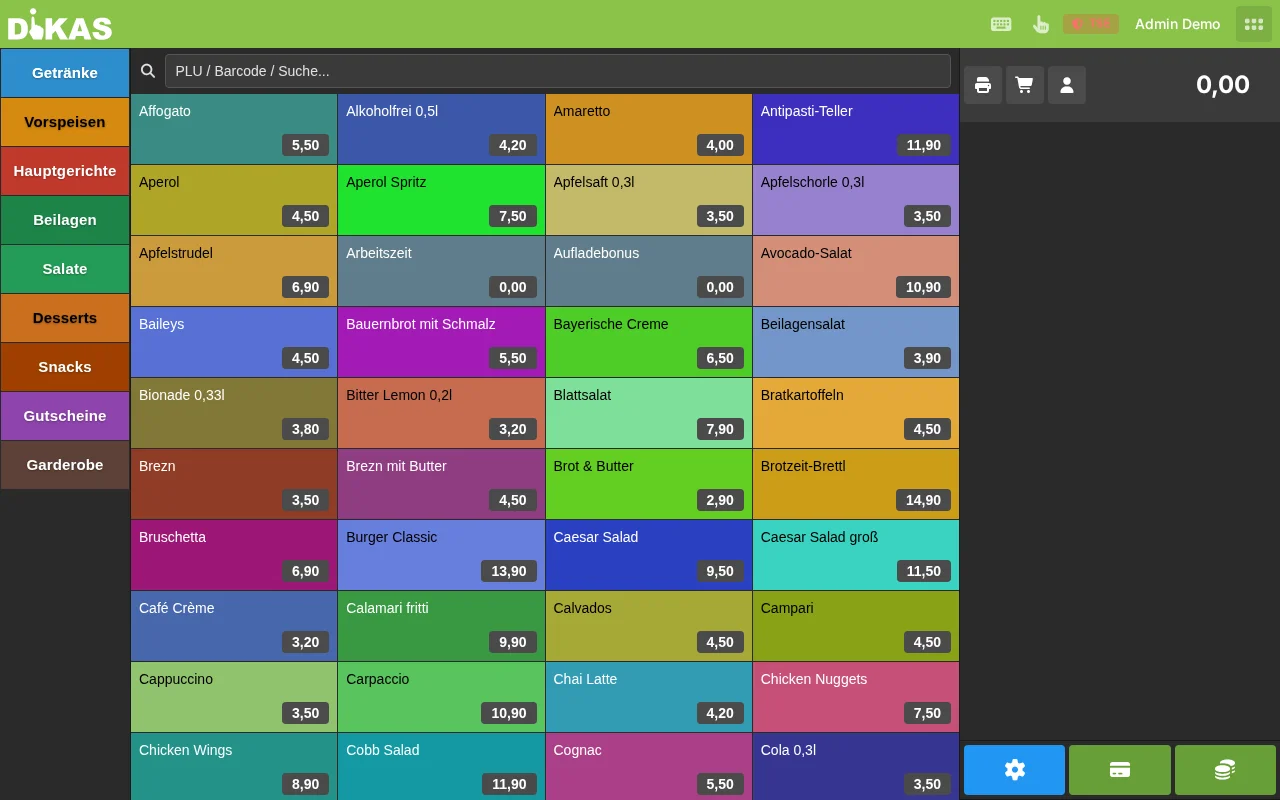
- Select article — Tap group → Tap article
- Change quantity (optional) — Tap article on receipt → Enter quantity
- Pay — "Pay" button → Select payment method → Done
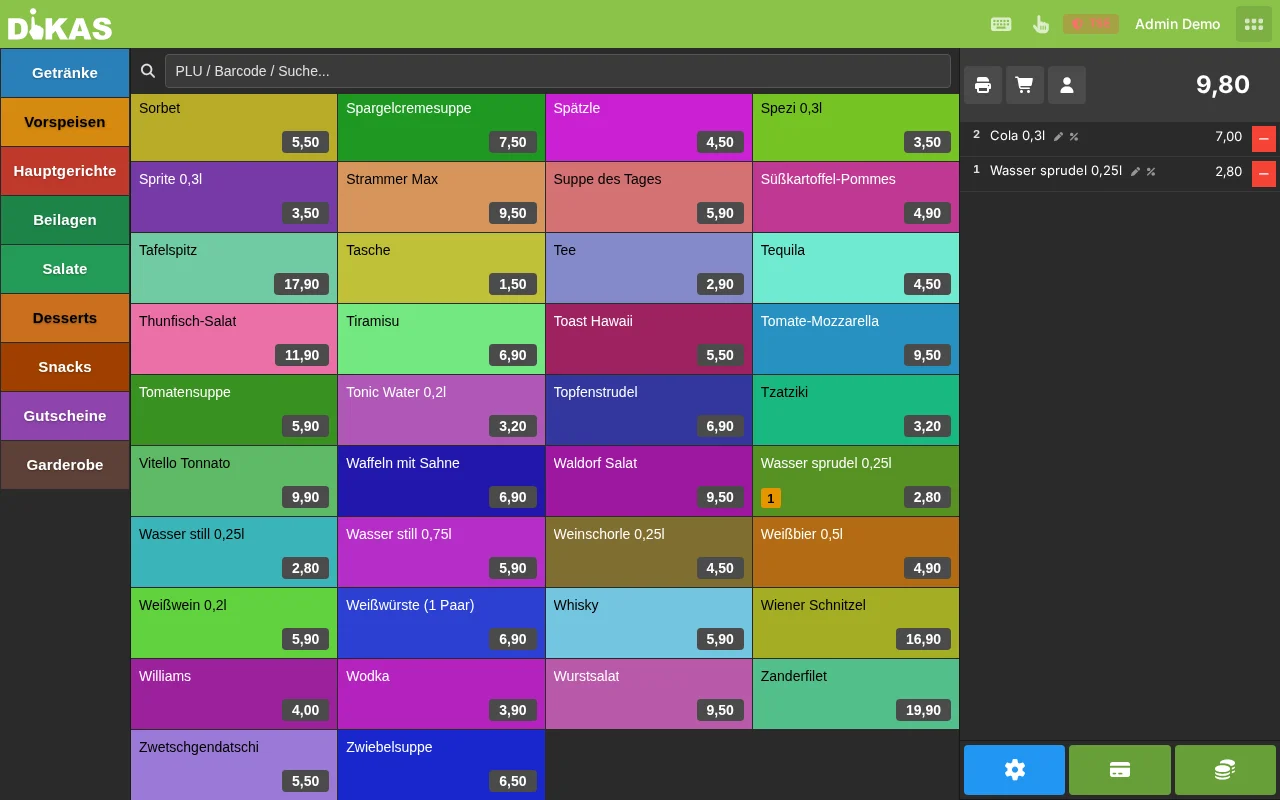
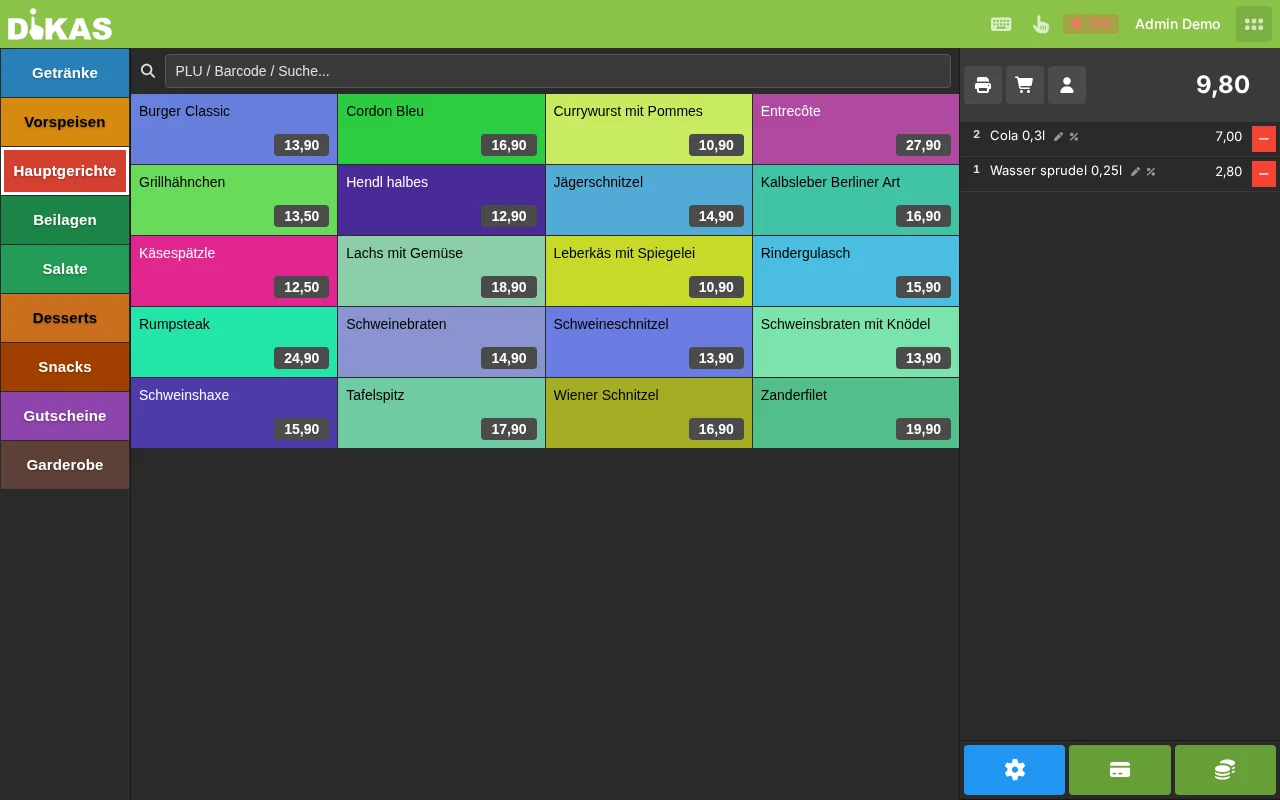
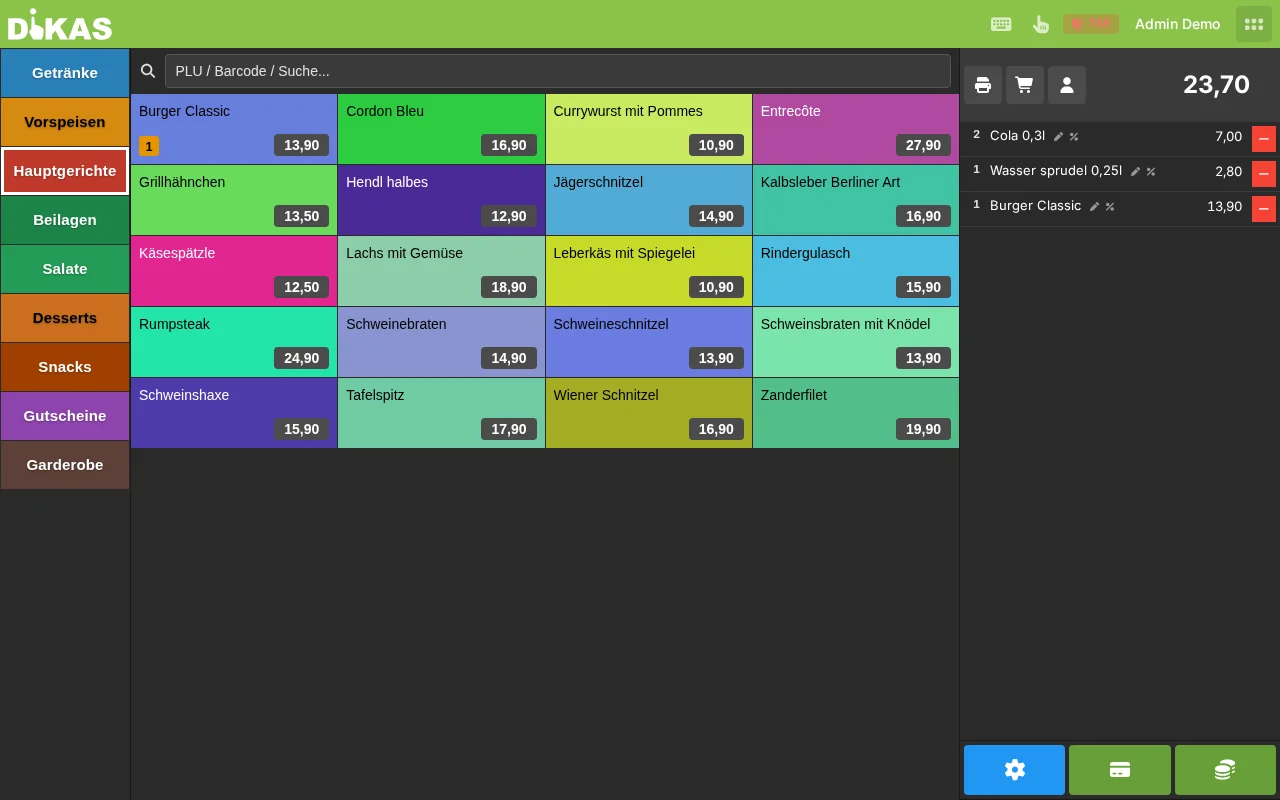
The receipt is printed immediately and the transaction is complete.
Quantity, Price, and Discount¶
| Action | How to |
|---|---|
| Increase quantity | Tap the article again |
| Enter quantity directly | Tap article on receipt → Enter number |
| Delete item | Tap article on receipt → Trash icon |
| Change price | Tap article on receipt → Override price |
| Apply discount | Tap article on receipt → Enter discount in % |
| Tip | Select tip article → Enter amount |
Manual Article¶
For articles not listed in the menu:
- Tap "Manual" (or article search)
- Enter description and price
- Select the tax class (19% or 7%)
- Confirm — the article appears on the receipt
💡 Tip: The manual article is ideal for special requests, one-off items, or spontaneous offers.
Customer Selection in Direct Sale¶
If a regular customer is paying and you want to charge their account or credit points:
- Before paying: Tap the "Customer" button
- Search for customer (name, customer number, card number)
- Select customer
- The receipt is assigned to the customer
- Additional payment methods become available when paying:
- Customer credit (if credit is available)
- House tab (on account)
- Customer points are automatically credited
Table Service¶
Opening a Table and Ordering¶
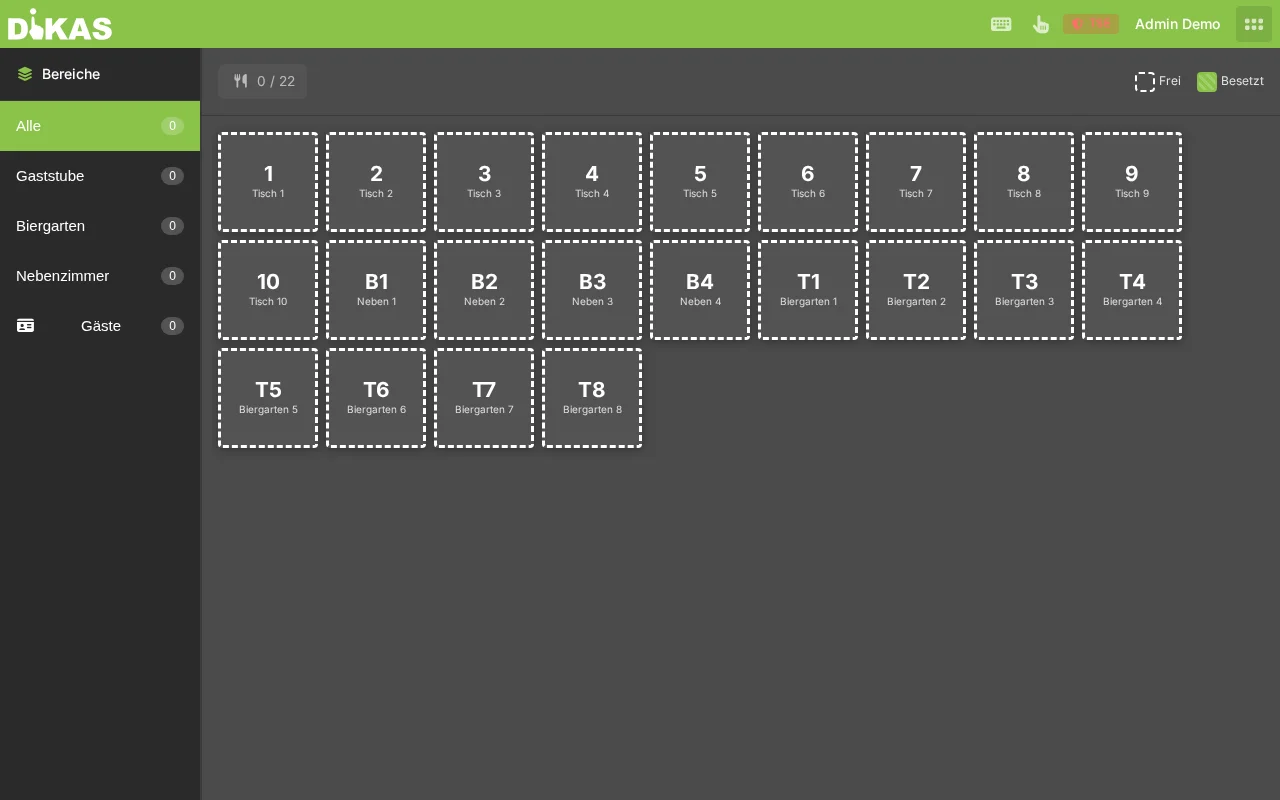
- Tap table — The table changes from green (free) to red (occupied)
- Select articles — Same as direct sale: Group → Article
- Tap "Place order" — The order is saved and sent to the kitchen/bar
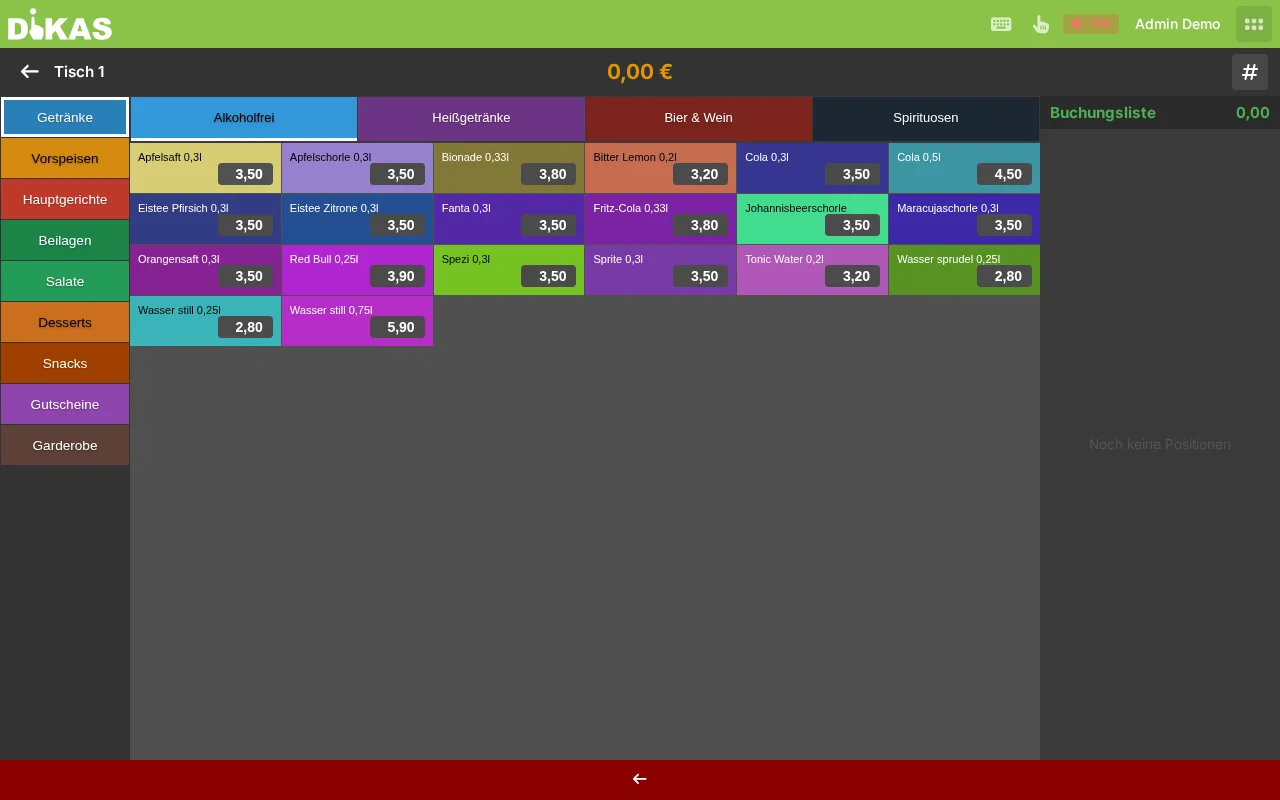
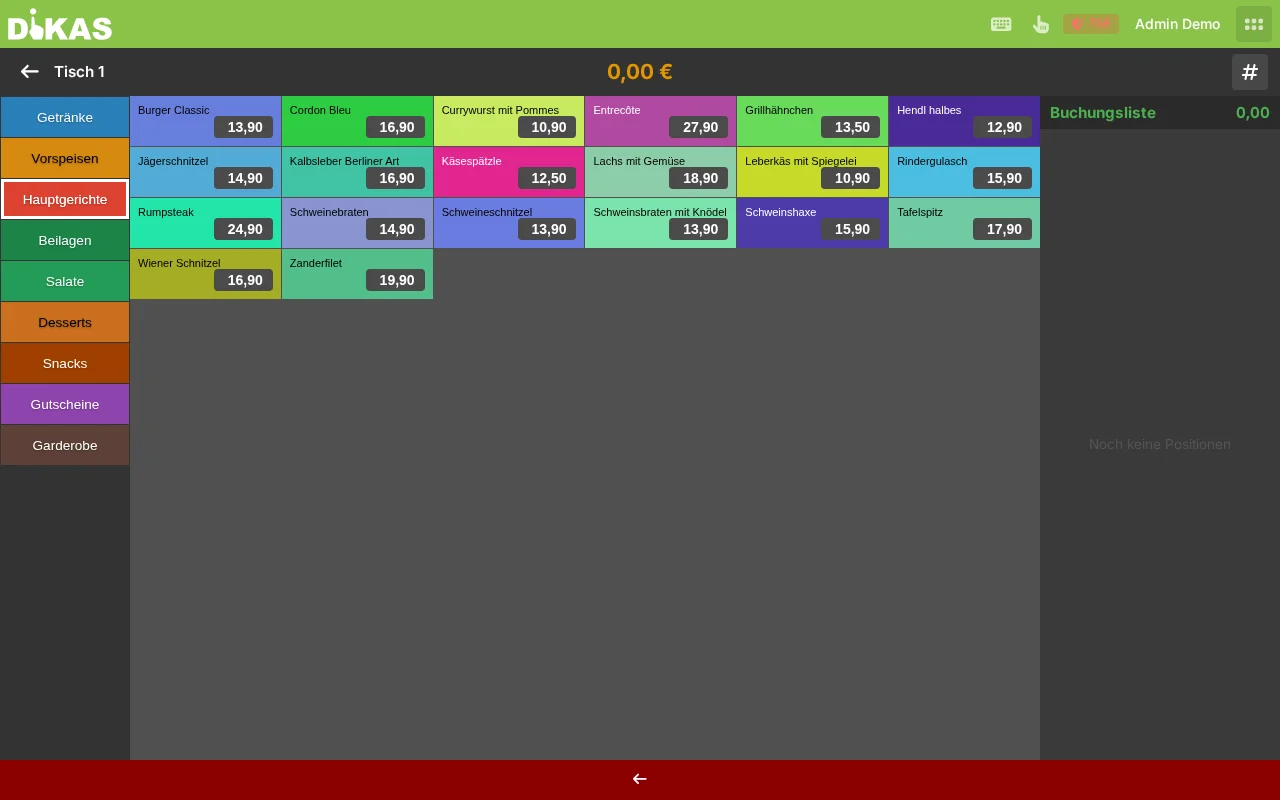
⚠️ Important: In table service mode, always tap "Place order", not "Pay". This way, additional orders can be added to the table without settling it.
What Happens When You Place an Order?¶
When you tap "Place order", the following occurs:
- Each article is saved as an individual OpenBon document
- All articles in an order share a common BonId (order number)
- The table status changes to "Occupied" (red)
- Print jobs are triggered:
- Station ticket to the responsible station (kitchen, bar, salad station)
- Consolidated order ticket to the configured printer (e.g., kitchen printer)
- Waiter receipt to the waiter's device (virtual printer
__kellner__) - Draught system: If the article has a draught system PLU, the transaction is automatically sent to the tap system
- TSE signature: The transaction is signed as "Bestellung-V1" (tax authority compliance)
Reordering¶
- Tap occupied table
- Select new articles
- Tap "Place order"
The new items are added to the existing order — with a new BonId, so the kitchen can identify what is new.
Voiding Individual Items¶
Was a wrong article ordered?
Void entire article:
- Tap occupied table
- Tap item on the receipt
- Select "Void"
- Enter reason (e.g., "Wrong beverage")
- Confirm — the article is displayed with a strikethrough
Void partial quantity:
If a guest ordered 3 beers but only 1 needs to be voided:
- Tap item → "Void"
- Set quantity to 1
- Confirm
DiKAS splits the item: 2× beer remain active, 1× beer is marked as voided.
Void permission: Depending on the staff role, restrictions apply:
| Void level | Permission |
|---|---|
| 0 | No voiding allowed |
| 100 | Void own orders only |
| 999 | Void all orders |
| Admin | Void everything |
Transfer Table¶
Guests want to change tables?
- Tap occupied table
- Select "Transfer table"
- Tap new (free) table
- All orders are moved to the new table
The old table is automatically set to free again.
Merge Tables¶
Merge two tables into one:
- Tap first table → "Transfer table"
- Tap the other (occupied) table
- The orders from both tables are now combined
🍽️ Course Control (Courses)¶
Course control coordinates the sequence in which dishes are served from the kitchen.
What Is a Course?¶
A course describes the order in which dishes are served:
| Course | Typical |
|---|---|
| 1 | Appetizer / Soup |
| 2 | Main course |
| 3 | Dessert |
| 4–6 | Additional courses (e.g., intermediate course, cheese) |
Changing Courses¶
- Table is open and has orders
- Tap the "Course" button or select the course in the table info dialog
- The course is updated for all open items on the table
- Printers with course ticket enabled receive a notification
The kitchen can see that the next course should be prepared.
Course Ticket¶
Printers can be configured to automatically print a course ticket with each course change. This is enabled in the article print settings under Station ticket → Course ticket. This way, each station (kitchen, salad bar, dessert) knows when the next course begins.
Table Status and Colors¶
Each table in DiKAS has a status represented by a color in the table overview:
| Color | Status | Meaning |
|---|---|---|
| Green | Free | Table is available, no orders |
| Yellow | Newly occupied | Table opened, but no order placed yet |
| Red | Occupied | Open orders present |
| Orange | Reserved | Reservation for this table |
| Purple | Cleaning | Table still needs to be cleaned |
| Gray | Blocked | Table is not available |
Cleaning Requirement¶
If "Cleaning requirement" is enabled in the settings:
- After each payment, the table does not switch directly to "Free" but to "Cleaning" (purple)
- Staff cleans the table
- Long press on the table → Info dialog → "Mark as cleaned"
- Only then does the table become "Free" (green) again
This ensures that no new guest is seated at an uncleaned table.
Table Info Dialog (Long Press)¶
A long press (approx. 500 ms) on a table opens the Table info dialog — without opening the table.
Displayed Information¶
For occupied tables:
| Information | Description |
|---|---|
| Waiter | Who first opened the table |
| Since | How long the table has been occupied |
| Orders | List of all ordered articles (quantity, name, price, time) |
| Voided | Voided items (grayed out) |
| Total amount | Sum of all open items |
| Course | Current course (with selection buttons 1–6) |
For disco/card tables (NFC):
| Information | Description |
|---|---|
| Cardholder | Name, company |
| Card ID | NFC card number |
| Balance | Account balance |
| Credit limit | If enabled |
| Outstanding amount | Sum of unpaid items |
| Budget | Balance + credit limit − outstanding amount |
For cleaning: Button "Mark as cleaned"
💳 Split Payment¶
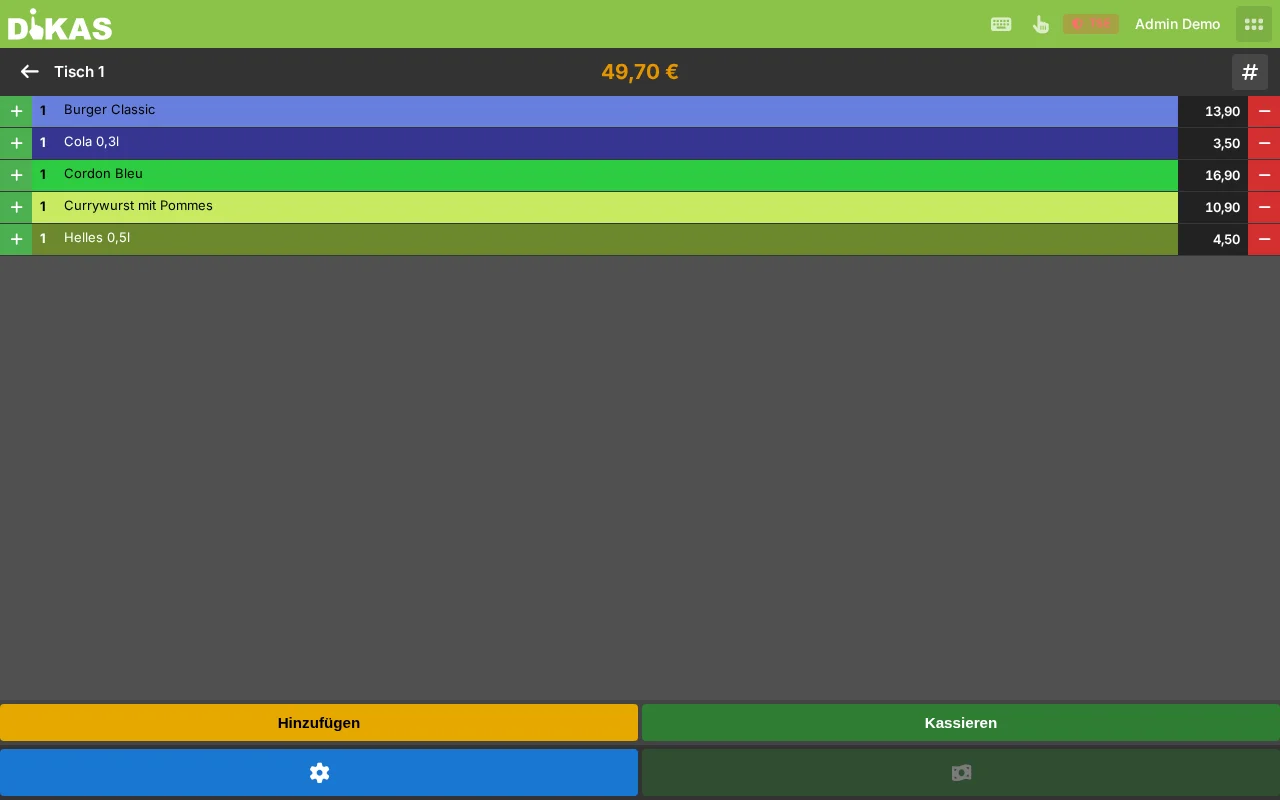
Selecting Individual Items¶
- Tap table → "Pay"
- The items are not preselected
- Tap the items the current guest is paying for
- "Pay" → Select payment method
- For the next guest: Select remaining items → "Pay"
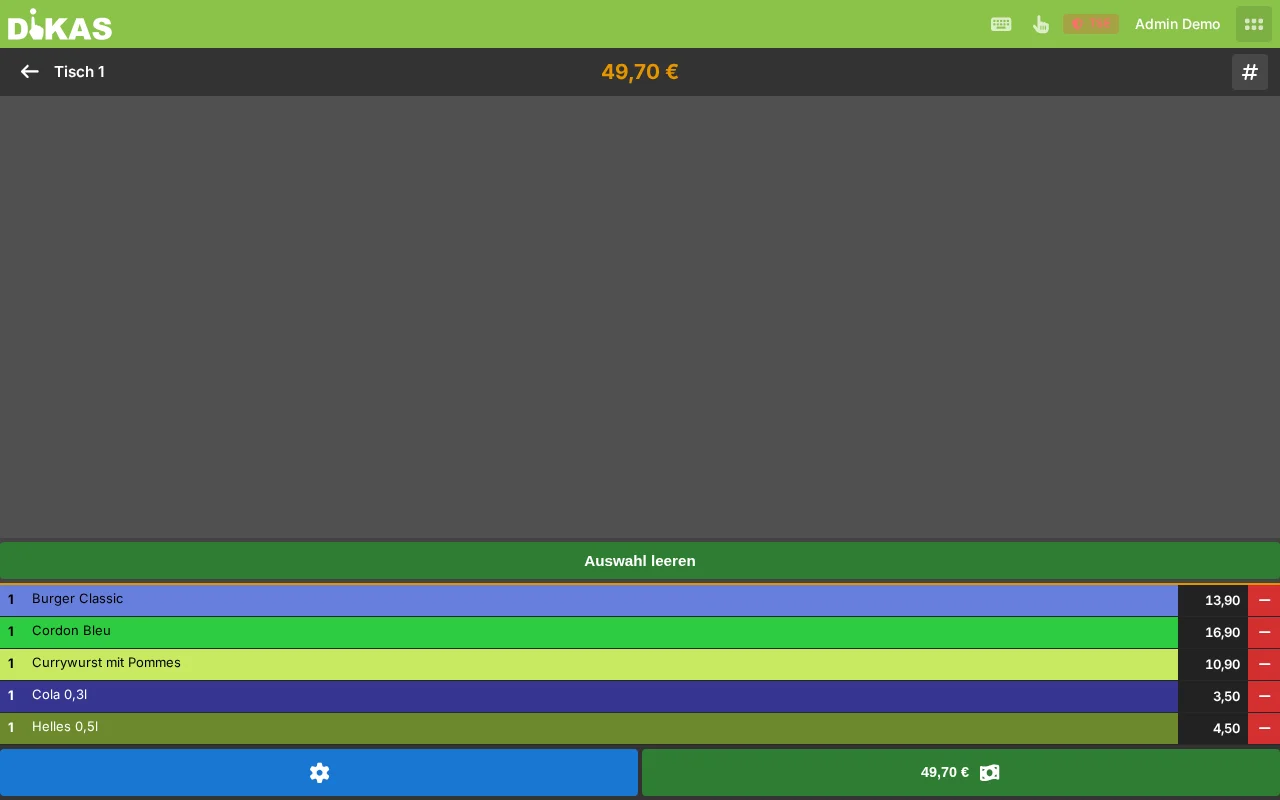
Each partial payment generates its own receipt.
Selecting Partial Quantities¶
If 3 guests each pay for 1 beer out of a total of 3 beers:
- "Pay" → Tap item "3× Beer"
- Set quantity to 1
- Select payment method → first guest has paid for 1 beer
- For the next guest: Select 1× beer again
DiKAS tracks the paid quantity per item (PayedCount). Only when all quantities are paid is the table fully settled.
Split by Amount¶
- Tap table → "Pay"
- All items are selected
- Tap "Split"
- Enter the amount the first guest is paying
- Select payment method → The remaining amount stays on the table
Split Payment with Multiple Payment Methods¶
A guest wants to pay partly in cash, partly by card:
- Tap "Pay"
- Select "Cash" → Enter partial amount (e.g., 10.00 EUR)
- The remaining amount is displayed
- Select "Debit card" → Remaining amount is sent to the terminal
Total amount:        25.00 EUR
─────────────────────────────
Cash:                10.00 EUR
Debit card:          15.00 EUR
─────────────────────────────
Paid:                25.00 EUR
Reservations¶
Creating a Reservation¶
- Open POS → Reservations
- Select date and time
- Enter guest name and number of guests
- Optional: Phone number, email, notes
- Select the desired table
- "Save"
Reservation Status¶
| Status | Meaning |
|---|---|
| Pending | Reservation created, not yet confirmed |
| Confirmed | Reservation has been confirmed |
| Seated | Guests have arrived and are seated |
| Completed | Guests have paid and left |
| Cancelled | Reservation was cancelled |
| No-Show | Guests did not show up |
Reserved tables appear orange in the table overview. The reservation blocks the table for the specified time period.
Hospitality Receipt¶
For business entertaining (tax-deductible under §4 para. 5 EStG):
- Order/check out articles as usual
- When paying, enable the "Hospitality receipt" option
- Optional: Specify tip amount separately for the hospitality receipt
- DiKAS prints a separate hospitality receipt with all legally required information
Practical Example: Restaurant "Bella Vista"¶
Scenario: Friday Evening, 4 Guests at Table 7¶
19:00 — Guests arrive: 1. Waitress Maria taps Table 7 → Table turns red 2. Beverage order: 2× Aperol Spritz, 1× Water, 1× White Wine 3. "Place order" → Bartender receives station ticket, waitress receives waiter receipt
19:15 — Ordering appetizers: 1. Maria taps Table 7 (already red) 2. 2× Bruschetta, 1× Carpaccio, 1× Soup 3. "Place order" → Kitchen receives consolidated order ticket with 4 appetizers
19:40 — Main course: 1. Maria changes the course to 2 → Kitchen receives course ticket 2. 2× Pasta, 1× Steak (medium), 1× Fish 3. "Place order" → Kitchen sees: Course 2, 4 main courses 4. For the steak, the options dialog opens: Select doneness → "Medium"
20:00 — Guest changes order: 1. 1× Pasta was wrong (guest wanted risotto) 2. Maria voids 1× Pasta → Reason: "Mix-up" 3. Orders 1× Risotto additionally
20:30 — Dessert: 1. Change course to 3 2. 2× Tiramisu, 1× Panna Cotta 3. "Place order"
21:00 — Paying (split): 1. Maria taps Table 7 → "Pay" 2. Couple 1: Selects their items → 47.80 EUR → Debit card 3. Couple 2: Selects their items → 52.20 EUR → partly cash (30 EUR), partly card (22.20 EUR) 4. Table becomes free (or purple if cleaning requirement is active)
Practical Example: Snack Bar "Curry Corner"¶
Scenario: Lunch Rush, Direct Sale¶
12:05 — Regular customer Mr. Müller: 1. Cashier selects customer "Müller" 2. 1× Currywurst (4.90 EUR), 1× Fries (3.50 EUR) 3. "Pay" → Customer credit: 35.20 EUR is displayed 4. Select "Customer credit" → 8.40 EUR is deducted 5. New balance: 26.80 EUR, Points: +8 points
12:08 — Tourist with a voucher: 1. 1× Döner (6.50 EUR), 1× Ayran (2.50 EUR) = 9.00 EUR 2. "Pay" → "Voucher" → Enter code "GS-X7Y2-M4N1" 3. Voucher has 15.00 EUR remaining balance → 9.00 EUR is deducted 4. Remaining balance on voucher: 6.00 EUR
12:12 — Business customer on account: 1. Select customer "Baufirma Schmidt GmbH" 2. 5× Currywurst, 5× Fries, 5× Cola = 54.50 EUR 3. "Pay" → "House tab" → Amount is posted to the customer account 4. Invoice can be created later in Admin and sent via email
Next Step¶
→ Payment Methods — All payment options in detail