Disco Module
The disco module is a unique selling point of DiKAS — no other POS system on the market offers integrated club management with an NFC card system, time-controlled admission groups, cloakroom, guest transfer, and complete settlement with complimentary credit, minimum spend, and free drinks.
Activation: Admin → Settings → Operations → Disco
Feature Overview
| Feature | Description |
|---|---|
| Guest Check-In | Issue NFC card, select admission group, take photo |
| Admission Groups | Rules by time of day, day of week, gender |
| Bar Booking | Post drinks to NFC card (cashless at the counter) |
| Cloakroom | Post jacket check to card |
| Guest Transfer | Switch card (loss, defect, area change) |
| Self-Pay Terminal | Guests pay themselves via debit card at the terminal |
| Check-Out | Settle card with settlement lines |
| Credit Top-Up | Load prepaid credit onto card |
| Combining Cards | Settle multiple guest cards (e.g. couple) on one invoice |
| Customer Amount Display | Second screen shows the guest the amount live at counter & checkout |
| Daily Log | Guest counts, revenue, statistics |
NFC Card System
Each guest receives an NFC card upon entry. The card serves as:
- Identification — the guest is recognized via the card ID (
GuestId) - Payment method — all charges (drinks, cloakroom) are posted to the card
- Prepaid account — optional credit top-up
At the exit, the card is settled and returned.
10+ POS Pages
The disco module has specialized POS pages for each workstation in the club:
1. Entry (Check-In)
Guest arrives → scan card → select admission group → book entry:
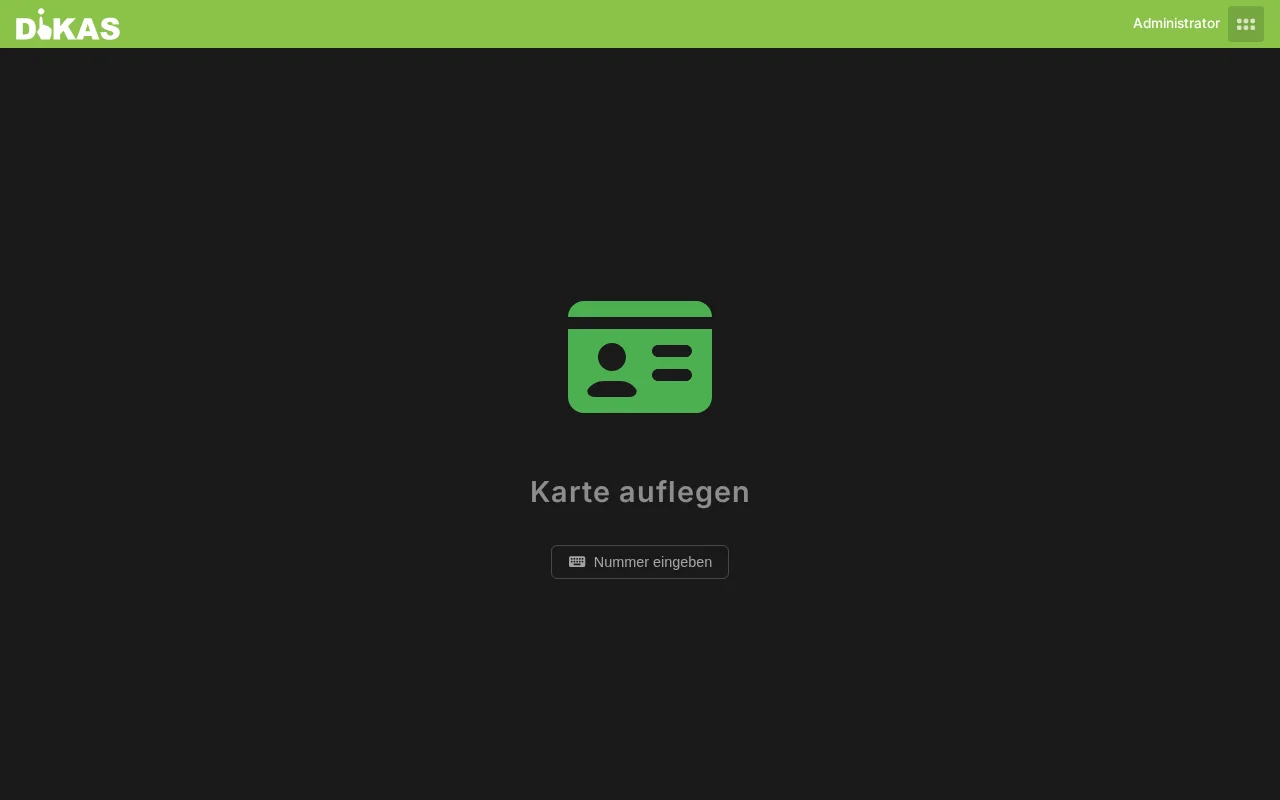
Card:     NFC-12345
Guest No: 0042
Group:    "Regular, 22:00–01:00"
Gender:   Male
Entry:    10.00 €
Comp. credit: 5.00 €
Input fields: - Scan NFC card (or enter manually) - Select admission group (filtered by availability) - Choose gender (determines the admission rule) - Optional: Name, photo (webcam), staff flag, re-entry
2. Counter / Bar
Post drinks to guest card (no cash at the counter):
- Scan card
- Select drinks from the menu
- "Book" → amount is stored on the card
- Batch booking: multiple drinks at once
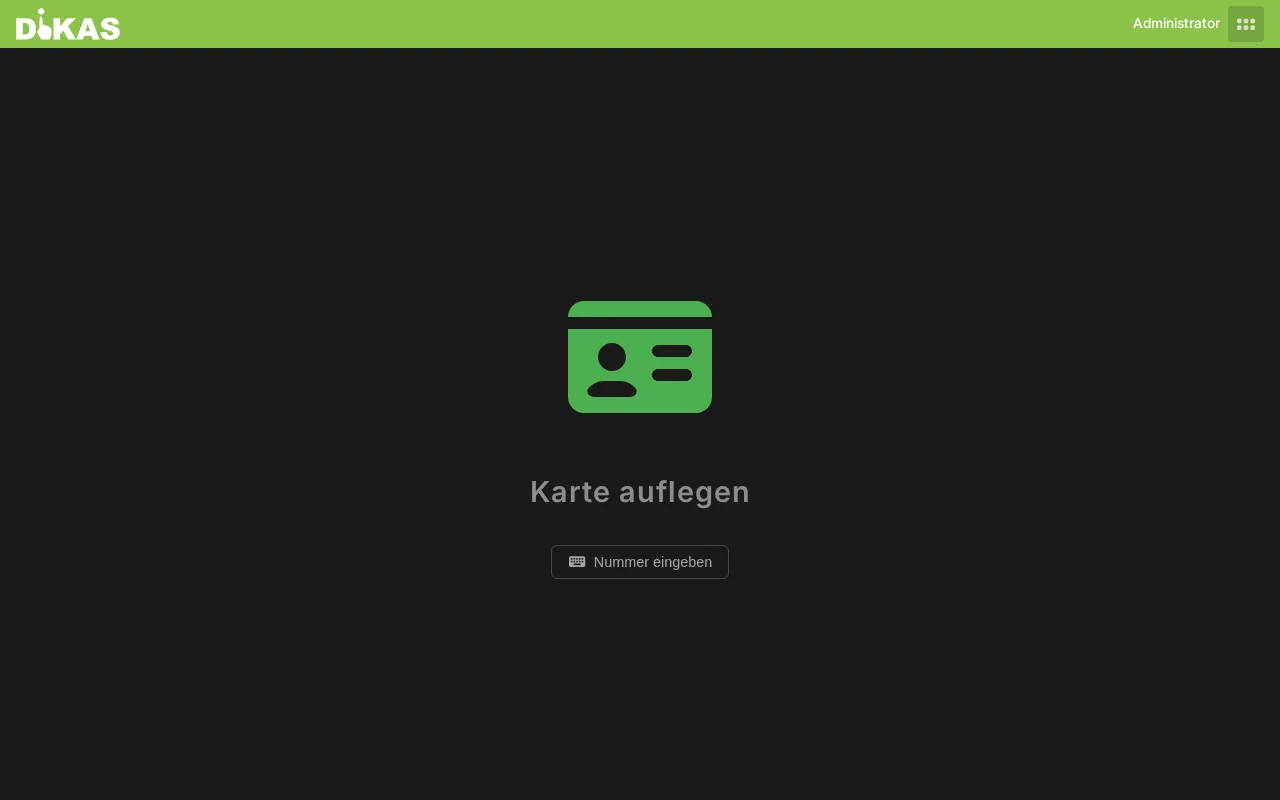
Customer Amount Display (Second Screen)
If a customer amount display is connected at the checkout (a second screen showing the guest the amount), it is now also updated live at the counter and at the checkout/exit — just like at the regular checkout. The guest sees their running total; after booking/payment, the display updates automatically. Without a connected display, nothing happens (no effect).
3. Exit (Check-Out)
The most complex page — this is where the card is settled:
- Scan card → all charges are displayed
- Settlement lines calculate the final amount (see below)
- Choose payment method (cash, debit card, split)
- Calculate change
- Card is released
Settling multiple cards together (couples)
If a couple or group wants to pay together, multiple cards can be combined at the exit: scan the first card → "Add Card" → place the next card(s). DiKAS settles all cards on one single invoice and generates one receipt, after which all cards are released. Each card still applies its own minimum spend, admission, free allowances, and credit — the amounts are only merged into one invoice (a card's credit therefore only covers its own share).
4. Cloakroom
Drop off jacket → assign cloakroom number → post fee to card:
- Scan guest card
- Assign cloakroom tag number
- Fee is posted to the card
- Upon pickup: enter tag number → confirm return
5. Bridge (Transfer)
Switch card — in case of loss, defect, or area change:
- Scan old card (or enter guest number)
- Scan new card
- All data is transferred (charges, credit, cloakroom)
- Optional: charge card fee
- Old card ID is saved as
SourceCard
6. Self-Pay Terminal
Guests pay themselves via debit card:
- Guest scans NFC card at the terminal
- Total amount is displayed
- Debit card payment is triggered automatically
- Card is released
7. Credit Top-Up
Load prepaid credit onto the guest card:
- Scan card
- Choose amount (or enter freely)
- Pay (cash or debit card)
- Credit is posted to
UploadAccount
8. Staff
Overview of staff entries (staff flag):
- List of all guests with
IsPersonal = true - Summary: staff costs, free drinks
9. Search / Report
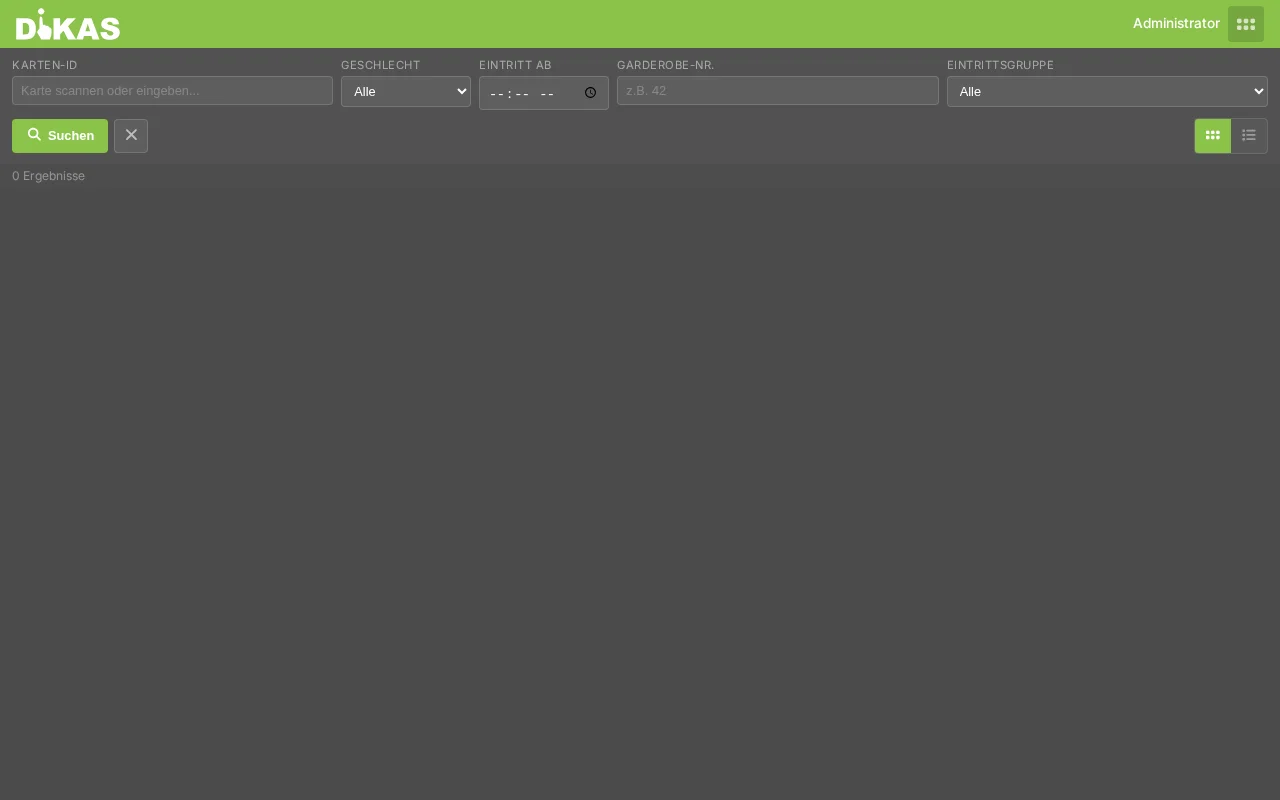
Historical guest search and reports:
| Filter | Description |
|---|---|
| Date | Time period |
| Gender | Male / Female |
| Admission Group | Filter by group |
| Workstation | By POS / area |
| Time | Entry time range |
10. POS Settlement
Counter settlement for individual workstations — shows revenue per POS/bar.
Mobile POS Terminals (Exit, Entry, Counter, Cloakroom)
On a mobile device (MAUI/Android host or narrow screen), the disco POS terminals automatically switch to the mobile view — as an additional register when it is busy. The switch happens live on screen resize/rotation:
- Exit: fixed amount + group/entry at the top, tabs Photo / Positions / Info below, large payment buttons at the bottom (Cash/Debit/Options).
- Entry: simple group selection → optional photo → Pay / Check-In.
- Counter: single column — amount at top, quantity input, group tabs, large article grid, position list and book bar.
- Cloakroom: tabs Book / Cloakroom List — article selection + large number numpad, return list separately.
Admission Groups
Admission groups define rules for different guest types, graduated by time of day, day of week, and gender.
Basic Configuration
| Field | Description |
|---|---|
| Name | Group name (e.g., "Regular", "Ladies Night") |
| Active | Enable/disable |
| Show in POS | Visible on the POS entry page |
| Sort Order | Order in the selection |
| Background Color | Color for the group tile |
| Deposit | Card deposit in € |
| Card Limit | Max. cards for this group |
| Days of Week | On which days the group applies (Mon–Sun) |
| Valid From / To | Season or campaign period |
Time-Based Rules
Each group can have multiple time slot rules. Per time slot, separate conditions are defined for Male and Female:
| Field | Description |
|---|---|
| Time Slot | e.g., 22:00–00:00, 00:00–03:00 |
| Admission | Admission price |
| Minimum Spend | Minimum consumption in € |
| Complimentary Credit | Amount that is not charged |
| Free Account | Credit account |
| Free Drinks | Number of complimentary drinks |
| Points | Loyalty points upon entry |
| Credit Limit | Max. amount on the card |
| Admission at Exit | Charge admission upon leaving |
| U18 | Minor category |
| No Article Discount | Disable discounts |
| Admission as Cash Revenue | Post admission fee as cash revenue |
| Admission Tax Rate | 19 %, 7 %, or 0 % |
Example Groups
| Group | Admission M | Admission F | Rule |
|---|---|---|---|
| Regular | 10.00 € | 10.00 € | Standard |
| Early Bird | 5.00 € | 5.00 € | Before 23:00 |
| Ladies Night | 10.00 € | 0.00 € | Female, before 00:00 |
| VIP | 25.00 € | 25.00 € | Incl. 2 free drinks + 20 € comp. credit |
| Guest List | 0.00 € | 0.00 € | Free entry |
| Staff | 0.00 € | 0.00 € | Staff flag set |
Settlement Lines (Virtual Positions)
At check-out (exit), DiKAS automatically calculates the settlement lines. These are virtual positions — they are calculated in real time and displayed on the receipt:
6 Settlement Line Types
| Line | Condition | Type | Description |
|---|---|---|---|
| Admission | Admission is charged at exit | Surcharge (+) | Admission fee |
| Minimum Spend Surcharge | Consumption < minimum spend | Surcharge (+) | Difference is added |
| Complimentary Credit | Comp. credit > 0 | Deduction (−) | Included free amount |
| Free Drinks | Free drinks > 0 | Deduction (−) | Value of used free drinks |
| Free Account | Free account > 0 | Deduction (−) | Credit account |
| Credit | Prepaid credit > 0 | Deduction (−) | Loaded credit |
Calculation Example
Guest #0042 — Group "VIP" (Admission at Exit)

Consumed drinks:                         45.00 €
+ Cloakroom:                              2.00 €
─────────────────────────────────────────────────
Subtotal charges:                        47.00 €

Settlement lines:
+ Admission (VIP):                       25.00 €
  Minimum spend (50.00 €): Consumption 47 € → surcharge not needed
                            (Charges > minimum spend incl. admission)
− Complimentary credit:                 −20.00 €
− Free drinks (2/2 used):              −10.00 €
− Credit (loaded):                      −15.00 €
─────────────────────────────────────────────────
Amount due:                              27.00 €

[Cash]  [Debit Card]  [Split]
Guest Data Fields
Each disco guest has comprehensive data on the card:
Identification & Status
| Field | Description |
|---|---|
| GuestId | NFC card ID |
| Gender | Male / Female |
| Staff | Staff entry |
| Blocked | Card blocked |
| Re-entry | Guest has left the club and returned |
| Source Card | Previous card ID (after transfer) |
| Entry / Exit Time | Timestamps |
Admission Rule & Prices
| Field | Description |
|---|---|
| Admission Group | Selected group |
| Admission Rule | Applied rule (time-based) |
| Admission Price | Admission fee |
| Minimum Spend | Minimum consumption |
| Comp. Credit / Free Account | Free amounts |
| Free Drinks | Count + used value |
| Credit Limit | Maximum card amount |
Finances
| Field | Description |
|---|---|
| Total Amount | All charges cumulated |
| Paid | Amount already paid |
| Credit | Prepaid top-up |
| Outstanding Amount | Still to be paid |
| Receipt IDs | Linked POS receipts |
Charges & Cloakroom
| Field | Description |
|---|---|
| OpenBons | List of all charges (article, price, quantity, POS, employee) |
| Cloakroom | Cloakroom numbers |
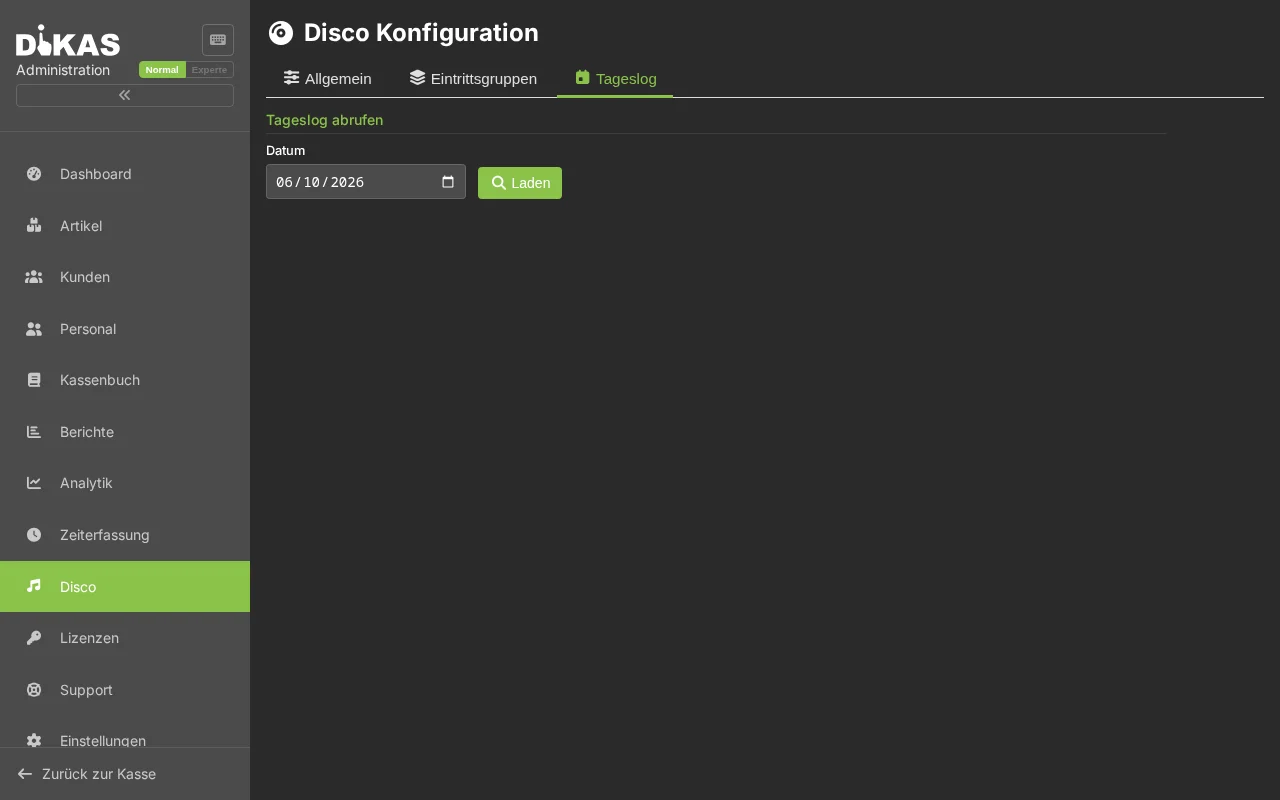
Daily Log
At the end of the night, the daily log shows a summary:
Disco Daily Log: 05.03.2026

Total guests:        342
  female:            156  (45.6 %)
  male:              186  (54.4 %)

Admission revenue: 2,140.00 €
Drinks revenue:    4,567.00 €
Cloakroom revenue:   384.00 €
─────────────────────────────
Total revenue:     7,091.00 €
Access the daily log: Admin → Disco → Daily Log → select date
Disco Statistics
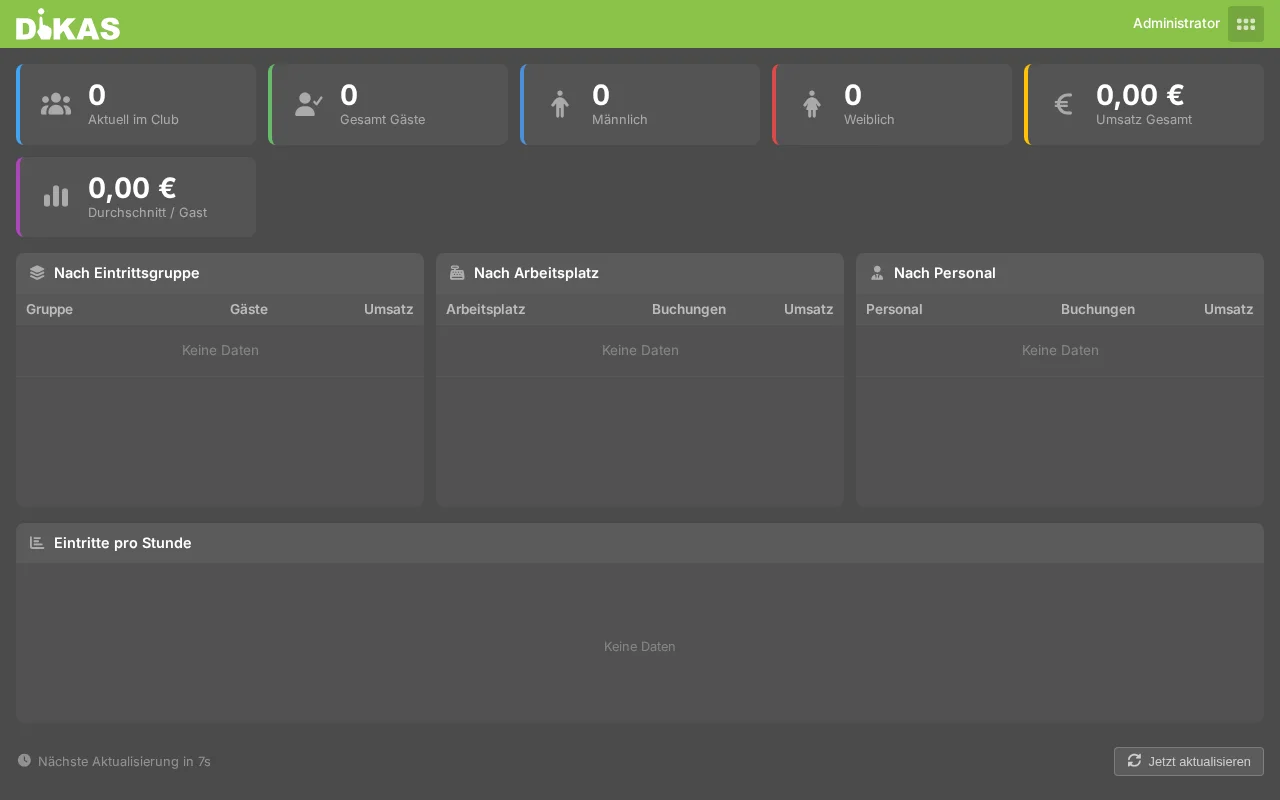
The real-time statistics show:
| Metric | Description |
|---|---|
| Currently in Club | Guests with card, not yet checked out |
| Total Today | All entries since business day start |
| Revenue by Area | Per workstation (counter, bar, VIP) |
| Revenue by Hour | Hourly breakdown |
| Top Articles | Best-selling drinks |
| Occupancy by Group | Entries per admission group |
Admin Configuration
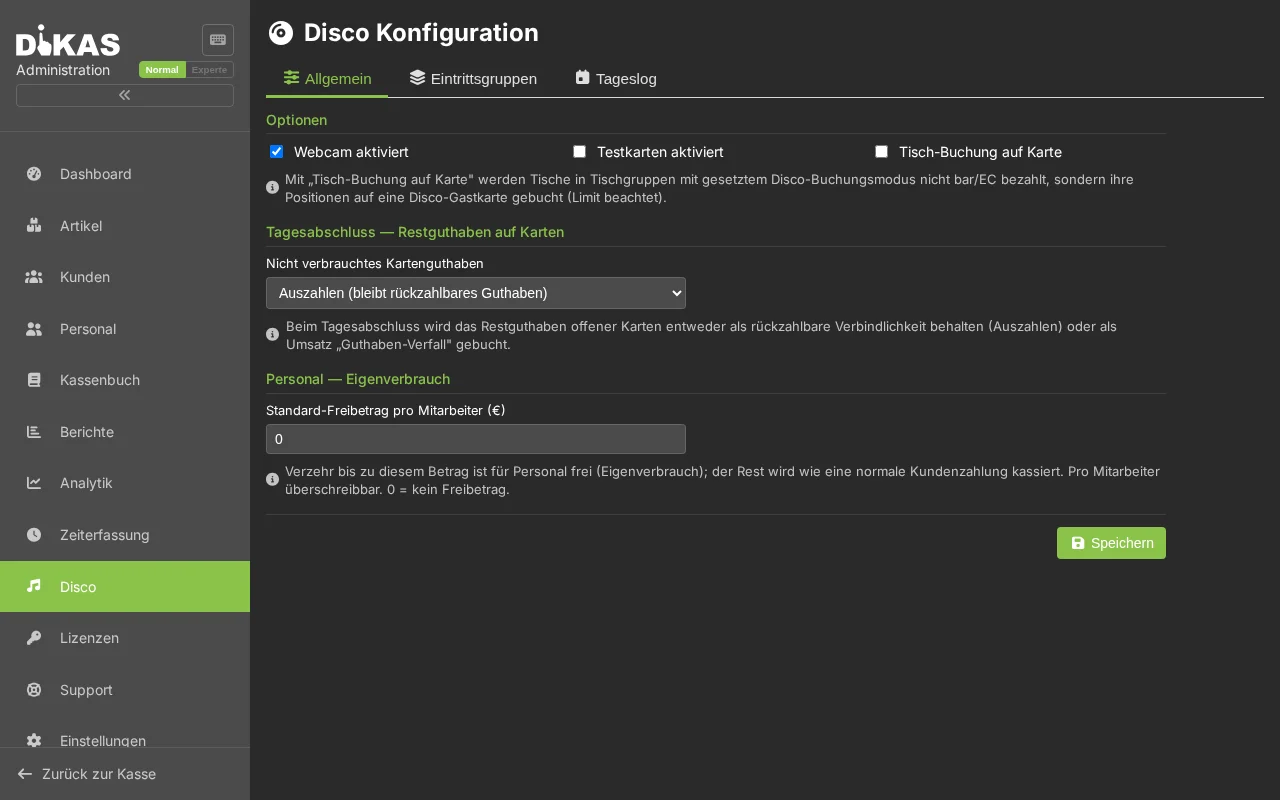
General Disco Settings
Admin → Disco → General
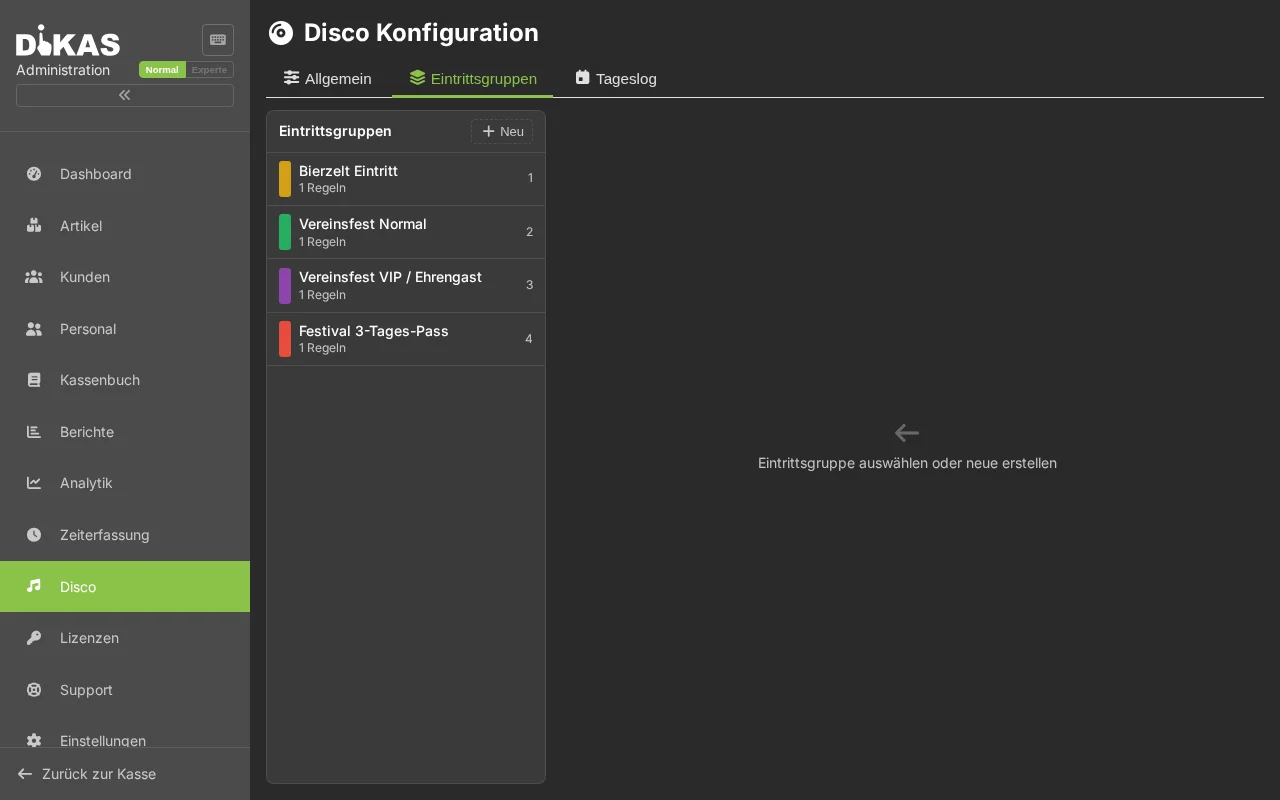
Managing Admission Groups
Admin → Disco → Groups
- Create, edit, deactivate groups
- Define time slot rules per gender
- Set days of week and validity period
Disco Settings
Admin → Settings → Operations → Disco
| Setting | Description |
|---|---|
| Disco enabled | Module on/off |
| Webcam enabled | Take photo at entry |
| Test cards enabled | Simulated NFC cards for testing |
Workstations for Disco
Under the workstation settings, POS terminals can be configured as disco type:
| Type | Description |
|---|---|
| DiscoPOS (1) | Entry / Exit |
| DiscoSales (2) | Counter / Bar |
| Cloakroom (3) | Cloakroom workstation |
Setup
- Enable the disco module (Admin → Settings → Operations → Disco)
- Create admission groups (Admin → Disco → Groups) with time rules
- Configure workstations (assign POS terminals as disco type)
- Set up NFC card readers at all POS terminals
- Optional: set up webcam for guest photos
- Assign employees the appropriate permissions
Next Step
→ Workshop — Job order and repair management