Time Tracking
Time tracking allows employees to record their work hours via a time clock — directly in the POS, without additional software. Work hours, breaks, and overtime are calculated automatically and can be exported as an Excel file for payroll processing.
Feature Overview
| Feature | Description |
|---|---|
| Time Clock | Clock In, Break, End Break, Clock Out — directly in the POS |
| Live Overview | Which employees are currently clocked in? |
| Time Reports | Individual per employee or overall summary |
| Excel Export | 2-sheet workbook for payroll processing |
| Corrections | Admin can correct, add, or delete clock entries |
| Auto-Refresh | Status update every 30 seconds |
Clocking (POS)
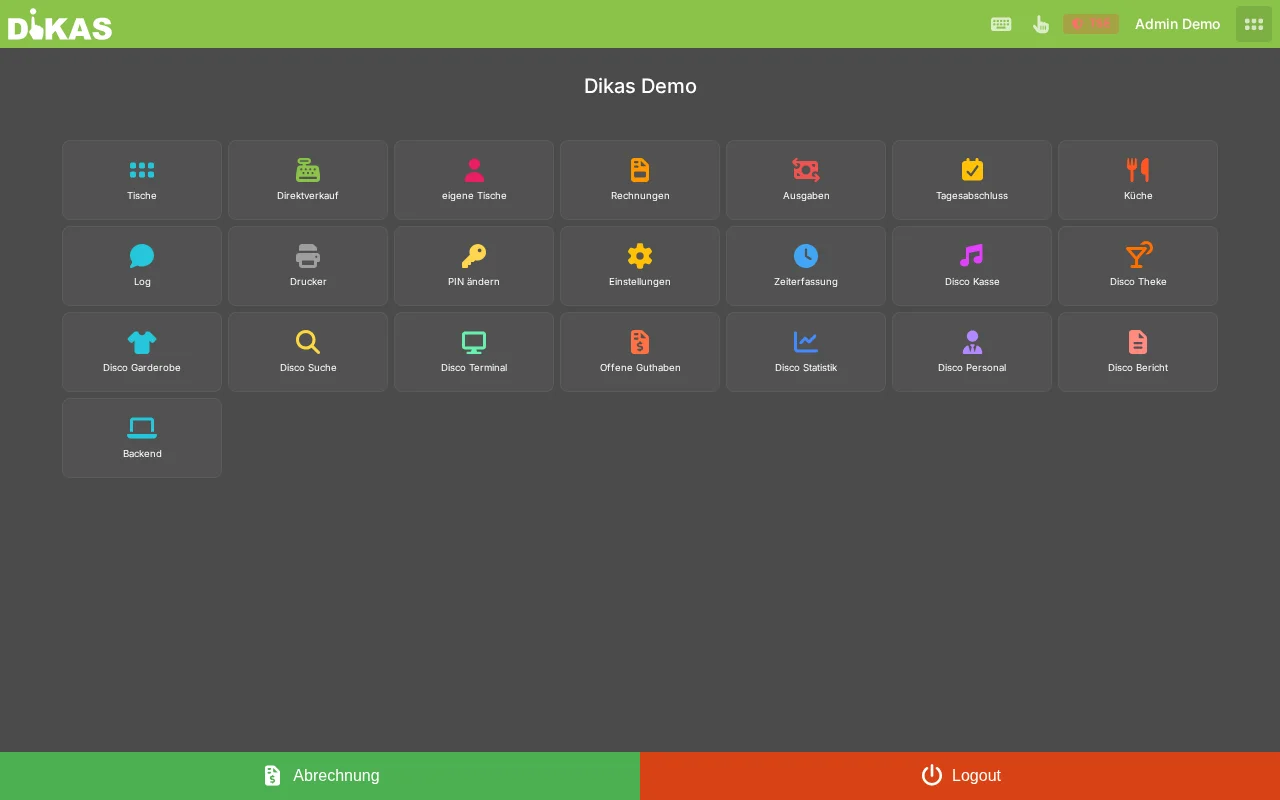
Opening the Clock Page
In the POS: Menu → Time Tracking
The clock page shows the current status and four action buttons:
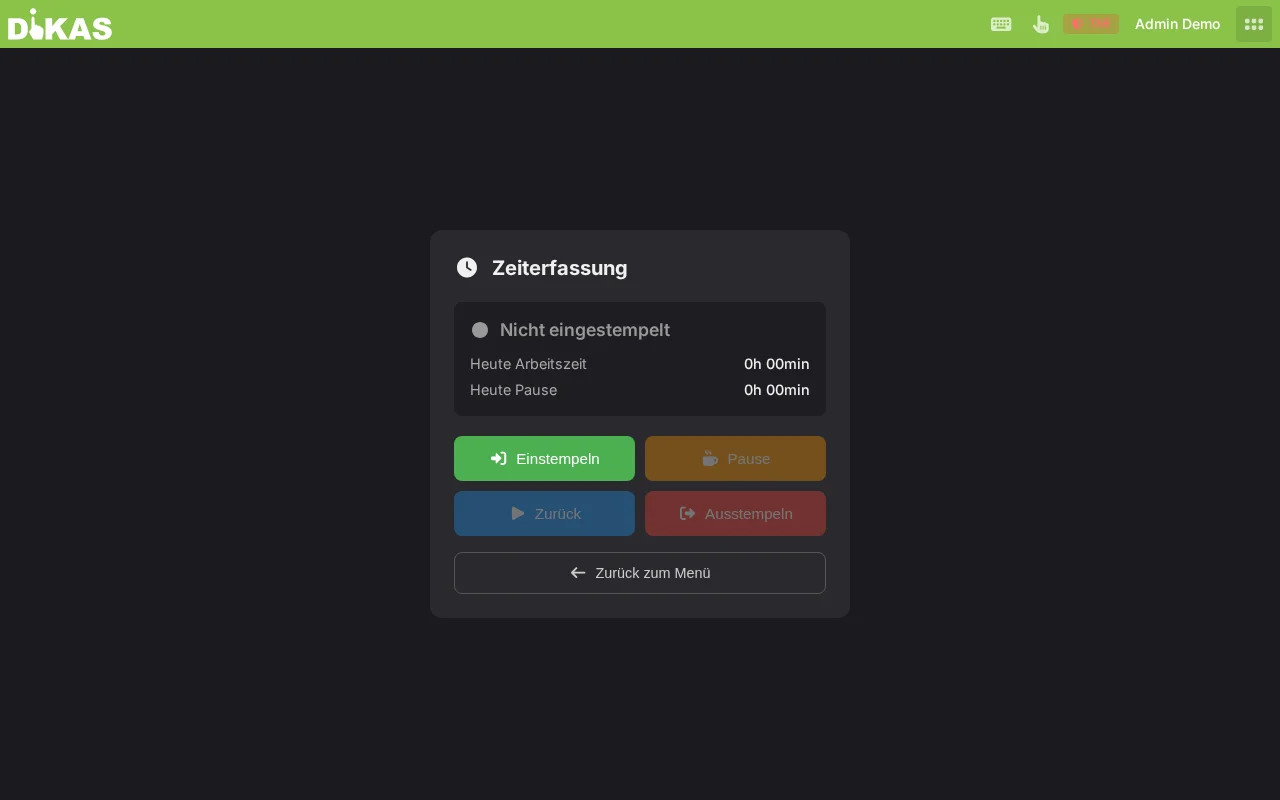
┌──────────────────────────────────────┐
│                                      │
│    Maria Schmidt                     │
│    ● Clocked in since 08:00         │
│                                      │
│    Work time today: 4 hrs 30 min    │
│    Break today:     0 hrs 45 min    │
│                                      │
│    ┌──────────┐  ┌──────────┐       │
│    │ Clock In │  │  Break   │       │
│    │  (green) │  │ (orange) │       │
│    └──────────┘  └──────────┘       │
│    ┌──────────┐  ┌──────────┐       │
│    │  Return  │  │Clock Out │       │
│    │  (blue)  │  │  (red)   │       │
│    └──────────┘  └──────────┘       │
│                                      │
└──────────────────────────────────────┘
Clock Actions
| Button | Color | Description | Available when |
|---|---|---|---|
| Clock In | Green | Start of work — shift begins | Not clocked in |
| Break | Orange | Start break | Clocked in, not on break |
| Return | Blue | End break, continue working | On break |
| Clock Out | Red | End of work — shift ends | Clocked in, not on break |
State Machine
The time tracking works as a state machine — only valid transitions are allowed:
                    ┌──────────┐
         ┌─────────│ Clock In │─────────┐
         │         └──────────┘         │
         ▼                              ▼
  ┌──────────┐                   ┌──────────┐
  │  Break   │◄─────────────────│  Return  │
  └──────────┘                   └──────────┘
         │                              │
         ▼                              ▼
  ┌──────────┐                   ┌──────────┐
  │  Return  │                   │Clock Out │
  └──────────┘                   └──────────┘
Invalid actions are automatically prevented. Example: "Clock Out" is not possible if the employee is on break — first press "Return", then "Clock Out".
| Current Status | Allowed Actions | Not Allowed |
|---|---|---|
| Not clocked in | Clock In | Break, Return, Clock Out |
| Clocked in | Break, Clock Out | Clock In, Return |
| On break | Return | Clock In, Break, Clock Out |
| After break (returned) | Break, Clock Out | Clock In, Return |
Typical Work Day Flow
08:00  → [Clock In]     Work begins
         ● Status: Clocked in (green)

12:00  → [Break]        Lunch break
         ● Status: On break (orange)

12:45  → [Return]       Continue working
         ● Status: Clocked in (green)

15:30  → [Break]        Short coffee break
         ● Status: On break (orange)

15:45  → [Return]       Continue working
         ● Status: Clocked in (green)

17:00  → [Clock Out]    End of day
         ● Status: Not clocked in

Result:
  Work time: 8 hrs 0 min (minus 1 hr break)
  Break time: 1 hr 0 min (45 + 15 min)
Multiple Breaks Per Day
Employees can take any number of breaks — each break is recorded individually:
| Time | Action | Work Time | Break Time |
|---|---|---|---|
| 08:00 | Clock In | 0:00 | 0:00 |
| 10:00 | Break | 2:00 | 0:00 |
| 10:15 | Return | 2:00 | 0:15 |
| 12:00 | Break | 3:45 | 0:15 |
| 12:45 | Return | 3:45 | 1:00 |
| 17:00 | Clock Out | 8:00 | 1:00 |
Live Overview (Admin)
Who Is Currently Working?
Admin → Time Tracking → Tab "Live"
The live view shows in real time which employees are clocked in:
| Status | Name | Clock In | Work Time | Break |
|---|---|---|---|---|
| ● Working | Maria Schmidt | 08:00 | 4:30 | 0:45 |
| ● Break | Thomas Weber | 09:00 | 2:45 | — |
| ● Working | Lisa Müller | 07:30 | 5:00 | 0:30 |
Status display:
| Symbol | Color | Meaning |
|---|---|---|
| ● | Green | Currently working |
| ● | Orange | On break |
| — | Gray | Not clocked in |
The view refreshes automatically every 30 seconds. A pulsing animation on the "Live" badge indicates real-time updates.
Time Reports (Admin)
Admin → Time Tracking → Tab "Individual" or "Total"
Individual Report (Detail)
Shows daily work hours for one or all employees:
Filters: - From / To: Select time period - Employee: Individual employee or "All"
| Name | Date | Clock In | Clock Out | Break (Min) | Work Time (Min) |
|---|---|---|---|---|---|
| Maria Schmidt | 01.03.2026 | 08:00 | 17:00 | 45 | 495 |
| Maria Schmidt | 02.03.2026 | 09:00 | 14:00 | 0 | 300 |
| Maria Schmidt | 03.03.2026 | 08:00 | 18:00 | 45 | 555 |
Planned vs. Actual
If the Shift Planner module is also active, a "Planned" column appears here with the target shift time from the shift plan — directly next to the clocked actual times.
Total Report (Summary)
Shows monthly/period totals per employee:
| Employee | Work Hours | Break Hours | Work Days |
|---|---|---|---|
| Maria Schmidt | 168.50 | 16.50 | 22 |
| Thomas Weber | 152.00 | 15.00 | 20 |
| Lisa Müller | 135.75 | 13.50 | 18 |
Excel Export
Click "Excel Export" for a detailed spreadsheet:
Sheet 1: "Overview"
| Name | Work Hours | Break Hours | Work Days |
|---|---|---|---|
| Maria Schmidt | 168.50 | 16.50 | 22 |
| Thomas Weber | 152.00 | 15.00 | 20 |
Sheet 2: "Details"
| Name | Date | Start | End | Break (Min) | Work Time (Min) |
|---|---|---|---|---|---|
| Maria Schmidt | 01.03.2026 | 08:00 | 17:00 | 45 | 495 |
| Maria Schmidt | 02.03.2026 | 09:00 | 14:00 | 0 | 300 |
The Excel format (XLSX) can be directly imported into common payroll software.
Correcting Clock Entries
If an employee forgot to clock or recorded an incorrect time:
Editing a Clock Entry
- Admin → Time Tracking
- Select employee and month
- Click the relevant clock entry
- Adjust time, type, or note
- Save — work time is automatically recalculated
Adding a Clock Entry
If an employee forgot to clock:
- Manually add the missing clock entry in the admin
- Select type (Clock In, Break, Return, Clock Out)
- Enter time
- Save
Deleting a Clock Entry
If a clock entry is incorrect:
- Select clock entry
- Click "Delete"
- Confirm — work time is automatically recalculated
All corrections are logged — for traceability.
Work Time Calculation
DiKAS calculates work time automatically using the following algorithm:
Basic Rule
Example with Two Breaks
Clock In:   08:00
Break 1:    10:00 - 10:15 (15 min)
Break 2:    12:00 - 12:45 (45 min)
Clock Out:  17:00

Gross time: 17:00 - 08:00 = 9 hrs 0 min
Breaks:     15 + 45 = 60 min
Work time:  9:00 - 1:00 = 8 hrs 0 min
Special Cases
| Situation | Behavior |
|---|---|
| Shift over midnight | e.g., 22:00 to 06:00 = 8 hours (calculated correctly) |
| Break not ended | Open break is not counted (only after "Return") |
| No Clock Out | Work time is calculated in real time from "Clock In" |
| Multiple shifts per day | Each shift (Clock In→Clock Out) is counted separately and added |
| Only Clock In, no Clock Out | Work time continues running (visible in live display) |
Monthly Summary
At the end of the month, daily values are totaled:
March 2026 — Maria Schmidt:
  22 work days
  168 hrs 30 min work time
   16 hrs 30 min break time
    7 hrs 39 min average/day
Practical Examples
Restaurant with Shift Operations
Situation: Restaurant with early and late shifts, 8 employees.
Early shift (Maria):
Late shift (Thomas):
End of month: Admin → Time Tracking → Excel Export → send to payroll office.
Disco with Night Shift
Situation: Club, employees work past midnight.
DiKAS calculates shifts over midnight correctly — clock entries are sorted by time.
Part-Time Employee with Short Shift
Situation: Student worker, 3 hours on Saturday.
Forgotten Clock Out
Situation: Lisa forgot to clock out.
- The next day, the admin sees in the live view: Lisa has been "clocked in" since yesterday 08:00
- Admin → Time Tracking → Lisa → Add clock entry:
- Type: Clock Out
- Time: 17:00 (estimated end of work)
- Work time is retroactively calculated correctly
Technical Details
Data Structure
Per employee and month, a TimeSheet document exists (e.g., ts_usr_001_202603):
| Field | Description |
|---|---|
| UserId | Employee ID |
| Year / Month | Year and month |
| Stamps | List of all clock entries |
| TotalWorkMinutes | Total work time (month) |
| TotalBreakMinutes | Total break time (month) |
| LastStampType | Last clock type (for status display) |
Each clock entry contains:
| Field | Description |
|---|---|
| Timestamp | Date and time (UTC) |
| Type | 0=Clock In, 1=Break, 2=Return, 3=Clock Out |
| Note | Optional comment |
API Endpoints
| Method | Endpoint | Description |
|---|---|---|
| POST | /api/v1/time-tracking/stamp |
Clock in/out |
| GET | /api/v1/time-tracking/status/{userId} |
Query status |
| GET | /api/v1/time-tracking/active-workers |
Active employees |
| GET | /api/v1/time-tracking/sheets/{userId}/{year}/{month} |
Monthly data |
| GET | /api/v1/time-tracking/report |
Time report |
| GET | /api/v1/time-tracking/report/excel |
Excel export |
| PUT | /api/v1/time-tracking/sheets/{id}/stamps/{index} |
Edit clock entry |
| DELETE | /api/v1/time-tracking/sheets/{id}/stamps/{index} |
Delete clock entry |
Configuration
Time tracking is activated under Admin → Settings → Operations.
| Setting | Description |
|---|---|
| Enable time tracking | Module on/off |
After activation, the "Time Tracking" menu item appears in the POS menu and in the admin area.
Frequently Asked Questions
Can an employee work multiple shifts on the same day? Yes. Each Clock In→Clock Out sequence is counted as a separate shift and work times are added together.
What happens during a power outage during a shift? The last clock entry is preserved. The employee can clock out after the restart, or the admin can correct the entry retroactively.
Can employees view their own times? The clock page shows the logged-in employee their current work time and status for today. Detailed reports are only available in the admin area.
Is time tracking also available on the Android tablet (MAUI app)? Yes. The clock page works identically on the Android app — including in offline mode.
Next Step
→ Accounting — DATEV, invoices, dunning