Table Plan
Under Admin → Tables you manage your floor plan — table groups, positions, shapes and special features such as cleaning requirement, draught system integration and decorative elements.
Table Groups (Sections)
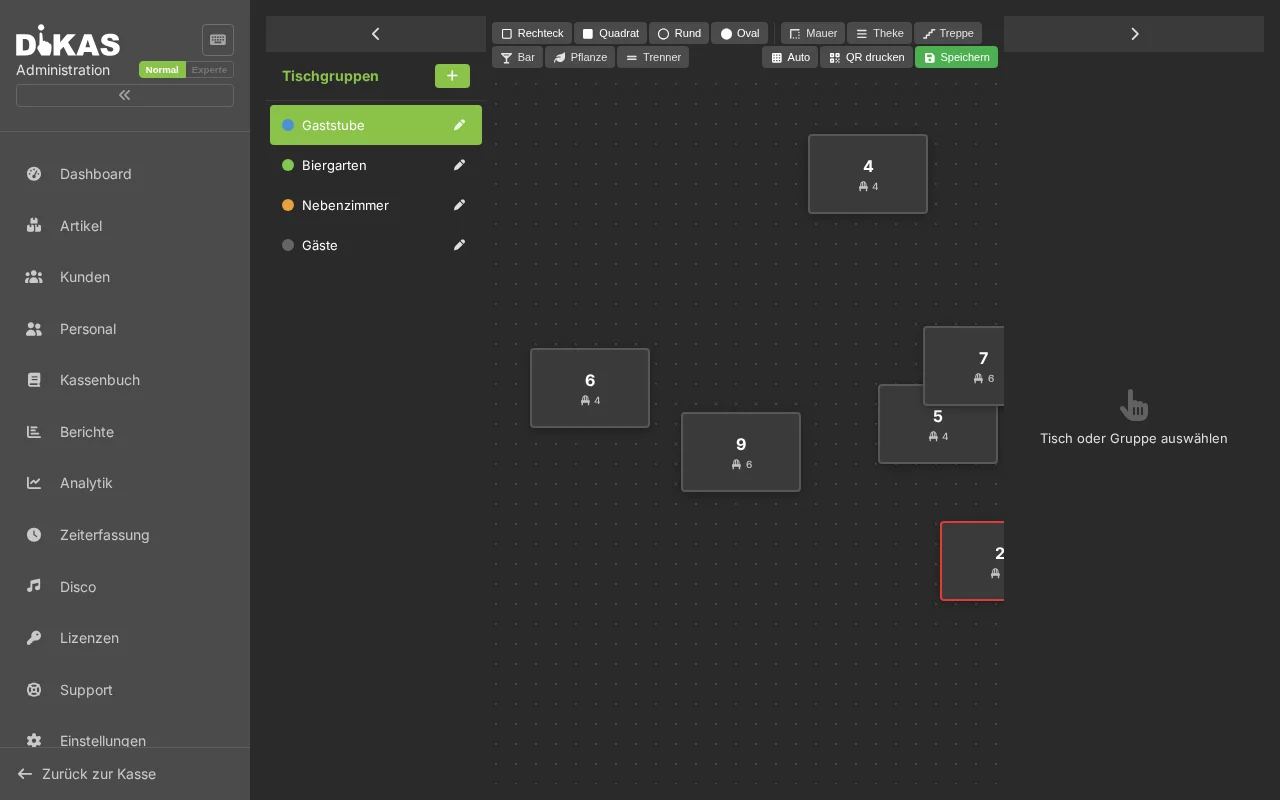
Tables are organized into groups that typically represent rooms or sections:
- Click "+ New Group"
- Enter a name (e.g. "Terrace", "Dining Room", "Bar")
- Optional: Set sort order
| Field | Description |
|---|---|
| Name | Section name |
| SortOrder | Order in the table view |
Example Structure:
Gastraum (12 Tische)
├── Tisch 1–4  (Fensterplätze)
├── Tisch 5–8  (Mitte)
└── Tisch 9–12 (Nische)

Terrasse (6 Tische)
├── Tisch 20–23
└── Tisch 24–25

Bar (4 Tische)
└── Tisch 30–33

Gäste (automatisch)
└── NFC-Karten-Tische
The "Guests" group is created automatically and contains tables created via NFC cards (e.g. in clubs).
Creating and Editing Tables
Creating a New Table
- Select a group
- Click "+ New Table"
- Fill in:
| Field | Description | Example |
|---|---|---|
| Table Number | Unique number (displayed at the POS) | 12 |
| Name | Optional display name | Window seat |
| Seats | Number of seats | 4 |
| Shape | Rectangle, Circle, Square or Oval | Rectangle |
| Width / Height | Size in the table plan (pixels) | 80 × 80 |
| Rotation | Rotation angle (−90° to 90°) | 0 |
| Color | Individual table color | #4CAF50 |
| Sort Order | Order within the group | 1 |
| Active | Show table at the POS | Yes |
Table Shapes
| Shape | Value | Usage |
|---|---|---|
| Rectangle | 0 | Standard table, banquet table |
| Circle | 1 | Round bistro table, standing table |
| Square | 2 | Small two-person table |
| Oval | 3 | Oval conference table |
Position in the Table Plan
The position (X/Y coordinates) determines where the table is displayed in the graphical floor plan. Positioning is done via drag & drop in admin or by manually entering the coordinates.
Table Status and Colors (POS)
At the POS, tables are color-coded according to their current status:
| Color | Status | Value | Description |
|---|---|---|---|
| Green | Free | 0 | Table can be occupied |
| Red | Occupied | 1 | Open orders present |
| Orange | Reserved | 2 | Reservation entered |
| Purple | Cleaning | 3 | Awaiting cleaning (after payment) |
| Gray | Blocked | 4 | Table is blocked (e.g. defective, under renovation) |
Status Transitions
Frei (grün)
  ├── Bestellung aufnehmen → Belegt (rot)
  └── Reservierung eintragen → Reserviert (orange)

Belegt (rot)
  ├── Zahlung durchführen → Frei (grün)
  └── Zahlung + Reinigungspflicht → Reinigung (violett)

Reinigung (violett)
  └── „Gereinigt" markieren → Frei (grün)

Reserviert (orange)
  └── Bestellung aufnehmen → Belegt (rot)
Cleaning Requirement
If enabled (Admin → Settings → Operations → Table Cleaning Requirement), the table is not immediately freed after payment but receives the status Cleaning (purple):
- Guest pays → Table becomes purple (not green)
- Staff cleans the table
- Long press (500 ms) on the table → Table info dialog → "Cleaned"
- Table becomes green (free)
Benefits: - Hygiene concept visibly implemented - Quality control: No guest is seated at an uncleaned table - Traceable which tables have been cleaned
Table Info Dialog (Long Press)
A long press (500 ms) on a table at the POS opens the table info dialog:
| Function | Description |
|---|---|
| Orders | All open items on the table |
| Course Change | Show current course, trigger next course |
| Cleaned | Mark table as cleaned (with cleaning requirement) |
| Block Table | Temporarily block the table |
| Assign Waiter | Assign the table to another waiter |
Decorative Elements
In addition to actual tables, you can place decorative elements in the floor plan — walls, counters, stairs and plants that visualize the layout:
| Type | Description |
|---|---|
| Wall | Wall / room divider |
| Counter | Counter / bar counter |
| Stairs | Staircase |
| Bar | Bar area |
| Plant | Plant / decoration |
| Divider | Room divider |
Decorative elements have no function at the POS — they serve only for visual orientation in the floor plan. They are marked via the "Decorative" field and can also be adjusted in shape, size and position.
Draught System Integration
If a draught system is configured, tables can be linked with a draught table number:
| Field | Description |
|---|---|
| Draught System No. | Table number in the draught system |
When a guest taps a beverage via the draught system at the table, the transaction is automatically assigned to the correct table in DiKAS.
Guest Tables (NFC Cards)
In club and nightclub operations, tables are automatically created when a guest receives an NFC card:
| Field | Description |
|---|---|
| IsGuestTable | Automatically created guest table |
| CustomerId | Linked customer |
| CustomerCardId | NFC card ID |
Guest tables are created in the special "Guests" group and automatically cleaned up after the end-of-day report.
Practical Example: Restaurant with Terrace
Situation: Restaurant with 20 tables indoors, 8 tables on the terrace and a bar.
Setup: 1. Create group "Dining Room" → 20 tables (rectangle, 4–6 seats) 2. Create group "Terrace" → 8 tables (circle, 2–4 seats) 3. Create group "Bar" → 4 standing tables (circle, 2 seats) 4. Decorative elements: Walls, counter, plants 5. Enable cleaning requirement (hygiene concept)
In the Table Plan:
┌──────────────────────────────────┐
│  Gastraum                        │
│  ┌──┐ ┌──┐ ┌──┐ ┌──┐           │
│  │T1│ │T2│ │T3│ │T4│  Fenster  │
│  └──┘ └──┘ └──┘ └──┘           │
│          ████████████  Wand     │
│  ┌──┐ ┌──┐ ┌──┐ ┌──┐           │
│  │T5│ │T6│ │T7│ │T8│  Mitte    │
│  └──┘ └──┘ └──┘ └──┘           │
│  ████████  Theke  (○)(○)(○)(○)  │
│                    Bar          │
└──────────────────────────────────┘
Frequently Asked Questions
Can I move tables between groups? Yes. Simply change the group assignment in the table detail view.
What happens to a blocked table? It is displayed in gray at the POS and cannot be occupied. Useful for renovations or defective furniture.
Can tables be numbered and named? Yes. The table number is the primary identifier (e.g. "12"), the name is optional (e.g. "Window seat").
Next Step
→ Cash Book — View receipts, expenses and end-of-day reports