Data Import & Export
DiKAS offers comprehensive import and export functions: an intelligent article import wizard with optional AI support, selective backup & restore with 8 categories and real-time progress.
Admin → Data Import
Article Import
Overview
The import wizard guides you through the article import in 4 steps — from file selection to the results overview. Columns are automatically recognized, optionally with AI support.
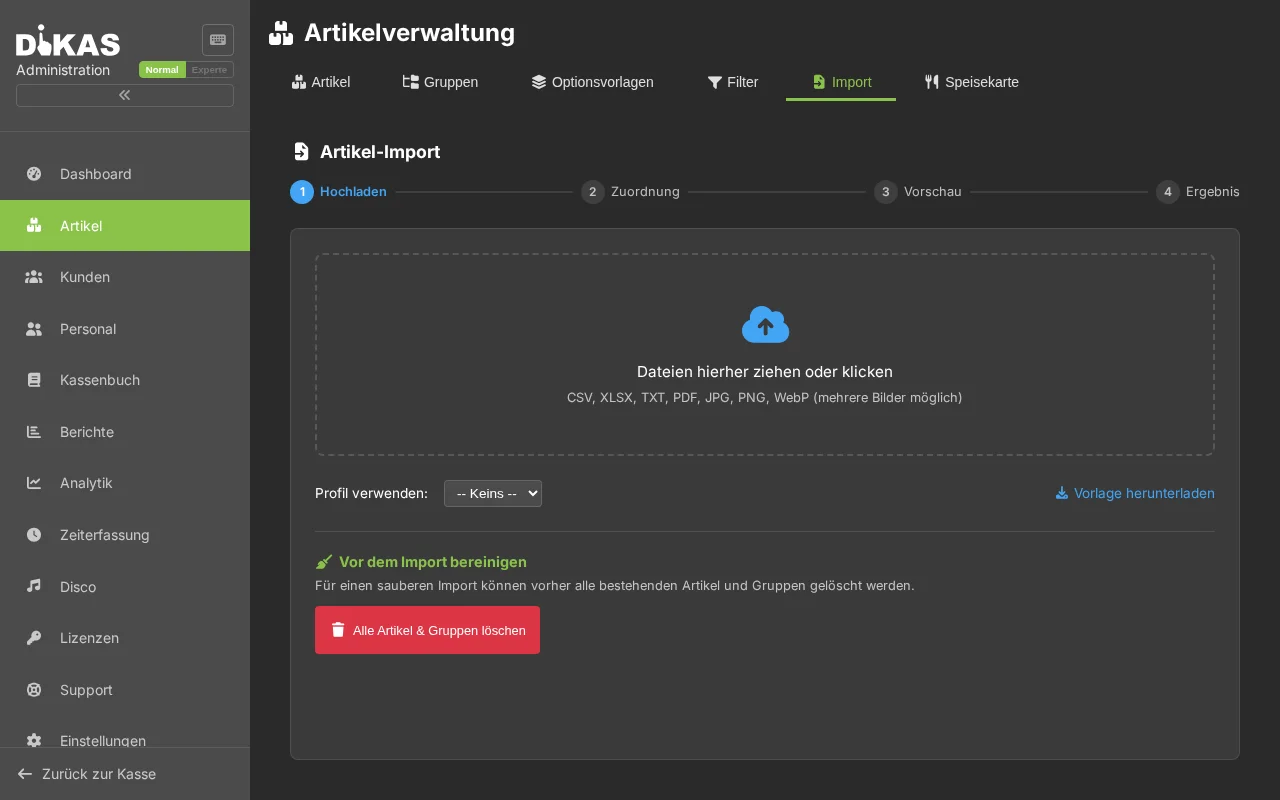
Step 1: Upload File
Admin → Data Import → Article Import
Supported formats:
| Format | Description |
|---|---|
| CSV | Semicolon or comma separated |
| TXT | Tab separated |
| XLSX | Excel files |
| Via AI extraction (optional) | |
| Images | JPG/PNG/WebP via AI extraction (e.g. photo of a price list) |
Drag the file into the upload area or click "Select File".
Automatic Detection:
DiKAS automatically detects:
- Delimiter: Semicolon (;), comma (,), tab, pipe (|)
- Encoding: UTF-8, Windows-1252 (via BOM or heuristic)
- Header Row: Whether the first row contains column headers
Step 2: Map Columns
DiKAS analyzes the column headers and values to suggest the best mapping:
Automatic Column Detection (16 target fields):
| DiKAS Field | Recognized Column Headers |
|---|---|
| Name | Artikelname, Bezeichnung, Produktname, Product |
| Price | VK-Preis, Preis, Verkaufspreis, Price, Betrag |
| Article Number | PLU, SKU, ArtNr, Artikelnr, Number |
| Tax Rate | MwSt, Steuer, Tax, VAT, MwSt% |
| Tax Class | Steuerklasse, TaxClass |
| Article Group | Gruppe, Warengruppe, Kategorie, Category, WGR |
| Barcode | Barcode, EAN, GTIN, EAN13 |
| Unit | Einheit, Mengeneinheit, ME |
| Description | Beschreibung, Langtext, Info |
| Short Name | Kurzname, Kurz |
| Color | Farbe, Hintergrund, Background, Color |
| Active | Aktiv, Active, Sichtbar, Visible |
| Allergens | Allergene, Allergen |
| Sort Order | Sortierung, Position, Reihenfolge |
| Deposit | Pfand, Deposit |
| Course | Gang, Course, Küche |
Detection Phases: 1. Header Matching: Column header is checked against 60+ known patterns 2. Value Analysis: For unclear columns, the first 20 rows are analyzed (numbers, booleans, codes)
Correct the mapping via dropdown if needed.
AI Mapping: If an AI provider is configured, click "AI Suggestion" — DiKAS sends column headers and sample rows to the AI and receives an optimized mapping.
Step 3: Preview & Configuration
Review the imported data: - How many articles will be imported? - Are there duplicates? (Same article number, barcode or name) - Will new groups be created?
Duplicate Handling:
| Mode | Description |
|---|---|
| Skip | Do not change existing articles |
| Update | Update existing articles with new data |
| Replace | Delete existing articles and recreate |
Duplicate Detection: Comparison by article number, barcode or name (configurable).
Value Transformations:
| Transformation | Description |
|---|---|
| Tax Class → Tax Rate | Legacy tax class (0/1/99) → percentage (19/7/0) |
| Price Format | German (1.000,00) and English (1,000.00) format |
| Boolean Text | "ja"/"yes"/"1"/"x" → active, "nein"/"no"/"0" → inactive |
| Allergen Codes | Legacy codes (a1–a14) → EU codes (A–N) |
Step 4: Execute Import
Click "Import". The result shows: - Newly created: X articles - Updated: X articles - Skipped: X articles - Errors: X articles (with details per row)
New article groups are automatically created if the specified group does not yet exist.
Import Profiles
Save frequently used mappings as a profile:
- After successful mapping: "Save Profile"
- Enter a name (e.g. "Supplier Müller CSV")
- Saved: Column mapping, transformations, delimiter, default group, tax, duplicate mode
- On the next import: Load profile → mapping is already complete
Profile Settings
| Field | Description |
|---|---|
| Name | Profile name |
| Source Format | CSV, XLSX, PDF, Image |
| CSV Settings | Delimiter, encoding, header row, text qualifier |
| Excel Settings | Sheet index/name, header row, data start |
| Default Group | Fallback article group |
| Default Tax Rate | Fallback tax rate |
| Duplicate Mode | Skip / Update / Replace |
| Matching Field | Article number / Barcode / Name |
AI-Assisted Import
PDF and Image Extraction
For price lists as PDF or photo:
- Upload PDF or image
- DiKAS sends the file to the configured AI provider
- The AI extracts: Article names, prices, groups, tax rates
- Result is displayed as a tabular preview
- Continue as with CSV import (steps 2–4)
Supported AI Providers
| Provider | Model | Description |
|---|---|---|
| OpenAI | GPT-4 Vision | Cloud-based, API key required |
| Anthropic | Claude Vision | Cloud-based, API key required |
| Google Gemini | Gemini 2.0 Flash | Cloud-based, API key required |
| Ollama | Local models | Self-hosted, no API key needed |
Configuration: Admin → Settings → AI Import
Free Quota
Without your own API key, 2 free AI imports are available via the DiKAS key. For unlimited usage, enter your own API key.
Excel Template
Download a template containing all 17 target fields:
"Download Template" → Excel file with: - All column headers - One example row with explanations - Format notes per column
Backup & Restore
Creating a Backup
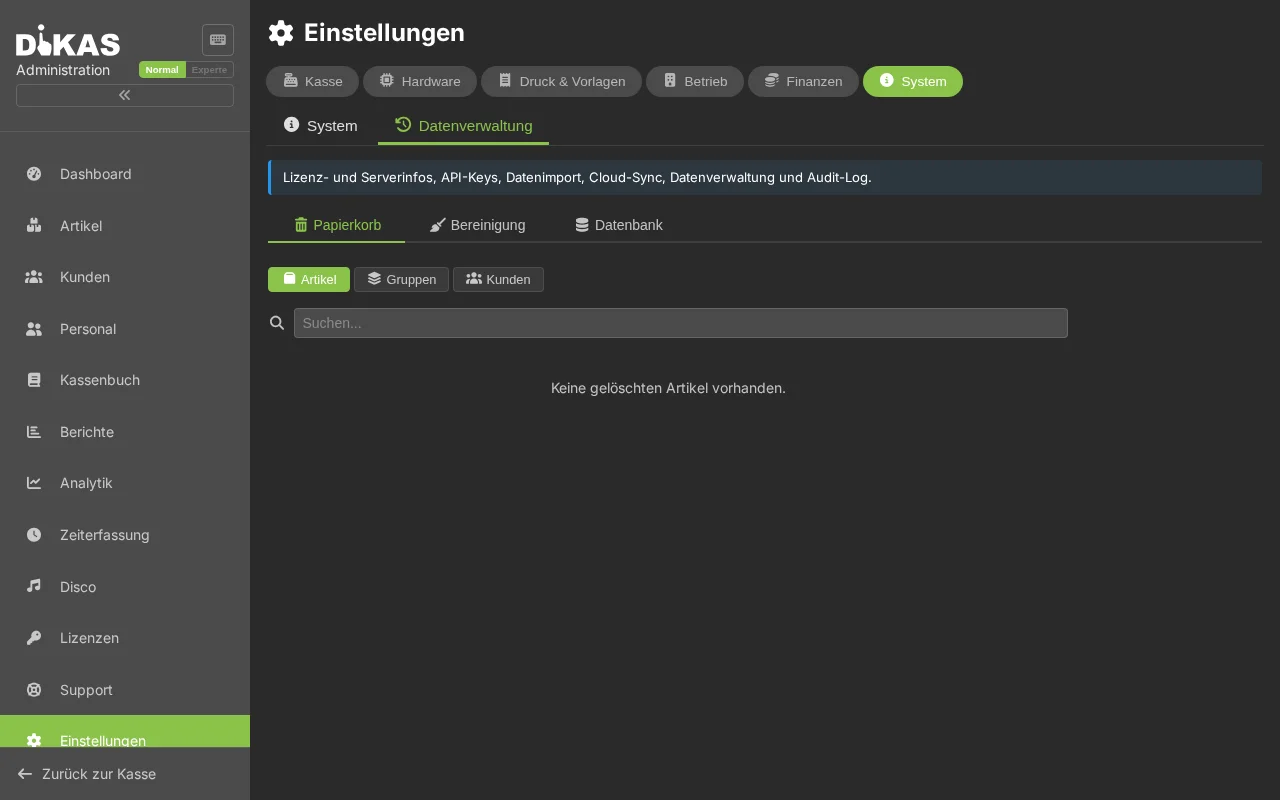
Admin → Settings → System → Backup
- Click "Create Backup"
- DiKAS creates a ZIP file with:
- All documents as JSONL (compressed with Brotli, ~80% size reduction)
- All attachments (images, documents) in the
attachments/directory - Download the ZIP and store it safely
ZIP Structure:
backup.zip
├── data.jsonl.br          ← Alle Dokumente (Brotli-komprimiert)
└── attachments/           ← Dateianhänge
    ├── article_xxx/       ← Artikelbilder
    │   └── image.jpg
    ├── customer_yyy/      ← Kundendokumente
    │   └── vertrag.pdf
    └── ...
Restoring a Backup (Selective Restore)
Admin → Settings → System → Restore
- Click "Upload Backup"
- Select ZIP file (max. 2 GB)
- Choose categories — you decide which data to restore:
| Category | Contents | Icon |
|---|---|---|
| Articles | Articles, article groups, option templates, inventory, HACCP templates | 📦 |
| Customers | Customers, customer groups, invoices, subscriptions, bank data, vouchers | 👥 |
| Staff | Employees, time tracking | 👤 |
| Tables | Tables, open receipts, reservations | 🪑 |
| Settings | Configuration, printers, templates, TSE, DATEV, import profiles | ⚙️ |
| Revenue Data | Receipts, expenses, end-of-day reports, payments, delivery orders | 💰 |
| Disco | Disco guests, entry groups, daily logs | 🎵 |
| Workshop | Workshop orders | 🔧 |
"All" selects all 8 categories.
- Click "Restore"
- Progress bar shows real-time progress (SignalR):
- Delete data → Read documents → Insert documents → Copy attachments → Migration
Restore Paths
| Database | Behavior |
|---|---|
| CouchDB | Full restore: delete/recreate database. Selective restore: insert/overwrite documents. |
| SQLite / SQL Server | Clear affected tables (per category), legacy conversion, EF Core bulk insert |
⚠️ Important: During restore, the selected data will be overwritten. Create a backup of the current state beforehand!
Frequently Asked Questions
Can I import only the articles without overwriting everything else? Yes — select only the "Articles" category during restore. All other data remains unchanged.
What happens during a restore with open receipts? Open receipts belong to the "Tables" category. If you do not select this category, the current open receipts are preserved.
Does the import support supplier catalogs with 10,000+ articles? Yes — the import processes large files as well. Processing is done in batches with a progress indicator.
Next Step
→ Modules — Add-on modules (Disco, Workshop, Time Tracking)