Customer Invoices
DiKAS creates complete customer invoices — for corporate customers, house tabs on account, catering billing, and recurring services. The invoicing includes PDF generation, email delivery, SEPA direct debit, cash discount, and a three-level dunning process.
Admin → Customers → [Customer] → Invoices
When Do I Need Invoices?
| Use Case | Description |
|---|---|
| House Tabs / Consolidated Invoice | Regular customer pays by house tab, monthly consolidated invoice |
| Catering | Corporate event billed after the fact |
| Corporate Meals | Lunches for company employees |
| Subscriptions | Recurring services (→ Subscriptions) |
| Workshop | Repair job order billed as invoice |
Creating an Invoice
Automatically (from House Tabs)
When a customer pays by house tab (payment method "on account"), the open amounts accumulate on the customer account. The invoice is created from these:
- Admin → Customers → [Customer] → Invoices
- "+ New Invoice"
- Open house tabs are automatically listed as line items
- Set invoice date and payment terms
- "Create" → invoice number is assigned, POS receipt is generated
Manually
You can also create invoices without prior house tabs:
- "+ New Invoice"
- Add line items manually (description, quantity, unit price, tax rate)
- Optional: discount per line item
- Set invoice date and payment terms
- "Create"
From Workshop Job Order
When a workshop job order is completed:
- Set job order status to "Completed"
- Click "Invoice" → invoice is created automatically
- Labor and materials are carried over as line items
- Job order number is referenced in the invoice
Invoice Line Items
Each line item contains:
| Field | Description |
|---|---|
| Description | Article name or free text |
| Quantity | Count (default: 1) |
| Unit Price | Price per unit |
| Tax Rate | 19 %, 7 %, or 0 % |
| Discount % | Line item discount in percent |
| Net | Quantity × unit price × (1 − discount%) |
| VAT | Net × tax rate / 100 |
| Gross | Net + VAT |
Invoice Content
══════════════════════════════════════════
  Pizzeria Da Mario
  Hauptstraße 12, 80331 München
  Tax number: 143/123/12345
══════════════════════════════════════════

  INVOICE No. RE-2026-0042

  To:
  Firma Müller GmbH
  Thomas Müller
  Industriestraße 5
  80333 München

  Date: 05.03.2026
  Payment due: 19.03.2026
  Cash discount: 2 % if paid by 12.03.2026

  ─────────────────────────────────────
  Pos  Description        Qty    Amount
  ─────────────────────────────────────
   1   Lunch menu           12  143.88
   2   Beverages flat rate   1   35.00
  ─────────────────────────────────────
  Net:                        150.32
  VAT 19 %:                    13.70
  VAT  7 %:                    14.86
  ─────────────────────────────────────
  Total:                      178.88

  Please transfer the amount
  by 19.03.2026 to the following account:

  IBAN: DE89 3704 0044 0532 0130 00
  BIC: COBADEFFXXX
  Reference: RE-2026-0042

══════════════════════════════════════════
Invoice Status
An invoice goes through the following statuses:
| Status | Description |
|---|---|
| Draft | Invoice has been created, can still be edited |
| Open | Invoice has been sent, payment pending |
| Partially Paid | A partial amount has been posted |
| Paid | Fully paid (manually or via bank import) |
| Overdue | Payment due date exceeded |
| Dunning 1–3 | Dunning notices sent (→ Dunning) |
| Cancelled | Invoice was cancelled, credit note created |
Net Mode (Reverse Charge)
For corporate customers in the EU outside Germany with a valid VAT ID (e.g., FR12345678901, AT12345678):
- DiKAS automatically detects based on the VAT ID whether reverse charge applies
- Criterion: VAT ID starts with a 2-letter country code that is NOT "DE"
- Invoice line items are shown with 0 % VAT
- The note "Steuerschuldnerschaft des Leistungsempfängers (Reverse Charge)" (reverse charge — VAT liability transfers to the recipient) is added
| VAT ID | Result |
|---|---|
DE123456789 |
Normal taxation (19 %/7 %) |
FR12345678901 |
Reverse Charge (0 %) |
AT12345678 |
Reverse Charge (0 %) |
143/123/12345 (tax number) |
Normal taxation |
Cash Discount (Skonto)
Offer your customers an incentive for prompt payment:
| Field | Description |
|---|---|
| Discount Percent | Deduction for payment within the deadline (e.g., 2 %) |
| Discount Days | Deadline in days from invoice date (e.g., 7 days) |
| Discount Amount | Automatically calculated deduction |
| Discount Deadline | Calculated date (invoice date + discount days) |
Sending an Invoice
By Email
- Open invoice → "Send by email"
- Email preview is displayed (subject, text with placeholders)
- Optional: adjust text
- "Send" → invoice as PDF and ZUGFeRD XML attached
Available placeholders:
| Placeholder | Replaced by |
|---|---|
{Firma} |
Customer company name |
{Name} |
Customer display name |
{Vorname} / {Nachname} |
First and last name |
{RechnungsNr} |
Invoice number |
{RechnungsDatum} |
Invoice date (dd.MM.yyyy) |
{FaelligDatum} |
Payment due date (dd.MM.yyyy) |
{Netto} / {MwSt} / {Brutto} |
Amounts (formatted: 1,000.00 €) |
{OffenerBetrag} |
Outstanding balance |
{IBAN} / {BIC} / {Bank} |
Your bank details |
{Kontoinhaber} |
Your account holder |
{Mandatsreferenz} |
SEPA mandate reference |
As PDF
- Open invoice → "PDF"
- PDF is generated (FlexCel template) and offered for download
- Print or send manually
ZUGFeRD (E-Invoice)
DiKAS generates a ZUGFeRD XML file for every invoice — the machine-readable e-invoice format that is increasingly mandatory in B2B from 2025.
- Download via "XML" button
- Also automatically attached when sending by email
Alternative Invoice Address
If the invoice address differs from the customer master data (e.g., central accounting department):
| Field | Description |
|---|---|
| Invoice Company Name | Alternative company name |
| Invoice Contact Name | Alternative contact person |
| Invoice Street | Alternative street |
| Invoice Postal Code / City | Alternative postal code and city |
These fields can be set directly on the invoice or in the subscription.
Credit Note / Cancellation
If an invoice needs to be cancelled:
- Open invoice → "Cancel"
- DiKAS creates a credit note (invoice with negative amounts)
- The original invoice is set to status "Cancelled"
- The credit note references the original number
Payment Receipt
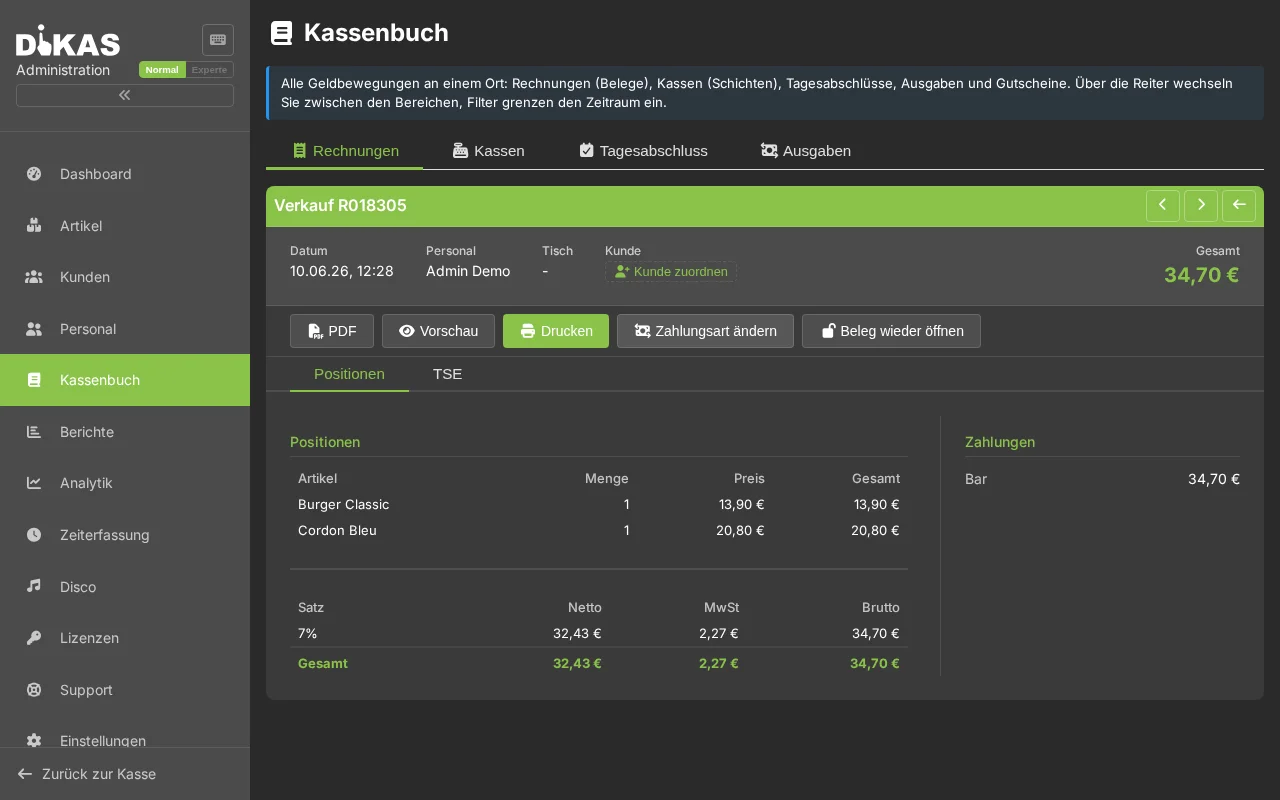
Manual
- Open invoice → "Record payment"
- Enter amount and payment date
- Optional: note (e.g., transfer reference)
- Status changes to "Paid" (or "Partially Paid" for partial payment)
Automatic (Bank Import)
If you use the bank import, DiKAS automatically recognizes incoming payments based on invoice number, customer name, IBAN, and amount — and assigns them to the invoice.
By SEPA Direct Debit
If IBAN and SEPA mandate are stored for the customer:
- Invoice is marked with "Direct debit"
- SEPA file (pain.008) is generated
- Upload the file to your online banking
- Status is automatically updated
Invoice Overview
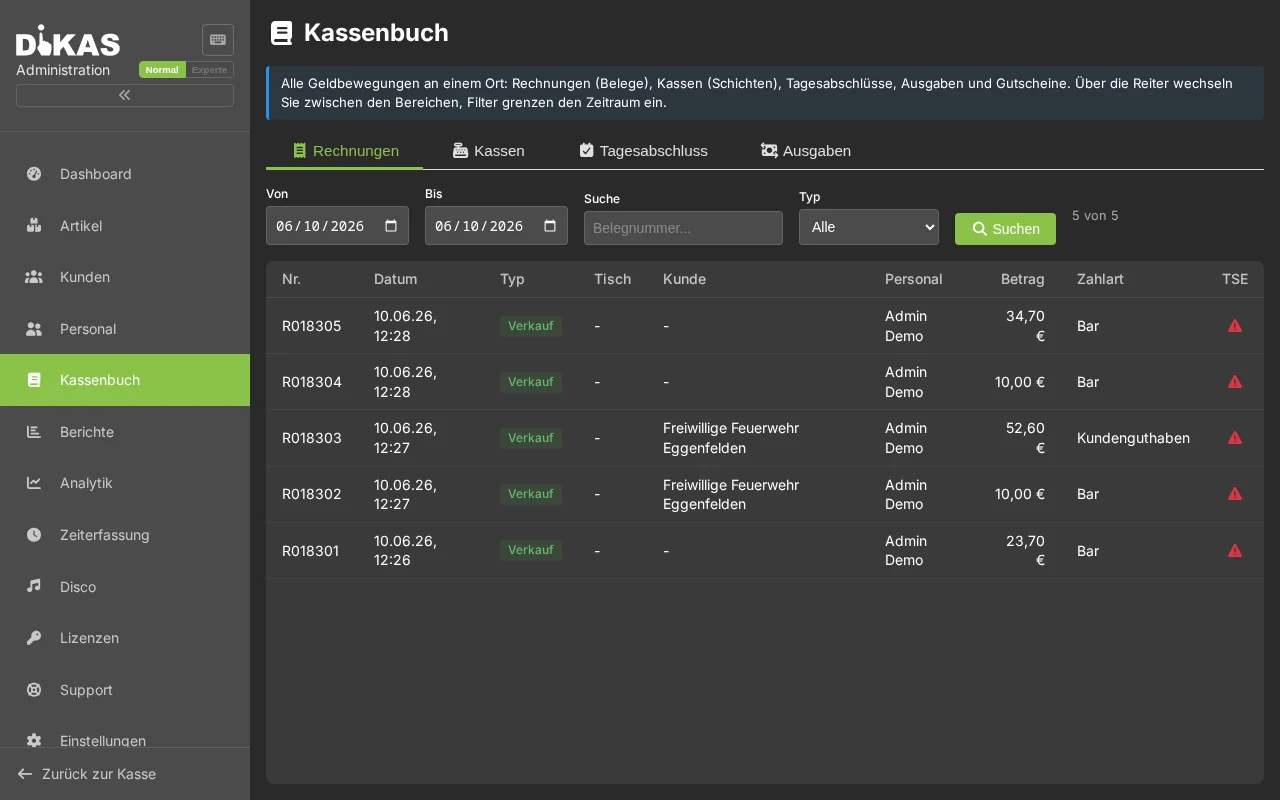
The invoice list offers comprehensive filters:
| Filter | Description |
|---|---|
| Customer | Only invoices for a specific customer |
| Status | Open, Paid, Overdue, etc. |
| Time Period | From-to date |
| Dunning Level | Filter by dunning level |
| Search | Free text search in invoice number and customer name |
Open Items Overview
Under Admin → Invoices → Overview, you can see all open invoices grouped by dunning level — ideal for a quick overview of outstanding receivables.
Practical Example: Monthly Corporate Invoice
Situation: Restaurant supplies a company with monthly lunches.
- Employees order daily by house tab (payment method "Invoice")
- At month-end: Admin → Customers → Firma Müller → Invoices → "+ New Invoice"
- All house tabs for the month are listed as line items
- Payment terms: 14 days, 2 % cash discount if paid within 7 days
- "Create" → "Send by email" → PDF + ZUGFeRD attached
- After 14 days: bank import recognizes the transfer automatically → status "Paid"
- If no payment: automatic dunning (→ Dunning)
Next Step
→ Dunning — Dun overdue invoices