Cash Book
The cash book is the central overview of all financial transactions — receipts, expenses, end-of-day reports, exchanges and vouchers. All data is filterable, searchable and fully traceable at any time.
Admin → Cash Book
The 5 Tabs at a Glance
| Tab | Content | Typical Use |
|---|---|---|
| Receipts | All POS receipts | Receipt search, void verification, customer inquiries |
| Expenses | All expenses and cash withdrawals | Receipt verification, DATEV preparation |
| End-of-Day Reports | All Z-reports | Monthly accounting, tax audit |
| Exchanges | Voids and exchange transactions | Void verification |
| Vouchers | All active vouchers | Balance maintenance, expiration control |
Tab 1: Receipts
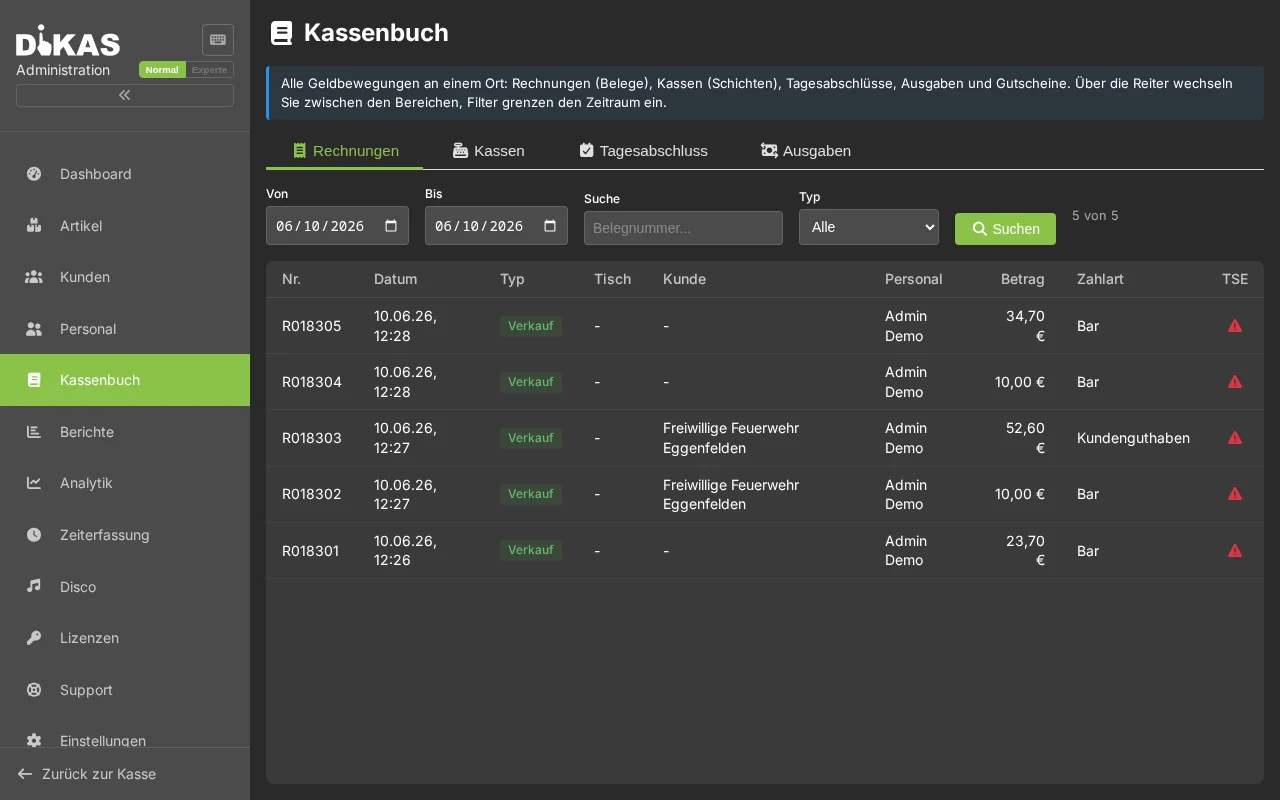
All POS receipts with full details:
| Column | Description |
|---|---|
| Receipt No. | Sequential receipt number |
| Date | Time of payment |
| Amount | Total amount (gross) |
| VAT | Tax amount |
| Payment Method | Cash, debit card, credit card, voucher, customer credit |
| Waiter | Who processed the payment |
| Table | Table number (for table bookings) |
| Customer | Assigned customer (if applicable) |
| Voided | Whether the receipt was voided |
Receipt Detail
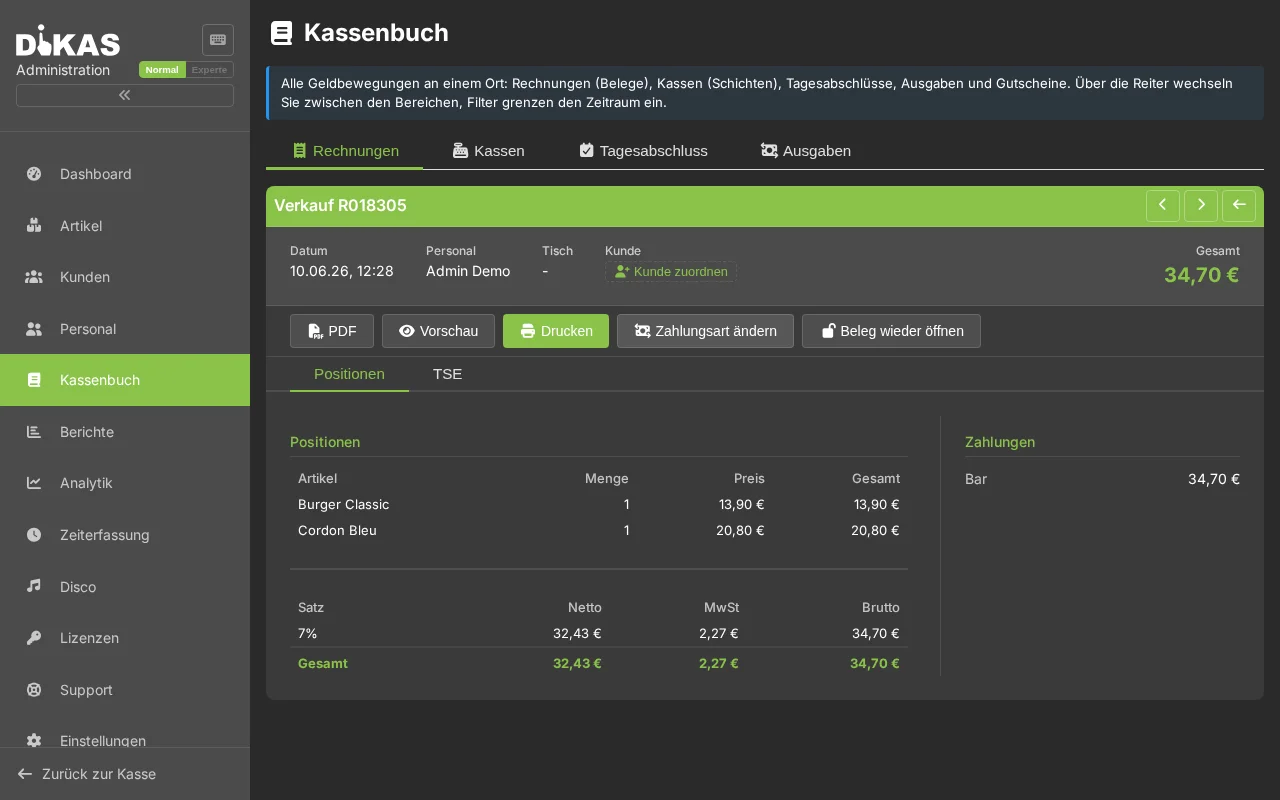
Click on a receipt to see all details:
| Section | Content |
|---|---|
| Items | All articles with quantity, unit price, total price, VAT rate |
| Payment Details | Payment methods with amounts, change |
| Customer Info | Name, customer number (if assigned) |
| TSE Data | Signature, transaction number, serial number, QR code data |
| Void Info | If voided: void date, void waiter, void receipt |
Receipt Search
You can search for receipts by: - Receipt number: Direct search by receipt number - Date: Narrow down the time period - Waiter: Only receipts from a specific employee - Customer: Only receipts from a specific customer - Free text search: Article name, description
Tab 2: Expenses
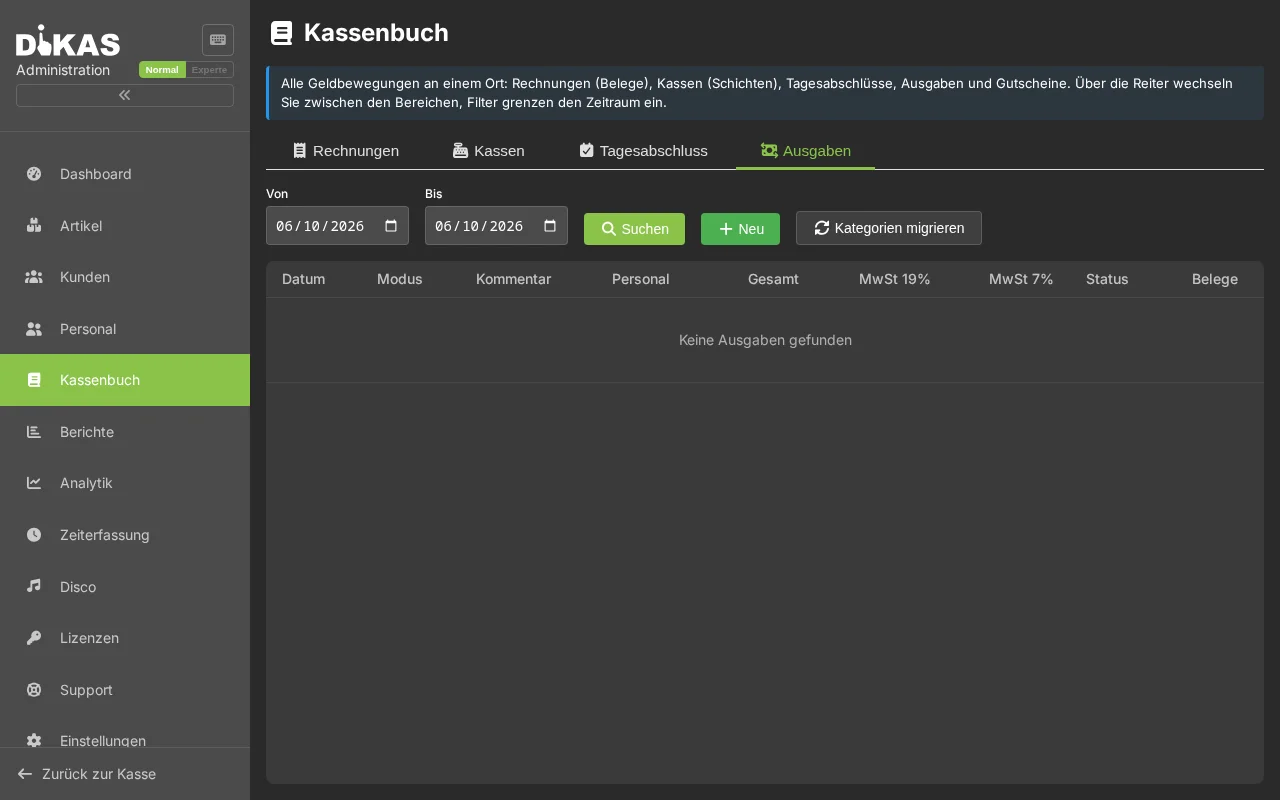
All recorded expenses and cash withdrawals:
| Column | Description |
|---|---|
| Date | Time of recording |
| Description | What was purchased/transferred |
| Amount 19% | Portion at 19% VAT |
| Amount 7% | Portion at 7% VAT |
| Amount 0% | Tax-free portion |
| Total | Total amount (sum of all VAT fields) |
| Type | Cash expense / Transfer / Income / Bank transfer |
| Receipts | Number of attached receipt images |
Expense Detail
Click on an expense to see details: - All amount fields (broken down by VAT) - Type and description - Receipt images: Preview, download, upload new or delete - Assignment to the end-of-day report (after closing)
Create new: Via the "+" button you can also create a new expense in admin — with all fields as in the POS entry.
Tab 3: End-of-Day Reports
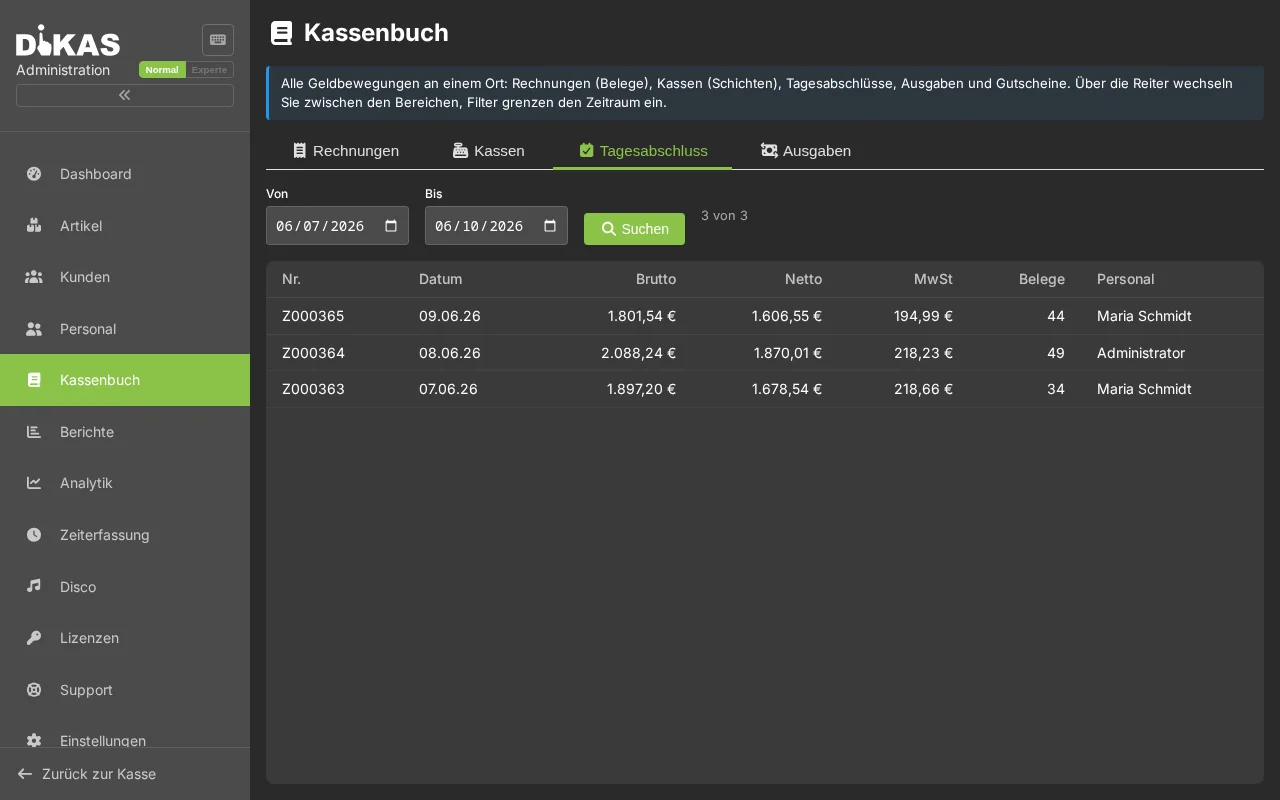
All completed Z-reports:
| Column | Description |
|---|---|
| Z-No. | Sequential end-of-day report number |
| Date | Business day |
| Gross | Total revenue incl. VAT |
| Net | Total revenue excl. VAT |
| Cash | Cash receipts |
| Card | Card receipts |
| Receipts | Number of receipts |
| Voids | Count and amount |
| Variance | Cash overage/shortage |
| Closed By | Employee name |
Registers / Shifts
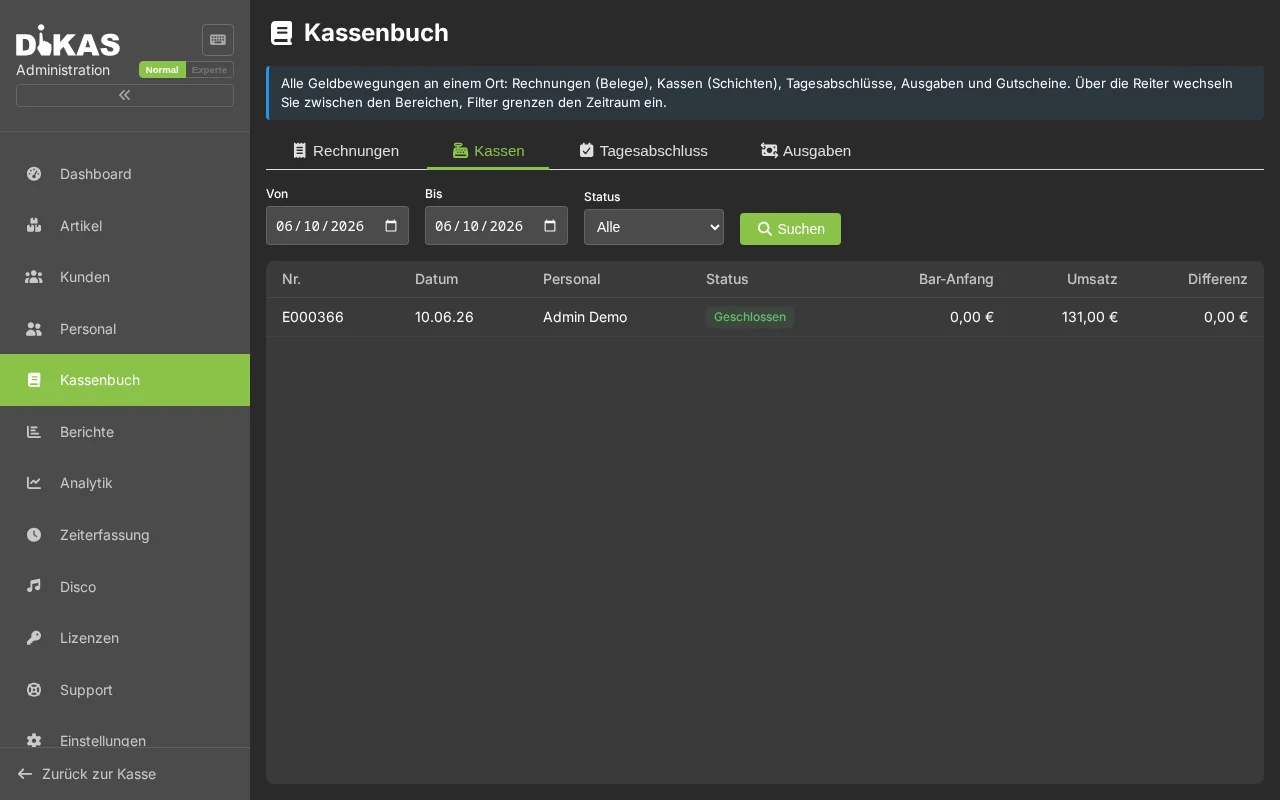
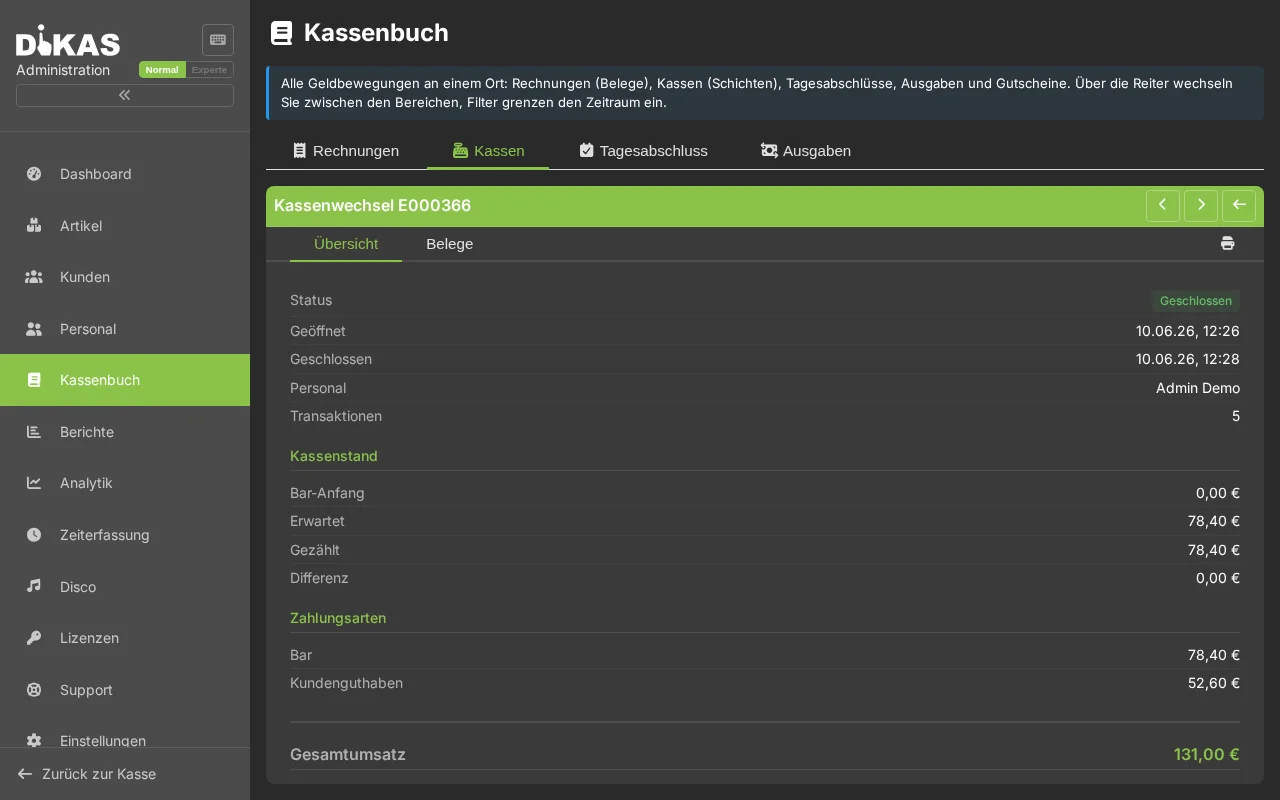
Z-Report Detail
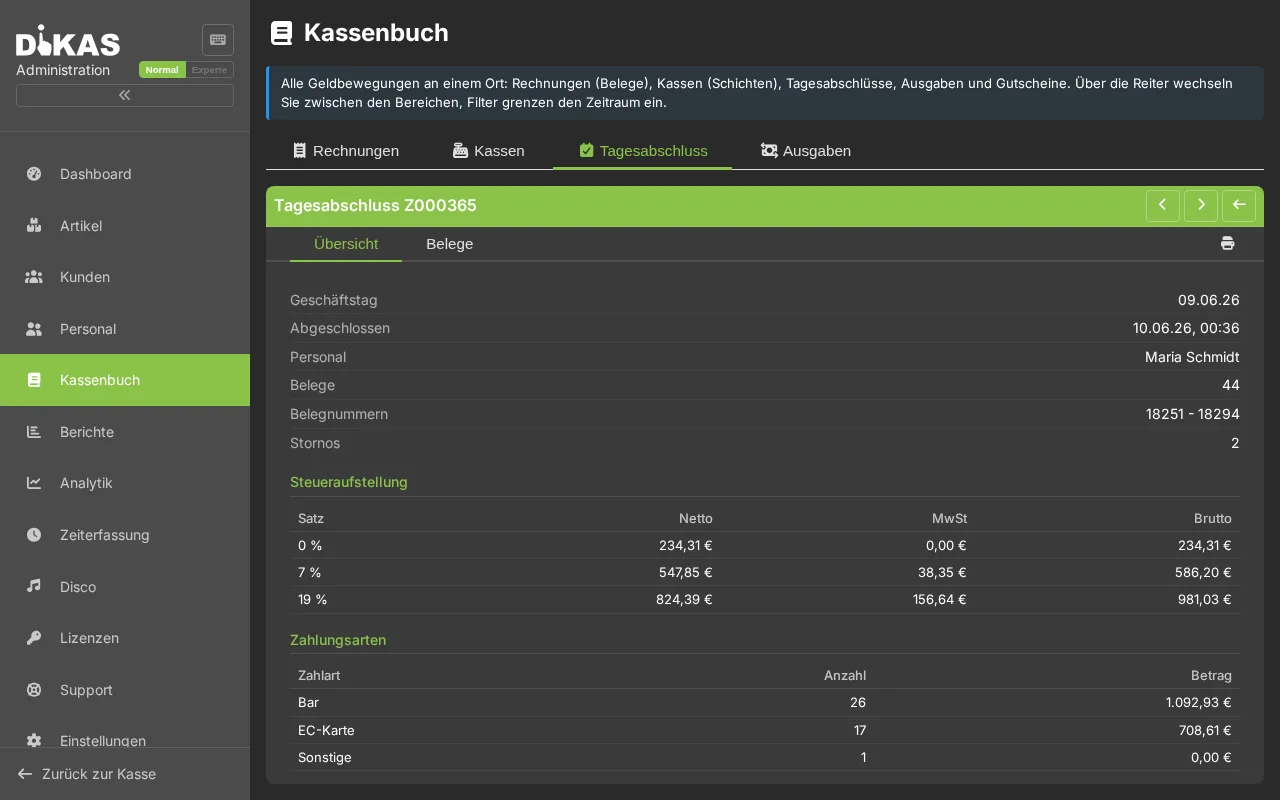
Click on an end-of-day report to view the complete Z-report: - Revenue Overview: Gross, Net, VAT (by tax rate) - Payment Methods: Breakdown by payment method - Cash Count: Opening balance, income, expenses, expected vs. actual - Waiter Settlement: Revenue per employee - Article Groups: Revenue per article group - Voucher Statistics: Sold, redeemed, open balance - Customer Credit: Top-ups, usage, payouts - Expenses: Broken down by type - TSE Data: Signature, transaction number
Tab 4: Exchanges
Voids and exchange transactions:
| Column | Description |
|---|---|
| Date | Time of the void/exchange |
| Original Receipt | Reference to the original receipt |
| Amount | Voided/exchanged amount |
| Reason | Void reason (if entered) |
| Status | Open / Closed |
| Waiter | Who performed the void |
| TSE Data | TSE signature of the void |
Exchange Detail
An exchange contains: - Original Receipt: Reference to the voided receipt - Items: Which articles were voided/exchanged - Payment Refund: How the refund was processed (cash, card) - TSE Signature: The exchange is signed as an independent TSE transaction
Tab 5: Vouchers
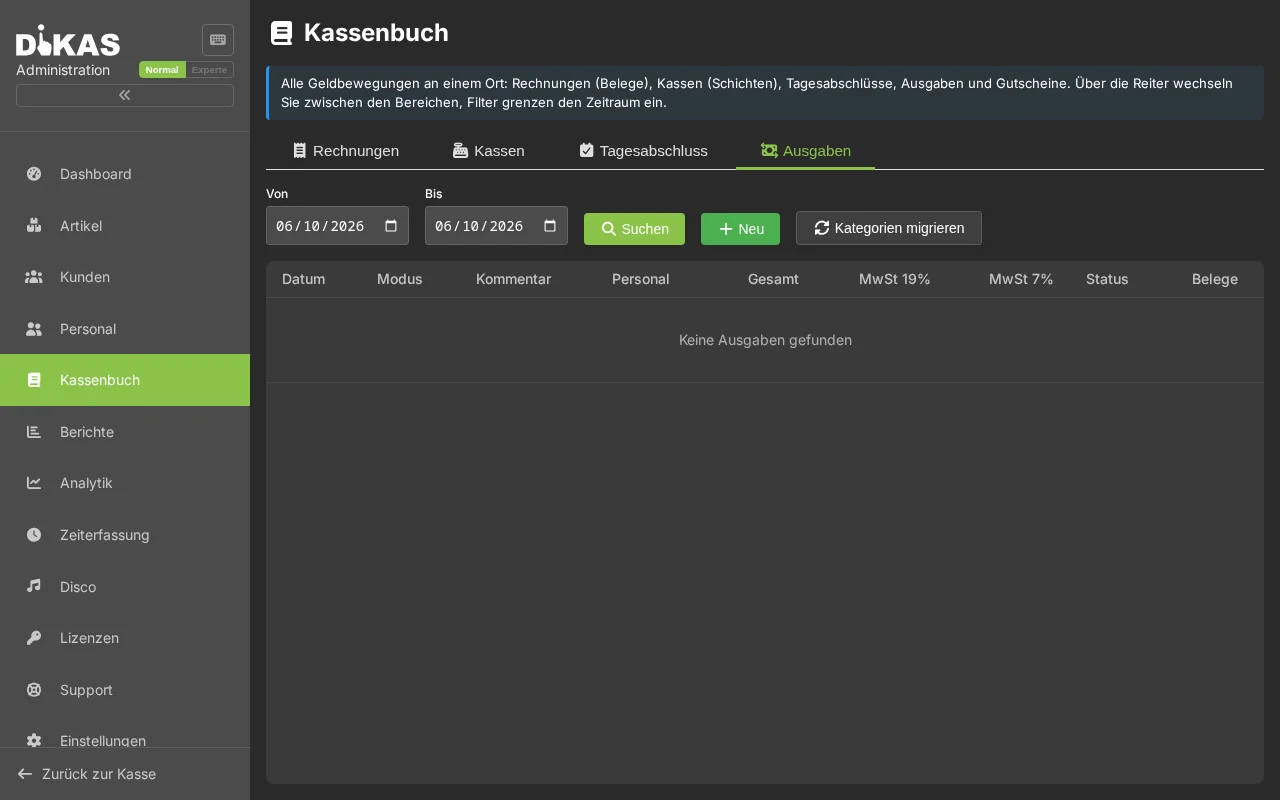
All active and redeemed vouchers:
| Column | Description |
|---|---|
| Code | Voucher serial number (e.g. GS-A7B3-K9M2) |
| Name | Description (e.g. "Gift Voucher") |
| Original Value | Amount at sale |
| Remaining Value | Currently available balance |
| Created | Sale date |
| Valid Until | Expiration date |
| Status | Active / Redeemed / Expired |
Voucher Detail
Click on a voucher to see details: - Redemption History: When, where and how much was redeemed - Linked Receipt: On which receipt the voucher was sold - Deactivate: Manually block the voucher (e.g. if lost) - Adjust Validity Date: Extension if needed
Filtering and Searching
All tabs support the same filter options:
| Filter | Description |
|---|---|
| Date Range | Select from-to date |
| Free Text Search | Search by receipt no., description, customer name |
| Waiter Filter | Filter by employee |
Results are displayed as a scrollable list — for large data volumes, DiKAS automatically loads more (infinite scroller).
Frequently Asked Questions
Can I reprint receipts? Yes. In the receipt detail you will find a print button to reprint the receipt.
How do I find a specific receipt? Use the free text search (e.g. by receipt number) or narrow down the time period.
Are deleted/voided receipts displayed? Yes. Voided receipts are marked with a void notice but remain visible in the cash book (statutory retention requirement).
How long is the data retained? POS data is subject to the statutory retention period of 10 years. DiKAS does not automatically delete POS data.
Next Step
→ Reports — Revenue analytics and statistics