Staff Schedule (Shift Planner)¶
The staff schedule is a full-featured shift planner for hospitality — weekly planning via templates, a publishing workflow, German labor law checks (ArbZG), and live staff costs in the plan. Thanks to the integrated POS, DiKAS is the only system that shows the revenue reference per day directly next to the planned staff costs.
The staff schedule works independently of time tracking. If both modules are active, they complement each other (target/actual comparison, shift hint at the time clock).
Activation¶
Admin → Settings → Business → Modules → "Staff schedule" check the box. The menu item Staff schedule then appears in the Admin navigation and the My schedule tile in the POS.
Permissions (Admin → Staff → Permissions):
| Permission | Meaning |
|---|---|
shifts.view |
See own/team plan (for everyone when the module is active) |
shifts.manage |
Plan, publish, maintain templates/positions |
shifts.absences |
Approve absences |
Admin and Manager roles automatically have all permissions.
Feature Overview¶
| Feature | Description |
|---|---|
| Weekly plan | Grid (employees × 7 days) in stamp mode |
| Shift templates | Recurring shifts (e.g., "Early kitchen 8–16") |
| Positions | Stations with color (kitchen, service, bar …) |
| Open shifts | Unassigned shifts that employees can take over |
| Publish | Make drafts visible to staff |
| Copy week | Take over the previous week as a draft |
| ArbZG checks | Rest period, maximum working time, breaks, youth protection, mini-job … |
| Staff costs + revenue ratio | per day, with the avg. revenue of the same weekday (last 8 weeks) |
| Evaluation | Target / plan / actual per employee, CSV export |
Creating Master Data¶
Before the first planning, create the stations (with color) in the Positions tab and the typical shifts (start/end/break, optionally a position) in the Templates tab.
The hourly wage and the employment type (full-time, part-time, mini-job …) are maintained per employee under Admin → Staff → "Staff schedule" tab. The hourly wage is the basis for the staff cost display and the mini-job guard.
In the same tab you can store availabilities (weekday + time window, "Not available" or "Preferred"). If an employee is scheduled into a "Not available" window, the weekly plan shows a warning.
Weekly Plan (Stamp Mode)¶
Admin → Staff schedule → Weekly plan
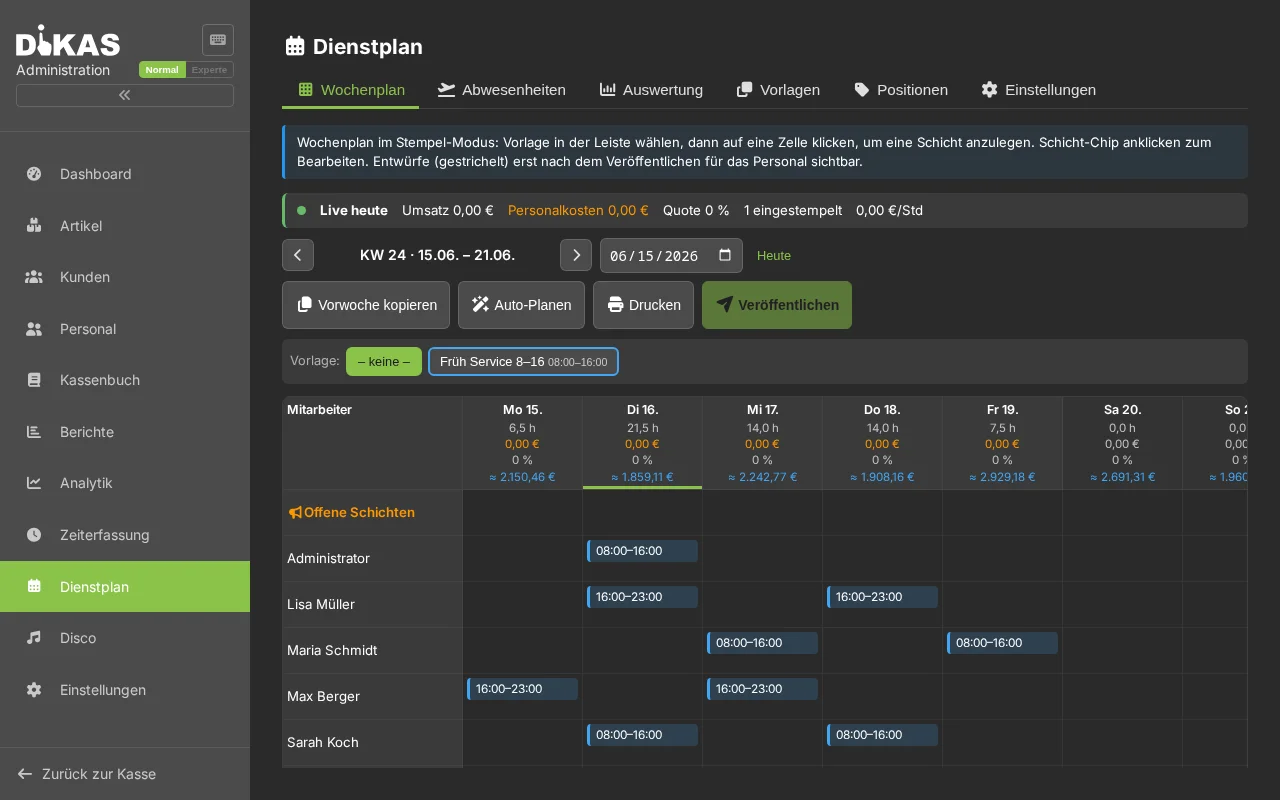
- Select a shift template in the template bar at the top.
- Click on a cell (employee + day) — the shift is created as a draft.
- Clicking a shift chip opens the detail area below the grid (change or delete time, position, employee, note).
- Alternatively, a shift chip can be moved into another cell by drag & drop to change the employee or day (dragging it onto the "Open shifts" row makes the shift open).
The header of each day shows planned hours, staff costs € and the ratio against the average daily revenue. If a shift violates a rule, a warning symbol ⚠ with an explanation appears on the chip; drafts are shown with dashed lines.
- Copy previous week takes over all shifts of the previous week as new drafts.
- Auto-plan automatically assigns open shifts to suitable, available employees (considers position, availability, absence, rest period, and maximum working times; preferred availability and even workload are prioritized).
- Publish releases all drafts of the week — only then are they visible to the employees.
- Print opens the weekly plan as a PDF notice (A4 landscape) in a new tab.
In the day header, the plan also shows, in addition to planned hours and staff costs, the revenue forecast (trend from the history) and a recommended staff cost budget (forecast × target ratio). A live banner at the top shows the current day's revenue, staff costs of the clocked-in employees, ratio, and revenue per staff hour in real time.
ArbZG Checks (Warnings, Not Blockers)¶
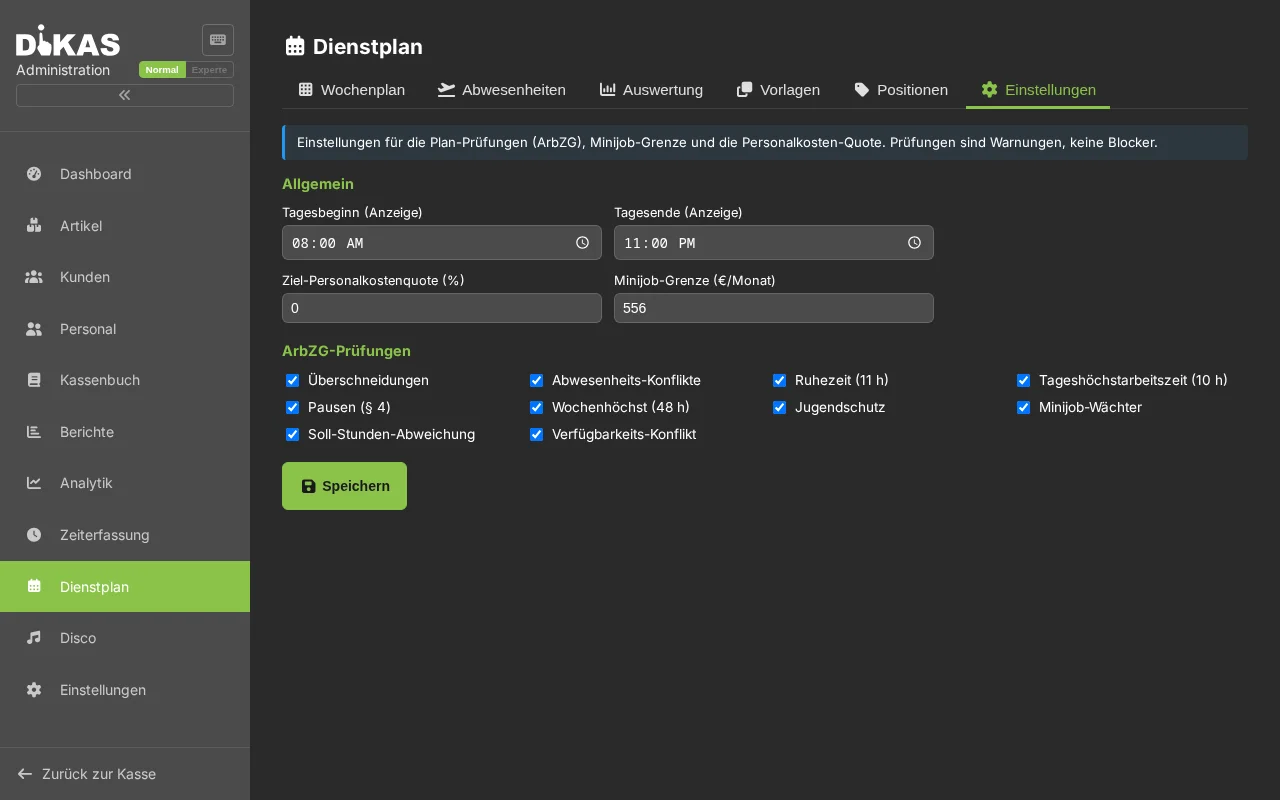
The following are checked, among others: overlaps, conflict with approved absence, rest period (11 h), daily maximum working time (10 h), breaks (§ 4 ArbZG), weekly maximum (48 h), youth protection (under 18), mini-job earnings limit, deviation from the target hours, as well as the availability conflict (shift in a "Not available" window). Each rule can be turned off individually in the Settings tab.
Absences¶
In the Absences tab, vacation, sick leave, etc. are recorded and approved. Approved absences create a conflict warning in the weekly plan if the employee is scheduled anyway.
My Schedule (POS)¶
POS → Menu → My schedule
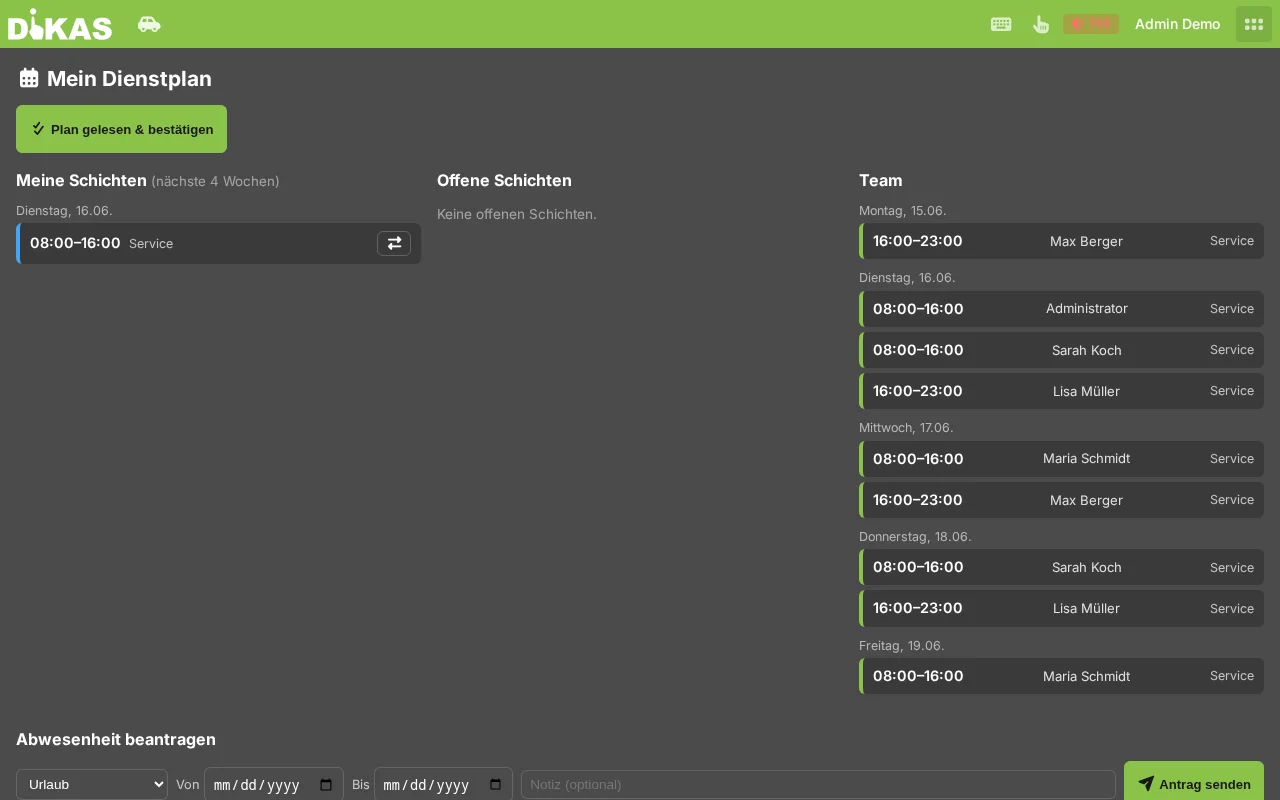
Employees see their own published shifts of the next four weeks, the team plan (read-only), as well as open shifts that they can book for themselves via Take over.
Additional self-service functions:
- Confirm plan — the employee confirms having read the plan for the week; a checkmark then appears next to the name in the Admin weekly plan.
- Request absence — submit vacation/sick leave etc. as a request (status "Requested"); the admin approves or rejects it. Your own requests including status are visible.
- Shift swap — offer your own shift for a swap; a colleague accepts the offer, a manager confirms (the shift is transferred). Open offers from others can be taken over directly.
Interaction with Time Tracking¶
If staff schedule and time tracking are both active, the plan (target) and the time clock (actual) couple together — without ever blocking the clock-in:
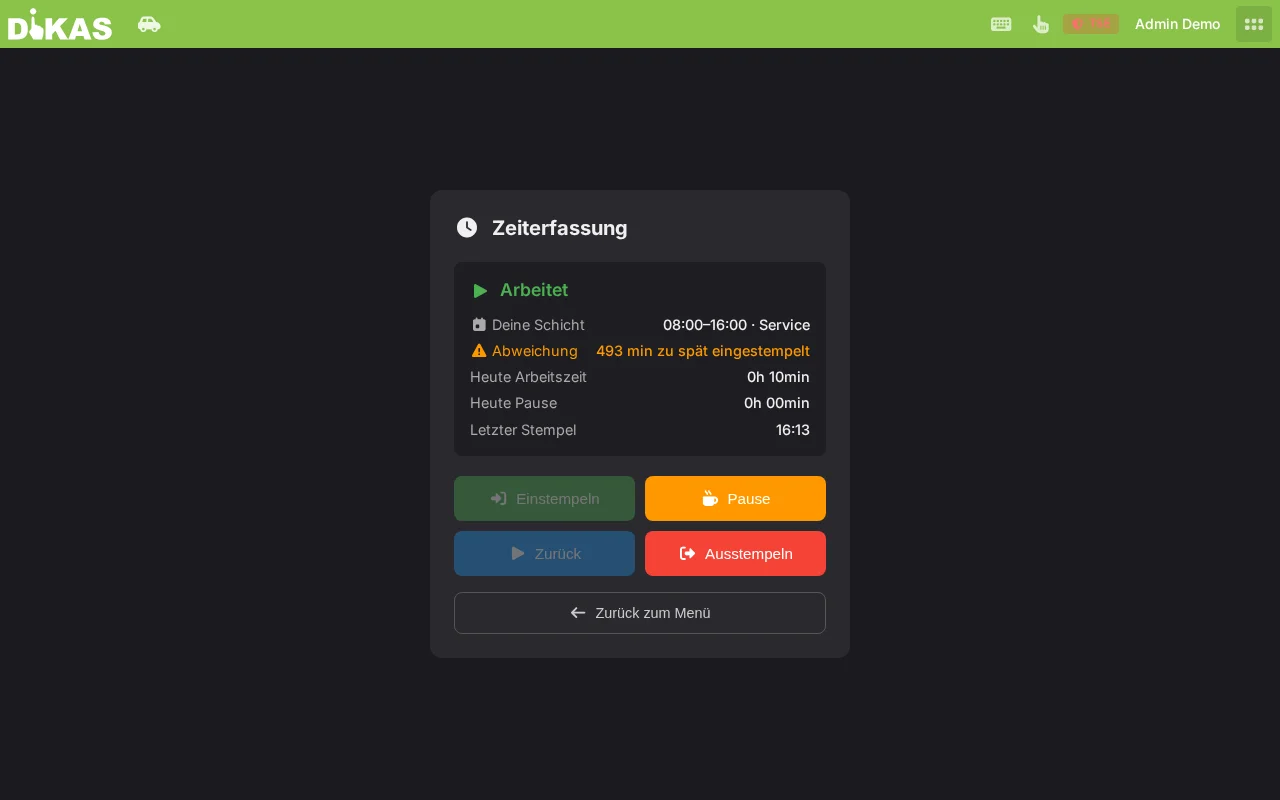
- Time clock (POS): shows today's planned shift ("Your shift: 08:00–16:00 · Service"). If the first clock-in deviates by more than 15 minutes from the planned start, a hint appears (e.g., "493 min clocked in late") — for information only.
- Admin time tracking ("Individual" tab): next to the actual times (start/end), the column "Planned" appears with the target shift time from the staff schedule. This makes it possible to compare plan against actual directly per clock entry ("–" = no shift planned that day).
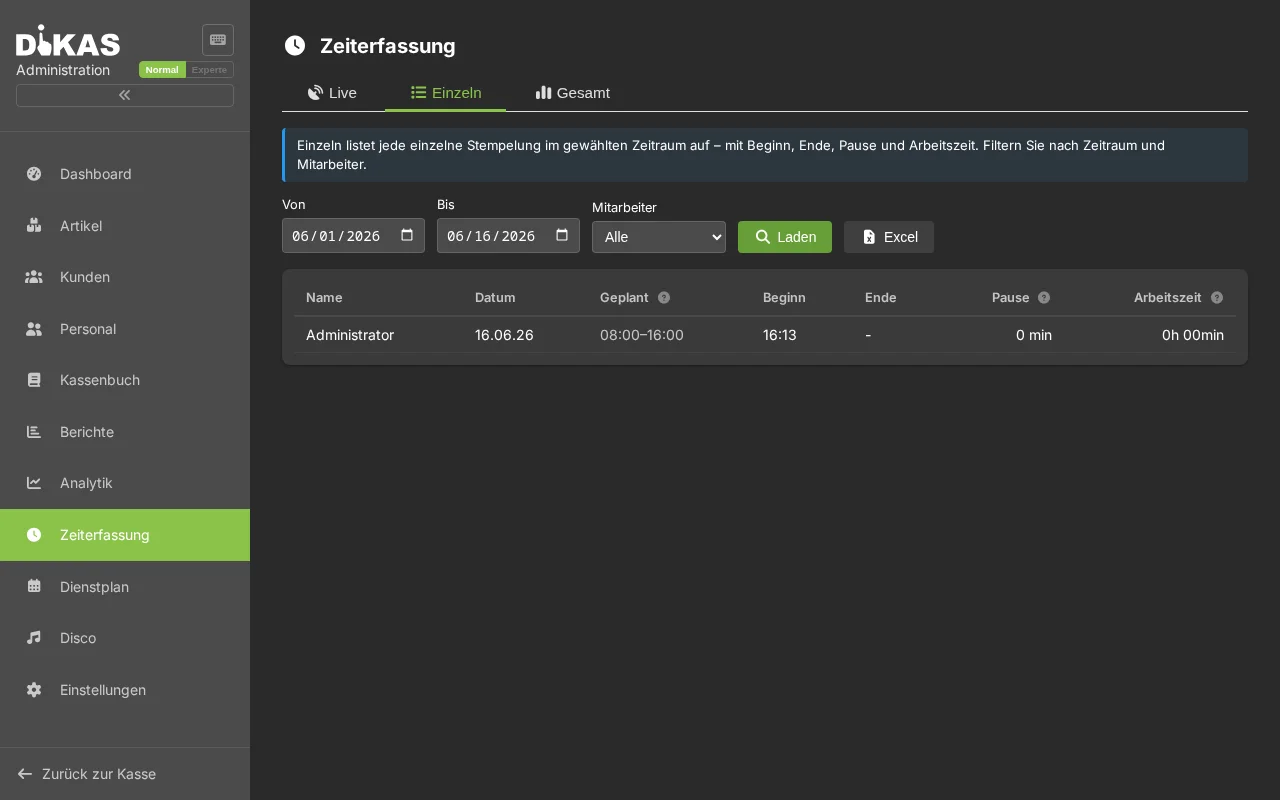
The evaluation in the staff schedule uses the clock times as the actual source (see below).
Employee Portal (Browser)¶
The same self-service functions are also available in the employee portal at …/mitarbeiter
(e.g., from a mobile phone at home). Logging in is done with the usual POS credentials; the employee
then sees their plan, open shifts (Take over), can request absences,
swap shifts, and confirm the plan — separate from the customer portal login.
When a week is published, affected employees with a stored email address automatically receive a shift overview by email.
Evaluation¶
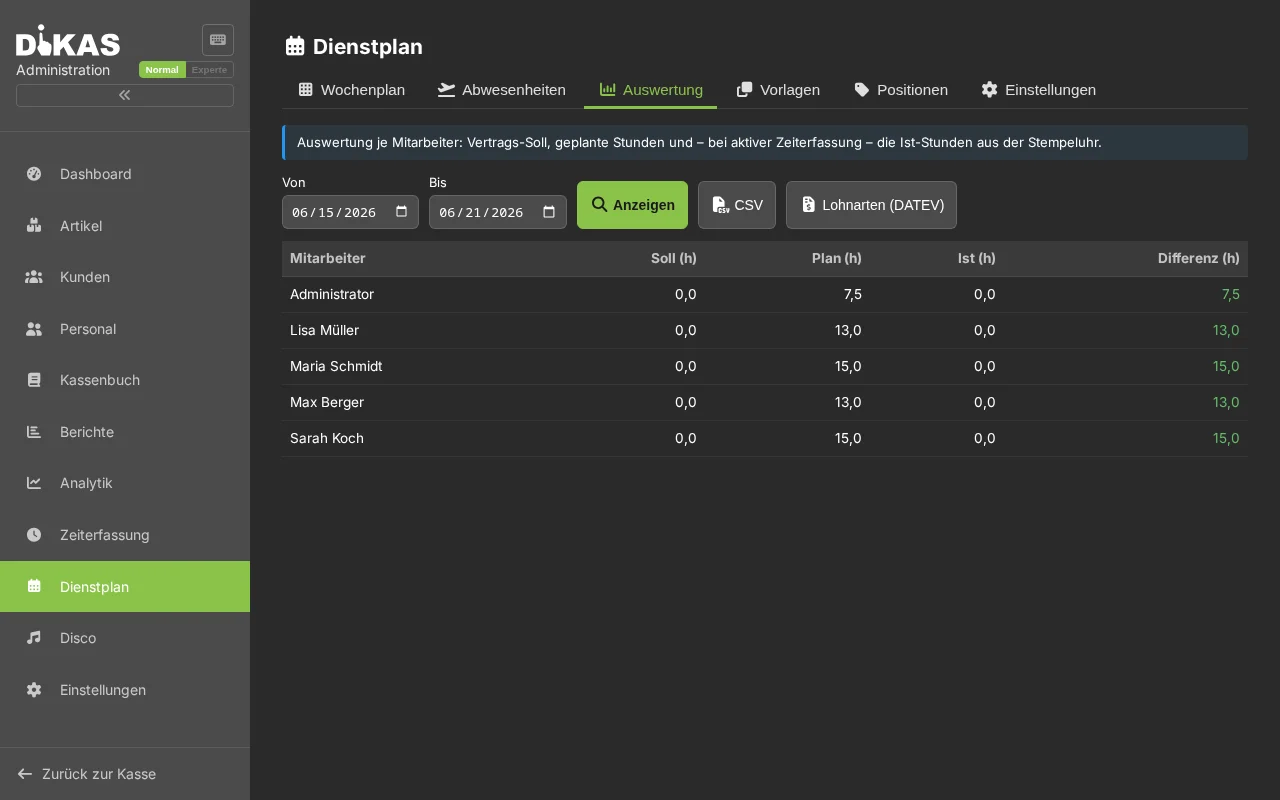
The Evaluation tab compares, per employee, the contractual target hours, the planned plan hours, and — when time tracking is active — the actual actual hours. The table can be exported as CSV.
If surcharge rates are stored in the Settings (night 22:00–6:00, Sunday, public holiday), the evaluation shows additional columns with the surcharge-eligible hours and the tax-free SFN surcharge in € (public holidays depending on the selected federal state).
Via Wage types (DATEV), a CSV with the planned hours per employee and wage type (base wage, night/Sunday/public holiday surcharge) can be exported for payroll accounting.