TSE — Technical Security Device¶
Since January 1, 2020, every electronic cash register in Germany is legally required to use a Technical Security Device (TSE). DiKAS is fully TSE-compliant and automatically signs all fiscally relevant transactions.
What Is a TSE?¶
A TSE is a certified security module (hardware or cloud service) that digitally signs every register transaction. This allows the tax authority to verify whether register data has been altered after the fact. The legal basis is the Kassensicherungsverordnung (KassenSichV) based on § 146a of the Abgabenordnung (AO).
In short: The TSE is your digital notary for every checkout transaction.
What Is Signed?¶
DiKAS signs not only receipts but all fiscally relevant transactions:
| Transaction | What happens? |
|---|---|
| Receipts | Every payment (cash, card, voucher, customer credit) |
| Orders | Every order in table service |
| Voids | Every void of a receipt |
| End-of-day reports | Every Z-report |
| Expenses | Every cash withdrawal from the register |
| Shift changes | Every shift opening and closing |
Important: Signing happens fully automatically in the background. You do not need to do anything extra when checking out.
Setting Up the TSE¶
Step 1: Connect TSE Hardware¶
Insert the TSE (e.g., Swissbit USB stick) into a free USB port on the register server.
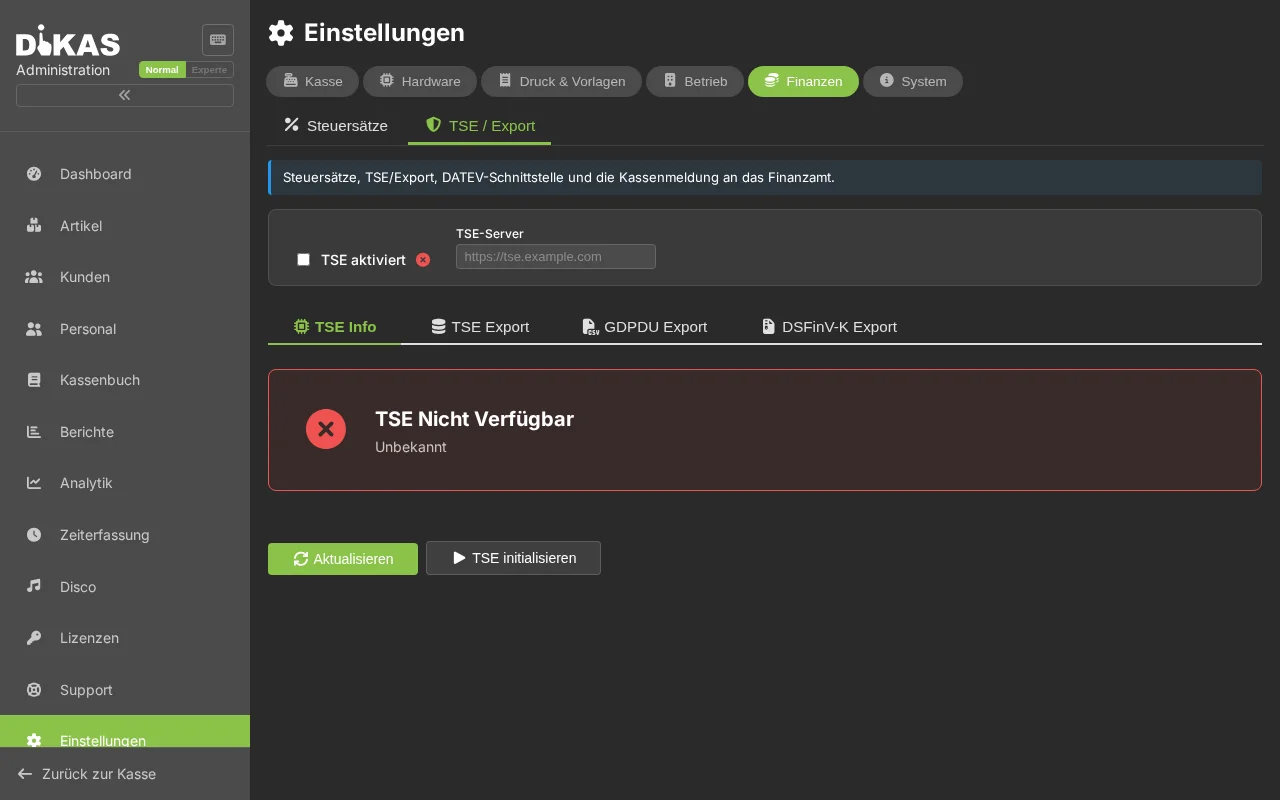
Step 2: Configure TSE in DiKAS¶
- Open Admin → Settings → TSE
- Select the TSE type:
- Hardware — Swissbit USB stick directly on the server
- Proxy — Network TSE via a proxy server (e.g., for multiple registers)
- Enter the register serial number (unique identifier for your register)
- Click "Activate"
Hardware TSE (Swissbit)¶
The simplest option: A USB stick on the server.
- Suitable for single registers or small businesses
- No internet connection required
- Cost: approx. 250–300 EUR one-time
TSE Proxy (Network)¶
For businesses with multiple registers:
- A central TSE proxy server serves all registers in the network
- Enter the proxy URL under TSE Server
- Suitable for multi-location businesses and large hospitality operations
TSE Data on the Receipt¶
Every receipt automatically contains the TSE information:
══════════════════════════════════
  RECEIPT No. 20260313-0042
──────────────────────────────────
  2x Schnitzel          25.80
  1x Cola                3.50
──────────────────────────────────
  TOTAL                 29.30 EUR
  Cash                  30.00
  Change                 0.70
══════════════════════════════════
  TSE Information:
  Signature:   a8f3c2d1e5b7...
  Trans. No:   12345
  Sign. Cnt:   67890
  Start:       2026-03-13T18:30:00
  End:         2026-03-13T18:30:01
  Serial No:   ABCDEF1234567890

  [QR Code]
══════════════════════════════════
The QR code contains all TSE data in a standardized format (DSFinV-K). The tax authority can scan this QR code and immediately verify the authenticity of the receipt.
Checking TSE Status¶
You can view the current status of your TSE under Admin → Settings → TSE:
| Display | Meaning |
|---|---|
| Available (green) | TSE is active and signing all transactions |
| Not available (red) | TSE is not reachable — see "TSE Failure" |
| Certificate valid until | Expiration date of the TSE certificate |
| Signatures used | Number of used / maximum signatures |
| Serial number | Unique identifier of your TSE |
Tip: Regularly check whether the TSE has enough free signatures. For hardware TSEs, the number is limited (typically: 20 million). DiKAS shows you the current count.
TSE Failure — What to Do?¶
If the TSE fails (defect, network problem, USB connection):
- Operations continue — DiKAS does not block checkout
- Automatic documentation — DiKAS automatically logs every failure (start time, duration, reason)
- Recovery — As soon as the TSE is reachable again, the failure logs are closed
- Tax authority — The failure documentation is retained for potential audits
Important: You are obligated to resolve a TSE failure promptly. DiKAS handles the documentation for you, but you should eliminate the cause (loose USB stick, network, defect) as soon as possible.
Exporting Data for Tax Audits¶
For a tax audit by the tax authority, you can export all data:
DSFinV-K Export¶
- Admin → Settings → Export → DSFinV-K
- Select time period
- Click "Create export"
- You receive a ZIP file with all required CSV files
TSE Data Export (TAR)¶
- Admin → Settings → TSE
- Click "TSE export" (optionally with date filter)
- The TSE provides a TAR file with all signed transactions
GDPdU Export¶
- Admin → Settings → Export → GDPdU
- Select time period
- "Create export"
Tip: Create regular backups of your TSE data, especially before a TSE replacement.
Frequently Asked Questions¶
Do I need a TSE? Yes, mandatory in Germany since 01.01.2020 for all electronic POS systems.
Which TSE does DiKAS support? Hardware TSE (Swissbit USB) and network-based TSE proxies.
How much does a TSE cost? Hardware TSE: approx. 250–300 EUR one-time.
Can I operate without a TSE? Technically yes — DiKAS does not block operations. Legally, however, you are obligated to operate a functioning TSE. Without a TSE, fines may be imposed.
What happens if the TSE is defective? DiKAS documents the failure automatically. Replace the TSE as quickly as possible. The failure logs serve as evidence for the tax authority.
Can the tax authority audit my data? Yes. Via the export functions (DSFinV-K, GDPdU, TSE TAR), you provide all data in the required formats.
Do I need to register the register serial number with the tax authority? Yes, since 01.01.2025, the reporting obligation via the electronic reporting system "ERiC" is active. Register your POS and TSE with the responsible tax authority.
Next Step¶
→ End-of-Day Report — Create Z-report → DATEV Export — Data for the tax advisor