Delivery Service
The delivery service allows you to manage orders and deliveries directly in the POS — from order intake through kitchen preparation to route optimization and driver management. Online orders from your own online shop and from delivery platforms (Lieferando, Wolt, Uber Eats, GloriaFood) are automatically imported and fed into the same workflow.
Feature Overview
| Feature | Description |
|---|---|
| Order Intake | Phone, POS, or online platform |
| Pickup & Delivery | Two order types with their own workflow |
| Delivery Zones | Postal code and distance-based fee calculation |
| Kitchen Integration | Orders automatically appear on the kitchen display (KDS) |
| Driver Management | Assign drivers, optimize routes, send via WhatsApp |
| Online Orders | Online ordering portal, GloriaFood webhook |
| Delivery Platforms | Lieferando, Wolt & Uber Eats: import, accept/reject, status feedback |
| Payment | Before or after delivery, cash/card/online |
| Route Optimization | Automatic tour planning (Valhalla) |
Activation
- Admin → Settings → Operations → Enable delivery service
- Configure delivery zones (see below)
- Optional: set up GloriaFood integration
After activation, the delivery service appears in the POS menu.
Two Order Types
| Type | Description | Workflow |
|---|---|---|
| Pickup | Customer orders and picks up | Confirmed → Preparing → Ready → Completed |
| Delivery | Order is delivered to the customer | Confirmed → Preparing → Ready → En Route → Completed |
For pickups, the "En Route" step is omitted — the order is completed as soon as the customer picks it up.
Taking an Order
By Phone (POS)
- POS → Delivery Service → "New Order"
- Choose order type: Pickup or Delivery
- Enter customer data or search for an existing customer:
| Field | Description | Required? |
|---|---|---|
| Name | Customer name | Yes |
| Phone | Phone number | Recommended |
| Street + No. | Delivery address | Delivery only |
| Postal Code / City | Postal code and city | Delivery only |
| Desired Time | Requested delivery/pickup time | No |
| Note | Special requests (e.g., "3rd floor left") | No |
- Select articles — same as regular POS operations
- Delivery fee is calculated automatically (from delivery zone)
- "Order" → order is sent to the kitchen
Automatic Address Processing
When entering the delivery address, the following happens in the background:
- Geocoding: Address is converted to GPS coordinates (OpenStreetMap/Nominatim)
- Zone assignment: Matching delivery zone is determined (postal code or distance)
- Delivery fee: Automatically calculated from the zone
- Cardinal direction: Determined for route grouping (N, NE, E, SE, S, SW, W, NW)
Order Number
Each order receives a daily sequential number (starting at 100) that resets daily. This way, kitchen and drivers can quickly identify orders:
Delivery Zones
Delivery zones define where you deliver, what it costs, and what minimum order value applies.
Creating a Zone
Admin → Settings → Delivery Service → Delivery Zones
| Field | Description | Example |
|---|---|---|
| Name | Zone name | "City Center" |
| Postal Code List | Postal codes in this zone | 80331, 80333, 80335 |
| Distance | Max. distance in km (fallback if no postal code matches) | 5.0 |
| Delivery Fee | Delivery cost | 3.50 € |
| Minimum Order Value | Minimum for the order | 15.00 € |
| Cardinal Direction | For route grouping | NE |
Example: 3 Delivery Zones
| Zone | Postal Codes | Distance | Fee | Minimum Order |
|---|---|---|---|---|
| City Center | 80331–80339 | 3 km | 2.00 € | 10.00 € |
| City Area | 80469, 80538, 80634 | 7 km | 4.00 € | 20.00 € |
| Suburbs | 85521, 85622 | 15 km | 7.00 € | 30.00 € |
Zone Assignment (Two-Step Logic)
DiKAS determines the matching delivery zone in two steps:
- Postal code match (preferred): If the customer's postal code is listed in a zone, that zone is used
- Distance calculation (fallback): If no postal code match → calculate driving distance (Valhalla routing or straight-line as fallback) → use the first zone whose distance is sufficient
Free Delivery
Via the field "Free delivery from" (in the delivery service settings), you can define a threshold above which the delivery fee is waived:
Order value:     25.00 €
Delivery fee:     4.00 €  (Zone: City Area)
Threshold:       30.00 €  (free delivery from)

→ Delivery fee is charged (25 € < 30 €)
→ Total amount: 29.00 €

---

Order value:     35.00 €
Threshold:       30.00 €

→ Delivery fee waived (35 € ≥ 30 €)
→ Total amount: 35.00 €
Minimum Order Surcharge
If the order value is below the minimum order value for the zone, a surcharge is automatically calculated:
Order value:          12.00 €
Minimum order value:  15.00 €  (Zone: City Center)

→ Surcharge:           3.00 €  (difference)
→ On the receipt: "Minimum order surcharge  3.00 €"
The surcharge appears as a separate line item on the receipt (system article art_mindestbestellwert).
Workflow (Status System)
Each order goes through a configurable workflow. By default it is deliberately kept lean — the actual kitchen work is already reflected by the kitchen display via the order tickets:
The intermediate steps "Preparing" and "Ready" are optional and can be enabled individually in the settings (see Configurable Workflow Steps). Enabling them brings back the following workflows:
Full Workflow (Delivery)
Shortened Workflow (Pickup)
Status Overview
| Status | Value | Color | Description |
|---|---|---|---|
| Pending | 0 | Gray | Order received, not yet confirmed |
| Confirmed | 1 | Blue | Order accepted |
| Preparing | 2 | Orange | Kitchen is preparing (visible on kitchen display) |
| Ready | 3 | Green | Finished preparing, waiting for pickup/driver |
| En Route | 4 | Purple | Driver is en route to the customer (delivery only) |
| Completed | 5 | Dark Green | Delivered/Picked up |
| Cancelled | 6 | Red | Order cancelled |
Configurable Workflow Steps
Under Admin → Settings → Delivery Service → Workflow, the intermediate steps can be enabled or disabled individually:
| Setting | Default | Description |
|---|---|---|
| Use confirmation | Yes | Orders are accepted first before the kitchen tickets are created (recommended) |
| Use preparation | No | Optional "Preparing" intermediate step; off when the kitchen display already reflects the work status |
| Use ready | No | Optional "Ready" intermediate step before handing over to the driver |
Default: Only "Confirmation" is active → Pending → Confirmed → Completed. Enabling "Preparing" and "Ready" brings back the corresponding workflow tabs and statuses.
Cancellation
An order can be cancelled at any time — except when it is already marked as "Completed". Cancelled orders are marked with status 6 (Cancelled).
💡 Cancelling a paid online order: If an order paid via the online shop (Stripe/PayPal) is cancelled in the delivery service, DiKAS automatically refunds the amount, sends the guest a rejection email and sets the online order to "Rejected".
Kitchen Integration
When an order reaches the status "Preparing", kitchen tickets (OpenBons) are automatically created:
- DiKAS creates a virtual table for the order (e.g., "Delivery #101")
- An OpenBon is created for each ordered article
- The OpenBons appear on the kitchen display (KDS) — just like regular table orders
- When the kitchen marks "Done", the order is set to status "Ready"
Kitchen Display:
┌───────────────┐  ┌───────────────┐  ┌───────────────┐
│ Table 5       │  │ Delivery #101 │  │ Pickup #102   │
│ 18:45         │  │ 18:50         │  │ 18:52         │
│───────────────│  │───────────────│  │───────────────│
│ 2× Schnitzel  │  │ 1× Pizza Sal. │  │ 2× Burger     │
│ 1× Lasagna    │  │ 2× Pasta      │  │ 1× Fries      │
│               │  │ 1× Tiramisu   │  │               │
│ [Done]        │  │ [Done]        │  │ [Done]        │
└───────────────┘  └───────────────┘  └───────────────┘
Address on kitchen ticket: If "Print address on ticket" is enabled in the delivery service settings, the customer address is printed on the kitchen ticket.
Driver Management
Assigning a Driver
- Order has status "Ready"
- In the delivery service tab: select driver from the employee list
- "Assign" → order is assigned to the driver
- Status automatically changes to "En Route"
Multiple orders can be assigned to a driver simultaneously — ideal for batch deliveries.
Route Optimization
When multiple orders are ready, DiKAS can calculate the optimal route:
- Select orders (checkboxes)
- Click "Optimize route"
- DiKAS calculates the shortest tour across all addresses (Traveling Salesman algorithm via Valhalla)
- Result: optimized sequence with total distance and estimated drive time
Optimized Route:
  Start: Restaurant (Marktplatz 1)
  1. #101 – Müller, Hauptstr. 12      (1.2 km, 4 min)
  2. #104 – Weber, Gartenweg 5        (2.8 km, 7 min)
  3. #103 – Schmidt, Berliner Str. 22  (4.1 km, 10 min)
  → Return to restaurant              (3.5 km, 8 min)

  Total distance: 11.6 km
  Estimated drive time: 29 min
Sending Route to Driver
The optimized route can be sent directly to the driver:
| Method | Description |
|---|---|
| Send route as Google Maps link via WhatsApp | |
| QR Code | Display QR code with Google Maps URL (driver scans with phone) |
| Print route on a receipt |
Configuring Route Optimization
Admin → Settings → Delivery Service → Route Optimization
| Field | Description |
|---|---|
| Enabled | Enable/disable route optimization |
| Start Coordinates | GPS position of the restaurant (latitude/longitude) |
| Routing URL | Valhalla server URL (default: delivery.dikas.de) |
Dispatch (Batch Delivery)
The dispatch process bundles multiple orders for a driver:
- Select orders that are ready
- Assign driver
- Click "Dispatch"
- DiKAS automatically performs the following steps:
| Step | Description |
|---|---|
| Assign driver | Assign all selected orders to the driver |
| Invoice unpaid orders | Create a POS receipt for each unpaid order |
| Update status | All orders → "En Route" |
| Complete previous tour | If the driver still has a running tour, previous orders are automatically marked as "Completed" |
Payment
Delivery service orders can be paid in two ways:
Payment Before Delivery (Prepayment)
- Take order
- "Pay" → choose payment method (cash, card, online)
- POS receipt is created
- Order is paid → sent to the kitchen
Payment on Delivery (Cash on Delivery)
- Take order (without payment)
- Order is sent to the kitchen
- Driver delivers and collects payment from customer
- At dispatch, the receipt is created automatically
- Or: subsequent payment via "Complete payment"
What Appears on the Receipt?
══════════════════════════════════════
  Delivery #101
  12.03.2026  19:30
──────────────────────────────────────
  1× Pizza Salami              8.90 €
  2× Pasta Carbonara          17.80 €
  1× Tiramisu                  5.50 €
  ────────────────────────────────────
  Subtotal                    32.20 €
  Delivery fee                 4.00 €
  ════════════════════════════════════
  Total                       36.20 €

  Paid: Cash
──────────────────────────────────────
  Müller, Hauptstr. 12
  80331 München
  Tel: 089 12345678
══════════════════════════════════════
The delivery fee appears as a separate line item (system article art_liefergebuehr, 19 % VAT). If a minimum order surcharge applies, it also appears as a line item.
Online Orders
GloriaFood Integration
DiKAS can automatically import orders from GloriaFood (and similar platforms):
Setup:
1. Admin → Settings → Delivery Service → GloriaFood
2. Point GloriaFood webhook to DiKAS: https://[Server]/rest/extren/globalfood
3. Optional: enter API key in DiKAS
Process: 1. Customer orders via GloriaFood website/app 2. GloriaFood sends webhook to DiKAS 3. DiKAS automatically creates a delivery service order: - Articles are matched by name, article number, or barcode - Address is parsed and geocoded - Order type: Delivery (with address) or Pickup (without address) - Source: "GloriaFood" 4. Order appears in the Online tab of the delivery service 5. Employee confirms → order enters the workflow
Automatic confirmation: If "Automatically confirm online orders" is enabled, GloriaFood orders are sent directly to the kitchen without manual intervention.
Delivery Platforms: Lieferando, Wolt & Uber Eats
DiKAS integrates the three major delivery platforms directly: orders arrive as delivery orders, and acceptance/rejection as well as status changes (preparing, ready, cancellation) are automatically reported back to the platform.
Setup (per platform):
- Admin → Settings → Delivery Service → Delivery Platforms
- Enable the platform and enter the credentials from the respective partner portal:
| Platform | Credentials | Webhook URL |
|---|---|---|
| Lieferando | Bearer token (POS API), restaurant ID, custom webhook secret | https://[Server]/api/v1/webhooks/lieferando/[webhook-secret] |
| Wolt | API key, venue ID, webhook secret (HMAC) | https://[Server]/api/v1/webhooks/wolt |
| Uber Eats | Client ID, client secret, store ID | https://[Server]/api/v1/webhooks/ubereats |
- Copy the displayed webhook URL and register it in the platform's partner portal.
Partner access required
Credentials are only available as a contracted partner of the respective platform (Lieferando POS partner program, Wolt for Developers, Uber Eats Marketplace). Webhooks are secured via secret or HMAC signature — requests without a valid signature are rejected.
Flow:
- Order placed on the platform → webhook to DiKAS
- DiKAS imports the order as a delivery order:
- Articles are matched by name, article number, or barcode; unknown items are imported as manual-price items with the platform name and price (no item is lost)
- The delivery fee charged by the platform is taken over (no duplicate zone fee, no minimum-order surcharge)
- Source and platform order number are stored on the order (colored badge in the POS)
- Employee confirms in the Online tab → DiKAS sends Accept to the platform and creates the kitchen tickets; rejecting sends Reject
- Further status changes are reported automatically (e.g., "Ready" to Wolt/Uber Eats, cancellation to all)
- If the platform cancels the order (Wolt/Uber Eats), the local order is cancelled automatically
Auto-accept: With the "Auto-accept" option (per platform), incoming orders are confirmed immediately, reported to the platform, and sent to the kitchen — without manual intervention.
Platform courier: If the platform's courier delivers (Wolt "homedelivery", Uber "Delivery by Uber"), the order carries the note "platform courier delivers" — no own driver needs to be assigned; the order is done once marked "Ready"/handed over.
Online Ordering Portal (REST API)
For custom web shops or apps, DiKAS provides a REST API:
| Method | Endpoint | Description |
|---|---|---|
| GET | /rest/online/{key}/articels |
Available articles with groups |
| GET | /rest/online/{key}/tables |
Table groups and tables |
| POST | /rest/online/{key}/order |
Place order |
The API requires an API key, which is created under Admin → Settings → API Keys.
POS View: 3 Tabs
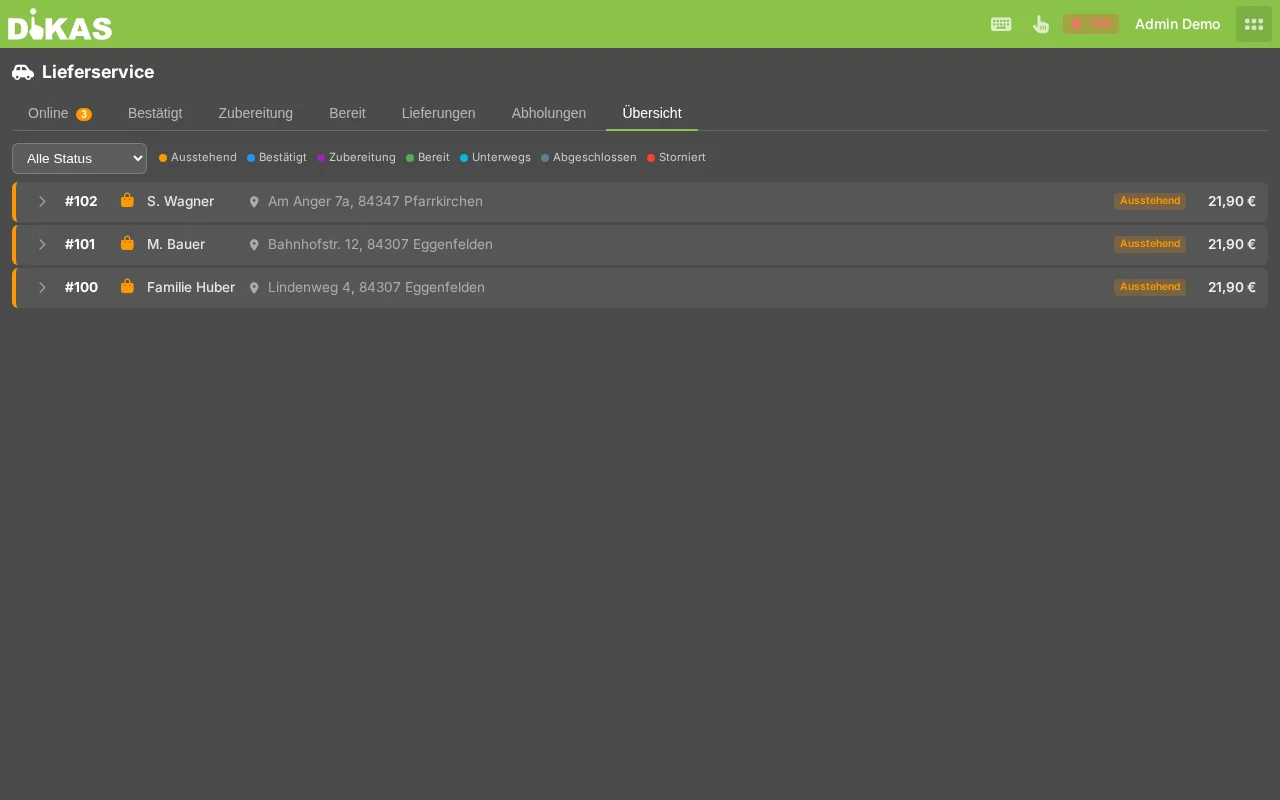
The delivery service in the POS has three tabs:
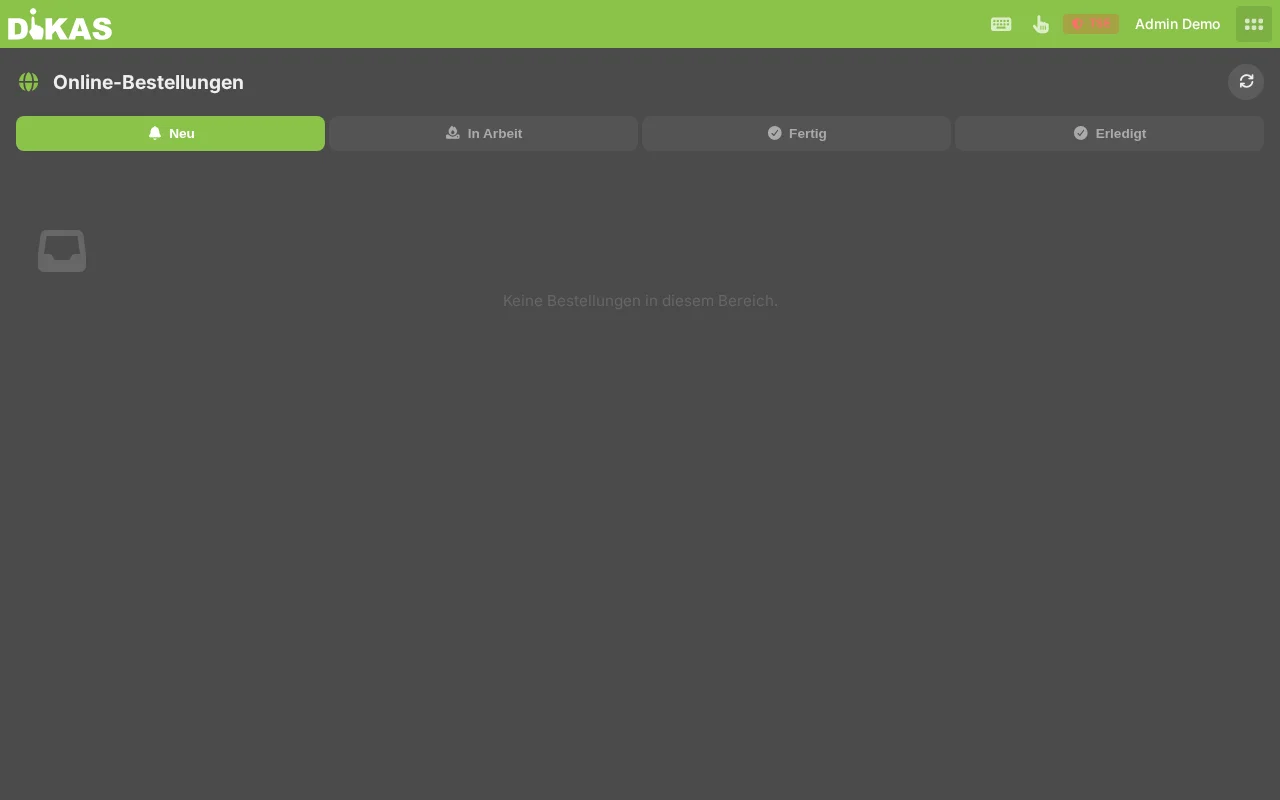
Tab 1: Online
Shows all incoming orders that have not yet been accepted — from your own online shop (pickup/delivery, self-service), from GloriaFood and from Lieferando/Wolt/Uber Eats. Orders from your own shop appear here immediately on submission (or after a successful online payment) — just like platform orders:
| Column | Description |
|---|---|
| No. | Order number |
| Customer | Name + phone |
| Type | Pickup / Delivery |
| Articles | Ordered articles |
| Amount | Total amount |
| Source | GloriaFood, web shop, etc. |
Actions: Confirm (→ to kitchen) or Cancel.
Tab 2: Delivery (Workflow)
The main work tab with status columns:
┌─────────────┬─────────────┬─────────────┬─────────────┬─────────────┐
│ Confirmed   │ Preparing   │   Ready     │  En Route   │ Completed   │
│     (1)     │     (2)     │     (3)     │     (4)     │     (5)     │
├─────────────┼─────────────┼─────────────┼─────────────┼─────────────┤
│ #101 Pizza  │ #100 Burger │ #098 Pasta  │ #095 Salad  │ #092        │
│ Müller      │ Weber       │ Schmidt     │ → Driver Tom│ ✓ 18:15     │
│ 19:30       │ 🔥 12 min   │ ✓ Ready     │ 🚗 5m ago   │             │
│             │             │             │             │             │
│ [→ Kitchen] │             │ [Assign]    │             │             │
└─────────────┴─────────────┴─────────────┴─────────────┴─────────────┘
Features: - Status change via click or drag & drop - Assign driver (when "Ready") - Optimize route (select multiple orders) - Dispatch (batch delivery to driver)
Tab 3: Overview
All orders grouped by cardinal direction — for quick orientation:
North (N)                    East (E)
  #101 Müller, Hauptstr.      #104 Weber, Gartenweg
  #103 Schmidt, Berliner      #107 Lang, Ostpark

South (S)                    West (W)
  #102 Fischer, Südring       #106 Braun, Weststr.
  #105 Meier, Schillerstr.
Tab: Completed
Lists today's completed orders — sorted in descending order (the most recently completed at the top). The cards are display-only (no more workflow buttons). An order only appears here once it has been set to "Completed" manually via the complete button — nothing moves here automatically.
Time-Based Color Coding
As with the kitchen display, orders are color-coded to highlight overdue items:
Kitchen (Preparation Time)
| Wait Time | Color | Default |
|---|---|---|
| On schedule | Green | < 15 min |
| Getting tight | Yellow | 15–30 min |
| Overdue | Red | > 30 min |
Packaging/Ready (Wait Time)
| Wait Time | Color | Default |
|---|---|---|
| On schedule | Green | < 15 min |
| Getting tight | Yellow | 15–30 min |
| Overdue | Red | > 45 min |
The thresholds can be adjusted under Admin → Settings → Delivery Service → Color Times.
Editing Orders
Changing Articles After the Fact
As long as an order is not paid:
- Select order → "Edit"
- Order is opened in the POS (with all items)
- Add, remove, or change articles
- Save → kitchen tickets are updated
Voiding a Single Item
- Select order → "Void item"
- Select item + enter void reason
- The corresponding kitchen ticket is voided
- Total amount is recalculated
Reassigning a Driver
If a driver is unavailable or the tour needs to be rescheduled:
- Select order → "Reassign driver"
- Choose new driver
- The order is assigned to the new driver
Configuration (Overview)
Admin → Settings → Delivery Service
General
| Setting | Description | Default |
|---|---|---|
| Delivery service enabled | Module on/off | Off |
| Pickup only | Disable delivery, only allow pickup | No |
| Default delivery time | Estimated delivery time in minutes | 45 |
| Default pickup time | Estimated pickup time in minutes | 15 |
| Free delivery from | Order value above which no delivery fee is charged | 0 (disabled) |
| VAT on delivery fee | Tax class for the delivery fee | 19 % |
Printing
| Setting | Description |
|---|---|
| Delivery printer | Default printer for delivery service receipts |
| Address on ticket | Print customer address on the kitchen ticket |
| Delivery time on invoice | Requested delivery time on the receipt |
| Barcode on ticket | Print barcode for scanning |
Workflow
| Setting | Description | Default |
|---|---|---|
| Use confirmation | Orders must be accepted first | Yes |
| Use preparation | Optional kitchen step in the workflow | No |
| Use ready | Optional "Ready" status before handoff to driver | No |
Online Orders
| Setting | Description |
|---|---|
| Automatically confirm | Send online orders directly to the kitchen |
| GloriaFood without API key | Accept webhooks without key validation |
Delivery Platforms
| Setting | Description |
|---|---|
| Enabled (per platform) | Switch on the Lieferando, Wolt, or Uber Eats integration |
| Auto-accept | Confirm incoming platform orders immediately (accept + kitchen tickets) |
| Credentials | Token/API key, restaurant/venue/store ID, webhook secret from the partner portal |
| Online pre-check | Review orders before confirmation |
Postal Code Mode
| Setting | Description |
|---|---|
| Use postal codes | Zone assignment primarily via postal code |
Statistics
Live statistics are displayed in the delivery service tab:
| Metric | Description |
|---|---|
| Pending | Number of unconfirmed orders |
| Confirmed | Number of confirmed orders |
| Preparing | Orders in the kitchen |
| Ready | Finished orders, waiting for driver |
| En Route | Orders with driver |
| Completed | Orders completed today |
| Cancelled | Orders cancelled today |
Practical Examples
Pizzeria with Delivery Service
Situation: Pizzeria "Napoli" with 3 drivers, delivery radius 10 km.
Setup: - 3 delivery zones: City center (3 km, 2 €), city area (7 km, 4 €), suburbs (10 km, 6 €) - Free delivery from 25 € - Minimum order value: 12 € - GloriaFood connected - Default delivery time: 40 min
Typical flow: 1. 18:30 — 3 online orders come in (GloriaFood) 2. 18:31 — Employee confirms all 3 → kitchen tickets are printed 3. 18:45 — 2 phone orders taken in the POS 4. 19:00 — Kitchen reports 4 orders as "Ready" 5. 19:02 — Driver Tom is assigned → optimize route 6. 19:03 — Optimized route: 4 stops, 8.5 km, ~22 min 7. 19:03 — Route sent to Tom via WhatsApp 8. 19:05 — Tom departs (status: "En Route") 9. 19:25 — Tom delivers last order → all "Completed"
Restaurant with Pickup Only
Situation: Restaurant offers only pickup (no delivery service).
Setup: - Delivery service enabled, "Pickup only" on - No delivery zones needed - Default pickup time: 20 min - GloriaFood for online orders
Flow: 1. Customer orders by phone → POS: New order → Pickup 2. Employee: "Your order #105 will be ready in about 20 minutes" 3. Kitchen prepares → "Ready" 4. Customer arrives → payment → "Completed"
Catering with Advance Orders
Situation: Catering service takes orders for the next day.
- Take order with desired time = tomorrow 12:00
- Order stays as "Confirmed" until the next day
- The next morning: kitchen starts preparing
- 11:45: Order "Ready" → assign driver → Dispatch
- 12:00: Delivery to customer
API Endpoints
| Method | Endpoint | Description |
|---|---|---|
| GET | /api/v1/delivery |
Query orders (with filters) |
| GET | /api/v1/delivery/{id} |
Single order |
| GET | /api/v1/delivery/by-number/{nr} |
Order by number |
| GET | /api/v1/delivery/stats |
Statistics (count per status) |
| POST | /api/v1/delivery |
Create new order |
| PUT | /api/v1/delivery/{id}/status |
Update status |
| PUT | /api/v1/delivery/assign |
Assign driver |
| POST | /api/v1/delivery/{id}/pay |
Pay order |
| POST | /api/v1/delivery/dispatch |
Batch delivery (dispatch) |
| POST | /api/v1/delivery/place |
Order with kitchen tickets |
| POST | /api/v1/delivery/optimize-route |
Optimize route |
| POST | /api/v1/delivery/send-route |
Send route via WhatsApp |
| POST | /api/v1/delivery/{id}/load-for-edit |
Load for editing |
| POST | /api/v1/delivery/{id}/void-item |
Void item |
| PUT | /api/v1/delivery/{id}/reassign-driver |
Reassign driver |
| DELETE | /api/v1/delivery/{id} |
Cancel order |
Frequently Asked Questions
Can orders be taken for a later time? Yes. Enter the desired delivery/pickup time. The order stays in the system and can be sent to the kitchen at the appropriate time.
What happens with an address outside all delivery zones? DiKAS displays a warning. The order can still be taken — the delivery fee must then be set manually.
Can multiple drivers be en route at the same time? Yes. Each driver has their own tour. Route optimization can be performed separately for each driver.
Does the delivery service work offline (Android app)? Yes, with limitations: orders can be taken and sent to the kitchen. Route optimization requires an internet connection to the Valhalla server.
How are online orders from GloriaFood matched? DiKAS attempts to automatically match ordered articles by name, article number, or barcode. Unrecognized articles are inserted as manual items.
Can I customize the order numbers? The numbers start daily at 100 and are assigned sequentially. The starting number is automatically reset daily.
Next Step
→ Time Tracking — Record work hours via time clock